📊 Dashboard
The Dashboard is the home screen of EQUOS — the first thing you see when you sign in, and a single view of how your business is tracking right now. This page will guide you through reading each card, changing the period you are looking at, and moving out into the modules to get work done.
Your dashboard is always available, on every plan, so it is the one screen everyone on your team shares as a starting point each day.
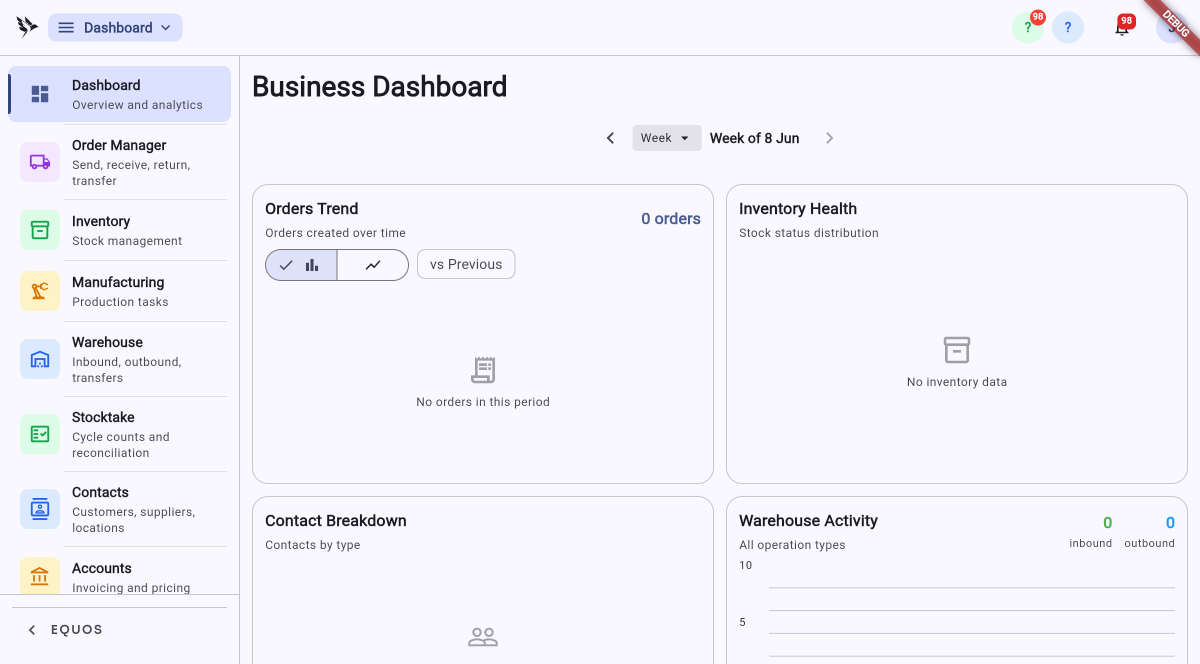 The Business Dashboard, with the four summary cards and the week selector across the top.
Reading the dashboard
The Dashboard is a fixed layout of four cards, each one a window into a different part of your operation. They read from the live data in your account, so what you see is always current — there is nothing to refresh or rebuild.
- Orders Trend — the orders created over your chosen period, so you can see at a glance whether the day, week or month is busier or quieter than usual. Use the small toggle to switch between a bar and a line view, and "vs Previous" to compare against the period before.
- Inventory Health — your stock status distribution, showing how your items are spread across in-stock, low and out-of-stock. This helps you spot a supply problem before it becomes an order you can't fulfil.
- Contact Breakdown — your directory split by type, so you can see the balance of customers, suppliers and locations you are working with.
- Warehouse Activity — inbound and outbound movement over the period, with running counts for each, so you can tell how much is coming in against how much is going out.
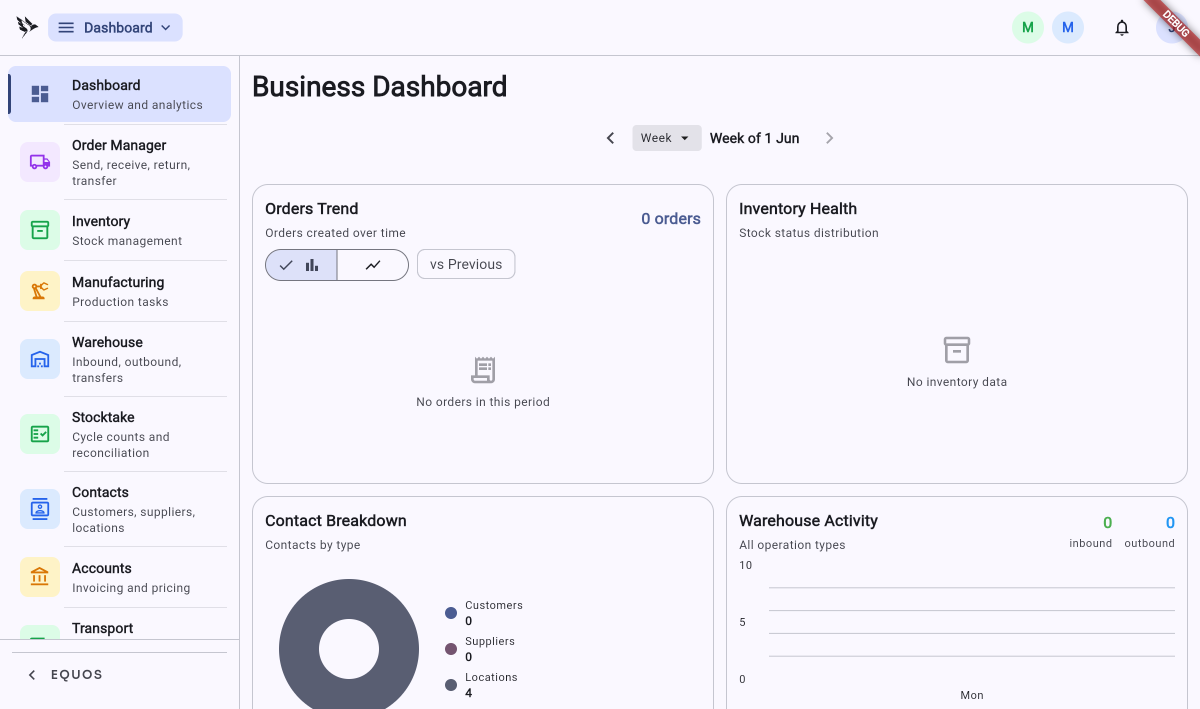 The Contact Breakdown card renders as a donut once your directory has contacts in it.
The four cards — Orders Trend, Inventory Health, Contact Breakdown and Warehouse Activity — are your daily read on orders, stock, contacts and warehouse movement. They update themselves from your live data, so a single glance tells you where things stand.
The Dashboard is a fixed set of cards — there is no drag-and-drop or per-user layout to configure. Everyone on your team sees the same four windows, which keeps the morning conversation on the same page.
Choosing the period
Every card reads over the same window of time, and you control that window from the selector across the top of the screen.
- Use the "Week" dropdown to change the length of the period you are looking at.
- Step backwards and forwards through periods with the "‹" and "›" arrows either side of the date label.
- Press "vs Previous" on the Orders Trend card to lay the current period against the one before it.
This ensures the numbers you are reading always cover the stretch of time you actually care about, whether that is today's activity or how the month has gone.
If a card shows "No orders in this period" or "No inventory data", there is simply nothing recorded for the window you have selected yet. As you create orders, add stock and build your contact directory, the cards fill in on their own.
Navigating to your modules
The Dashboard is also your launch pad. Everything you do in EQUOS lives one click away down the left-hand rail.
- The navigation rail on the left lists every module your plan includes — Order Manager, Inventory, Manufacturing, Warehouse, Stocktake, Contacts, Reports, Settings and more. Simply select one to open it.
- The module pill at the very top of the screen — showing "Dashboard" with a dropdown arrow — is a quick switcher you can use from anywhere, so you are never more than a tap from another part of the app.
- The icons in the top-right corner give you help and your notifications, with the bell showing a count when something needs your attention.
This allows you to keep the Dashboard as your home base and dip into whichever module the day's work calls for, then come straight back to the overview.
Getting the most from it
The Dashboard rewards a quick look at the start of the day and another before you close up.
- Check Inventory Health first: a rising out-of-stock slice is your earliest warning that an order might not go out on time.
- Watch Warehouse Activity against Orders Trend: when orders climb but outbound movement doesn't follow, work is banking up in the warehouse.
- Use the period arrows: comparing this week to last is the fastest way to tell whether a change is a blip or a trend.
This helps you catch the small problems while they are still small, rather than finding them in a customer's phone call.