📈 Reports
Reports turn the day-to-day records in EQUOS into tidy, printable documents you can file, share or hand across. This page will guide you through finding the report you need, generating it, and downloading the finished PDF.
Everything lives on a single Reports screen, laid out as a catalogue of the reports you can produce, grouped by the part of the business they cover. At the top sits your history of recent reports, ready to download again without regenerating.
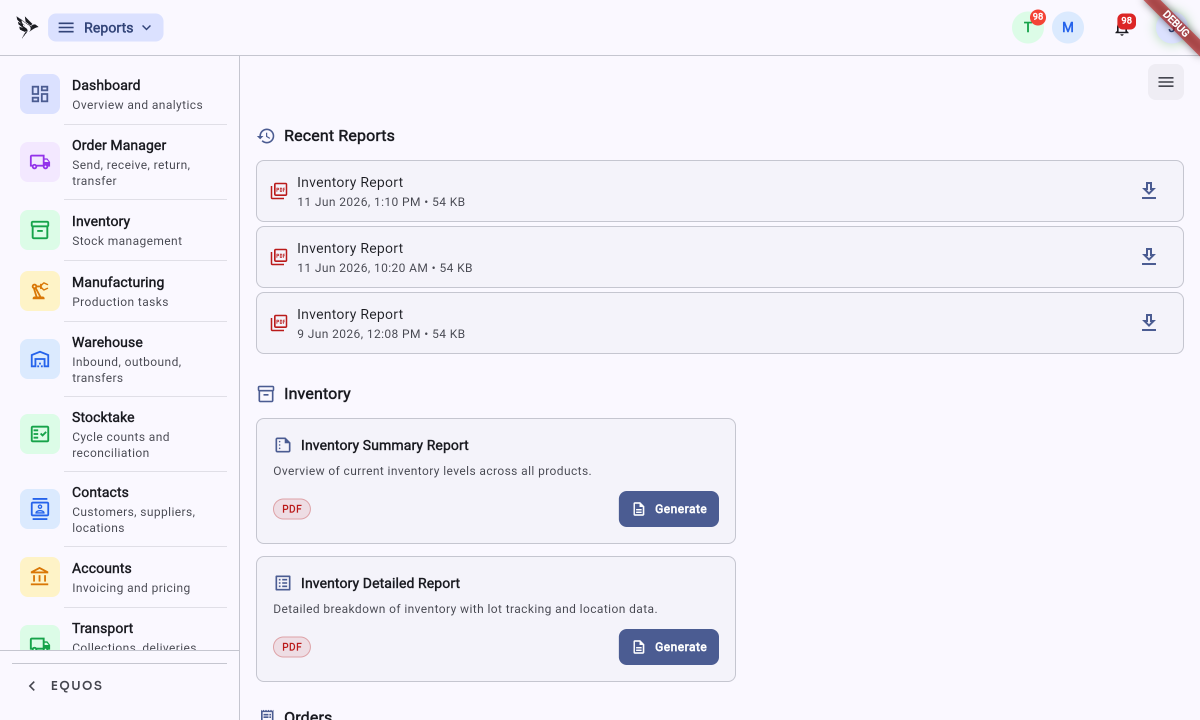 The Reports screen: Recent Reports across the top, then the report catalogue grouped by category.
The Reports screen is a catalogue. Each card is one report you can generate as a PDF; the "Recent Reports" list at the top keeps your last few generations so you can re-download them in a click.
The reports you can run
Reports are grouped by category so you can go straight to the area you need. Scroll the catalogue to see each group and the reports it offers.
Inventory reports
- Inventory Summary Report — an overview of your current stock levels across all products. Reach for this when you want a single, shareable snapshot of where your stock sits.
- Inventory Detailed Report — a fuller breakdown of your inventory, including lot tracking and location data, for when a summary isn't enough and you need the line-by-line picture.
Order reports
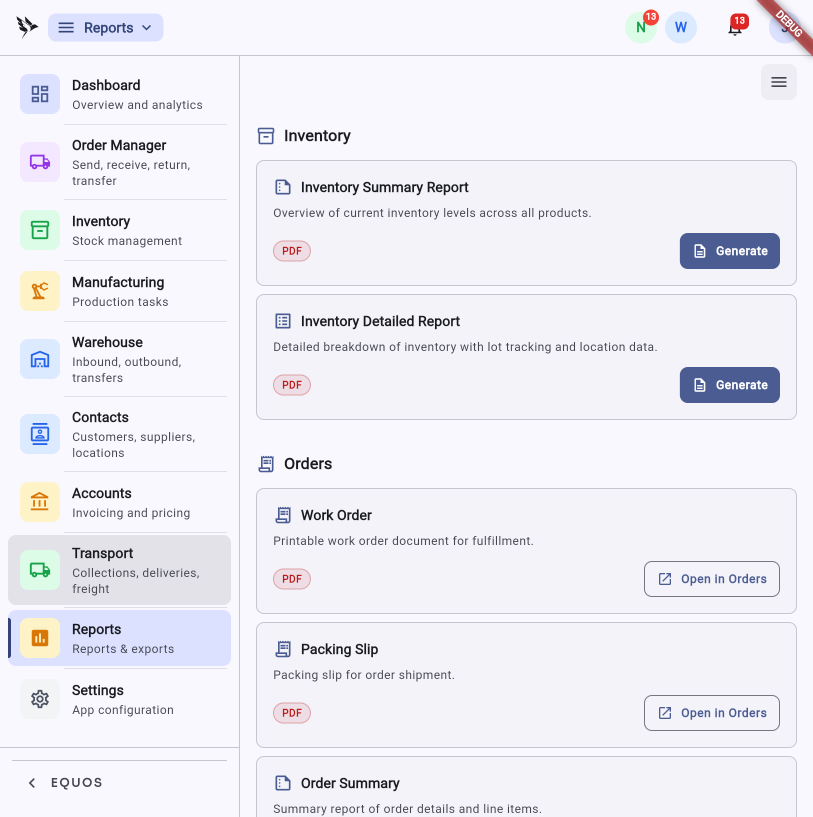 Scroll down to the Orders group for the printable order documents.
- Work Order — a printable work order document for fulfilment, so the people picking and packing have the job in hand on paper.
- Packing Slip — the packing slip for an order's shipment, to go in or on the carton.
- Order Summary — a summary of an order's details and line items.
Some order documents belong to a specific order rather than the catalogue as a whole. Where a card shows "Open in Orders" instead of "Generate", simply follow it through to the Order Manager and produce the document from the order it relates to. This ensures the work order or packing slip always carries the right details for the job it belongs to.
Generating a report
Producing a report is a matter of picking the card and pressing one button.
- Find the report you want in the catalogue.
- Press the blue "Generate" button on its card.
- EQUOS builds the document as a PDF and shows you a "Report Ready" dialog when it is done.
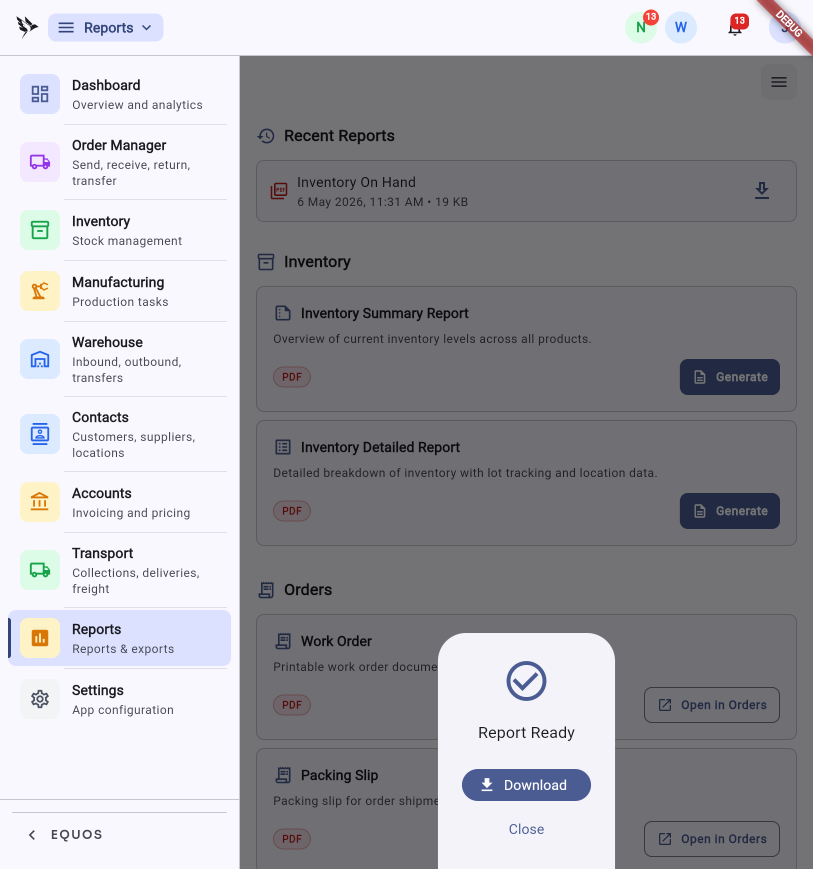 The "Report Ready" dialog appears once your PDF has been built.
- Press "Download" to save the PDF to your device, or "Close" to dismiss the dialog.
Every report is produced as a print-ready A4 PDF, so it looks the same whether you open it on screen, email it on, or send it to the printer.
Downloading again from Recent Reports
You don't need to regenerate a report you have already run. The "Recent Reports" list at the top of the screen keeps your latest generations, each one showing when it was produced and its file size.
- Find the report in the "Recent Reports" list.
- Press the download icon on the right of its row to save the PDF again.
This allows you to run a report once and come back to the exact same file later, rather than building it a second time.
Need to send a report to someone outside your business? Generate and download it here, then share it securely with Document Serve — a secure link with an expiry date and open tracking, no recipient login required.
What Reports doesn't do
Reports gives you clean documents from your live data — it is not a spreadsheet builder.
- It won't design custom report layouts for you; the reports on offer are the ones in the catalogue.
- It isn't a live dashboard — for the at-a-glance view of orders, stock and warehouse movement, that is the Dashboard.