🏦 Bank & Reconciliation
Your bank accounts are where the money actually moves, so equosBooks keeps them close to your books. This page will guide you through setting up bank accounts, importing a statement, recording transfers, and reconciling an account against the statement your bank gives you.
Set up a bank account, import its statement as a CSV, and record any transfers between accounts. When your bank statement arrives, start a reconciliation with the statement date and closing balance, tick off the transactions that have cleared, and watch the variance fall to zero before you press "Complete Reconciliation".
Setting up bank accounts
Open Bank from the sidebar to see your accounts. To add one, simply press "+ Bank Account" and fill in the account name, the institution, and the account number. You also choose an "Account Type" — Checking, Savings, Cash / Petty Cash, Merchant Account (EFTPOS / Stripe / Square), Credit Card, Credit Line, or Loan. The type tells equosBooks whether the account is an asset or a liability, so your Balance Sheet reads correctly.
If you run more than one business from the same physical account, tick the shared option when you create it. A shared account carries a "Shared" badge and can be used across your entities, which lets you split its transactions to the right business as you import them. This ensures a single real-world account does not have to be recreated in every set of books.
Importing a bank statement
Rather than key transactions in one by one, download a CSV statement from your online banking and bring it straight in.
- Select the account, then press "Import CSV" and choose your downloaded file.
- Map the columns: tell equosBooks which column holds the "Date", which holds the "Description", and which holds the "Amount". A preview shows your rows so you can confirm the mapping looks right before committing.
- Press the import button to bring the rows in.
equosBooks checks for duplicates as it imports and skips any transaction that already matches one on the account. This ensures that re-importing an overlapping statement will not double up your entries.
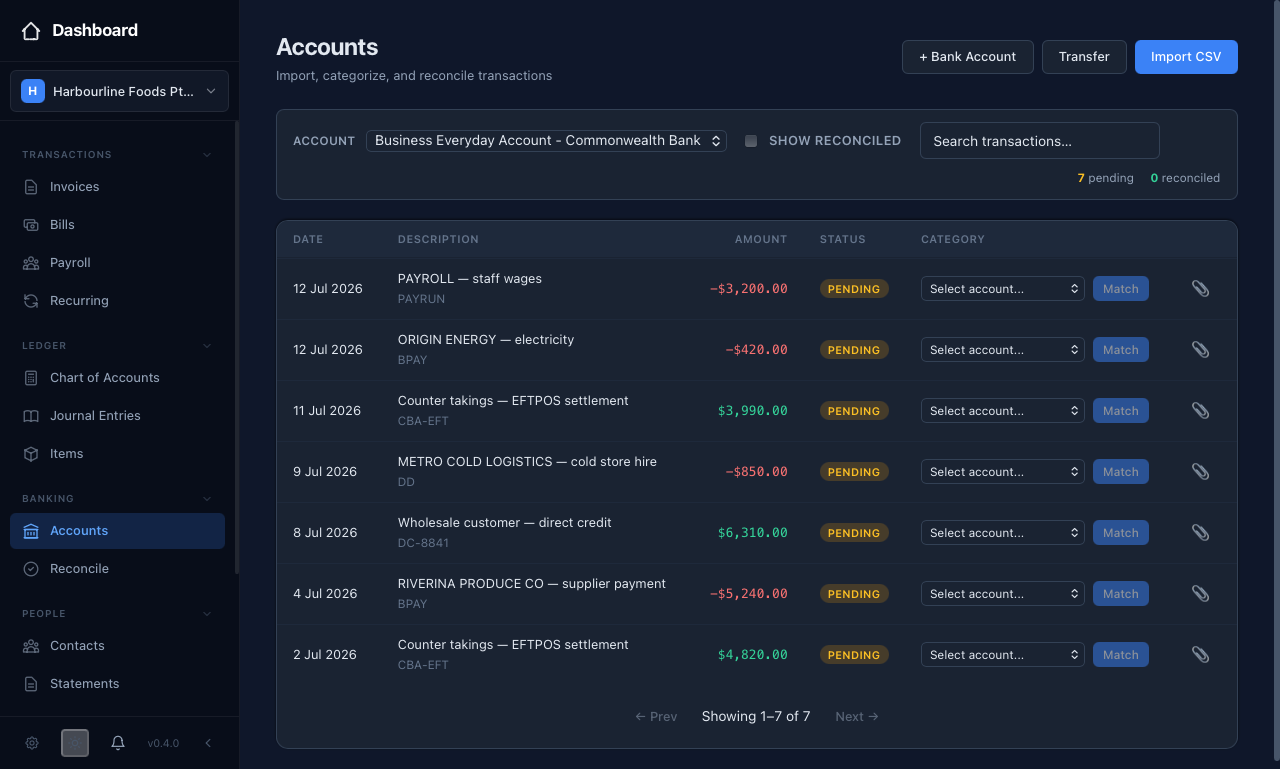 Once a statement is imported, each line waits as "PENDING" until you match or categorise it.
Recording transfers
Money you move between your own accounts is not income or expense — it is a transfer. Press "Transfer" on the Bank page, choose the account the money left and the account it landed in, and enter the amount and date. equosBooks records both sides for you, so the transfer nets to zero across your books and never inflates your profit.
Reconciling an account
Reconciliation is the check that your books agree with your bank. Open Reconcile from the sidebar and choose the account you want to work on.
- Press "Start Reconciliation" and enter the "Statement Date" and the closing "Statement Balance" printed on your bank statement. This opens a session for that period.
- Work down your unreconciled transactions and tick each one that appears on the statement. As you tick, equosBooks updates three figures at the top: the "Statement Balance" you entered, the "Cleared Balance" of what you have ticked, and the "Variance" between them.
- Keep ticking until the variance reaches zero. The variance card turns green and shows "Reconciliation balances. Ready to complete."
- Press "Complete Reconciliation" to close the session. The button only becomes available once the variance is zero, so you cannot accidentally finish an account that does not agree.
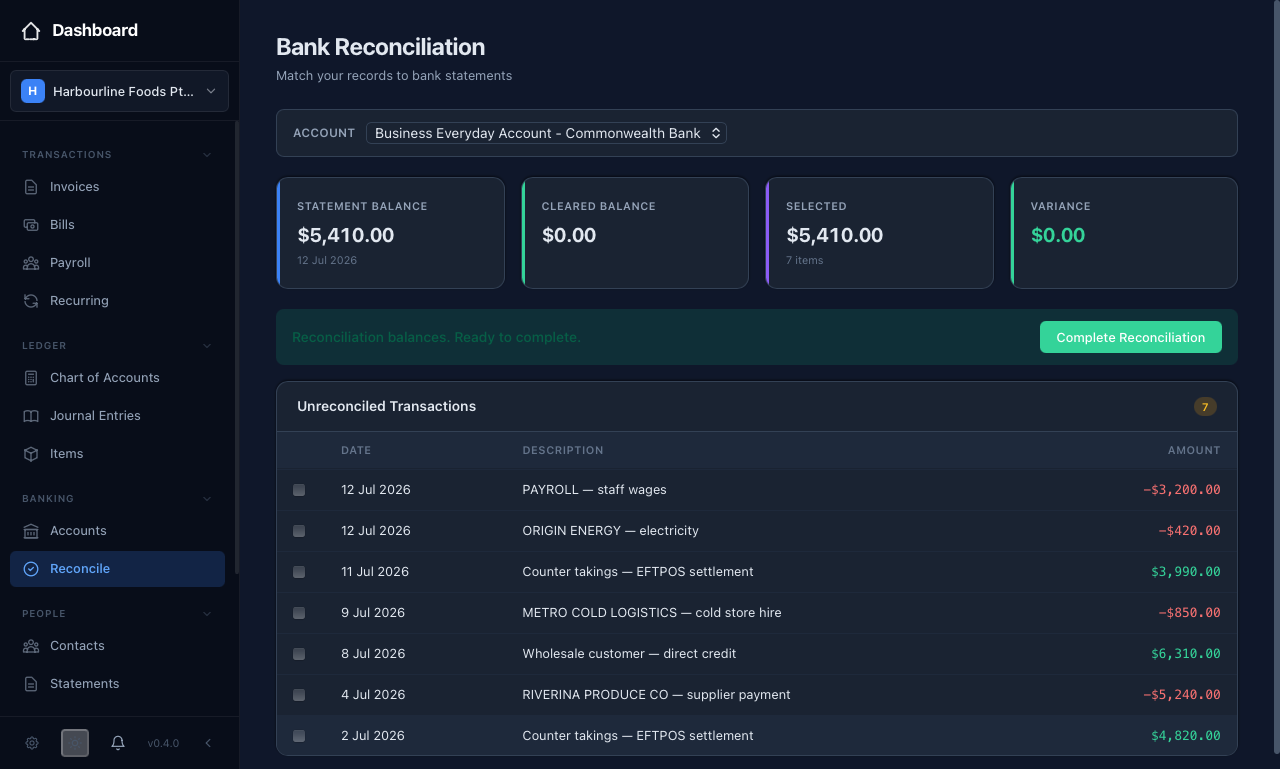 Tick each transaction that has cleared until the variance reaches zero and the card turns green — then you can complete the reconciliation.
If the variance will not close, something is out of step — a transaction you have recorded that has not yet cleared, a cleared transaction you have not recorded, or a wrong amount. Leave the session open, fix the entry, and come back; your ticks are kept.
Reconciliation history
Every completed reconciliation is kept under "Reconciliation History" on the same page, showing the statement date, statement balance, and when it was completed. This gives you a running record of which periods have been signed off, which is exactly what your accountant looks for at year end.