💸 Bills
Bills are the amounts you owe to your suppliers and vendors. The bill workflow mirrors invoicing, only from the payable side. This page will guide you through recording a bill, marking it received, paying it off, and voiding one if needed.
The bill list
Open "Bills" from the sidebar to see everything you owe. Each row shows the bill number, vendor, bill date, due date, status, total, and balance. The filter buttons — "All", "Draft", "Received", "Partial", "Paid", and "Void" — narrow the list, and you can "Export CSV" at any time.
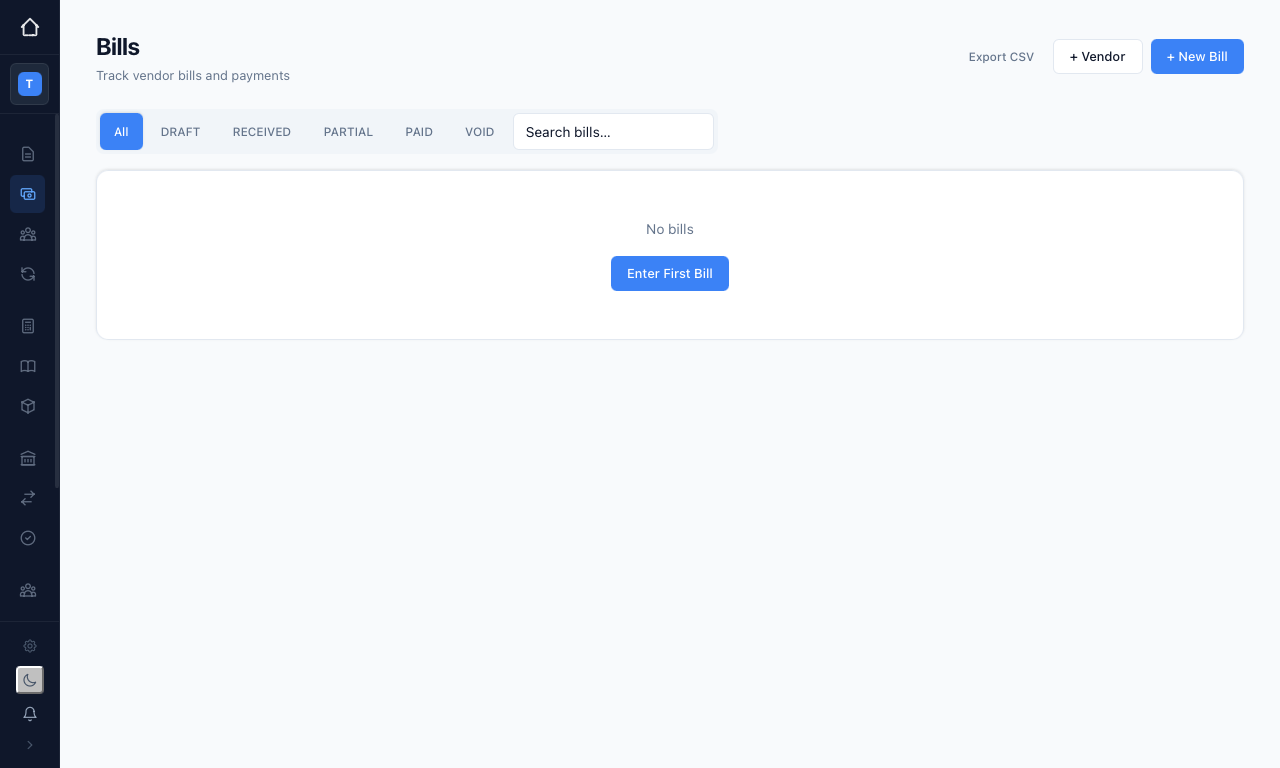
A bill moves through these statuses:
- Draft — saved but not yet entered into your accounts; still editable
- Received — recorded against Accounts Payable, ready to pay
- Partial — part-paid, a balance still owing
- Paid — settled in full
- Void — cancelled, with the original journal entries reversed
Creating a bill
Press "+ New Bill" to open the bill form.
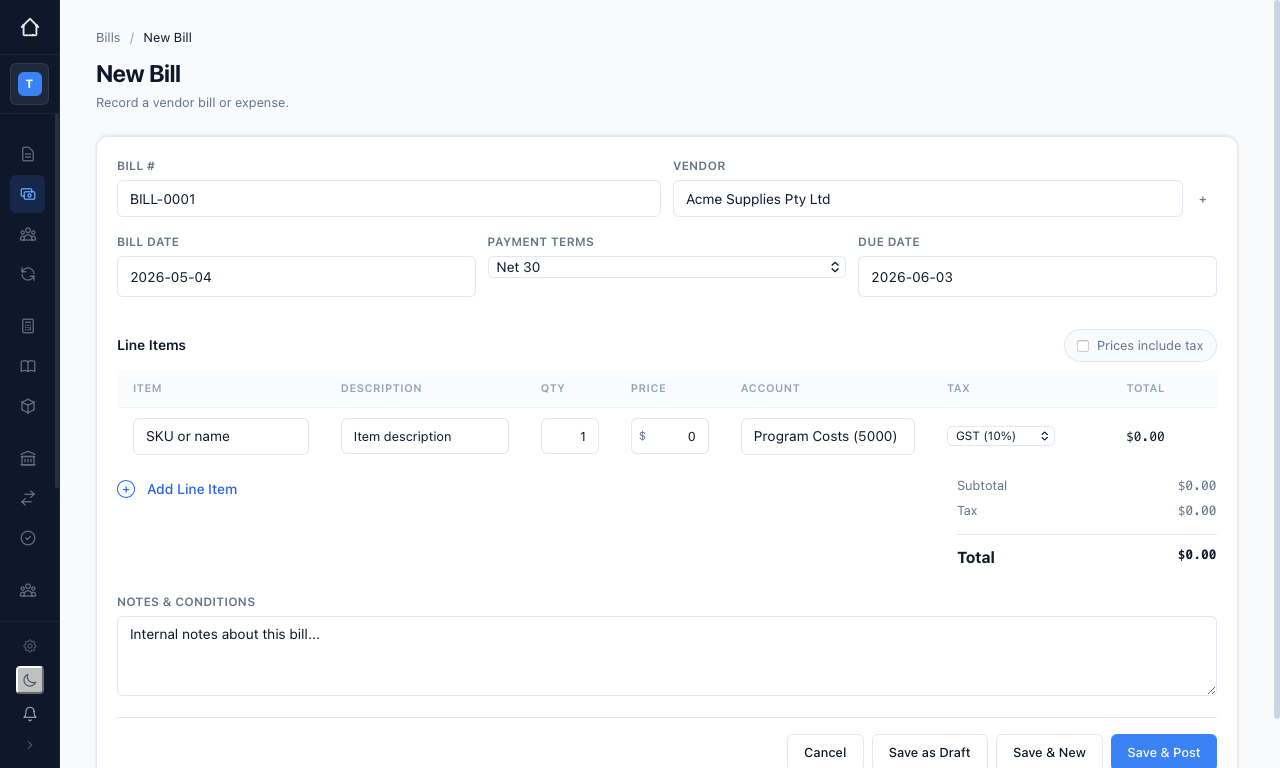
Fill in the details:
- Bill # — your own reference for the supplier's invoice
- Vendor — search your vendors, or simply press the "+" button to add a new one
- Bill Date and Payment Terms — the term sets the Due Date for you
- Line Items — a row for each charge, with a description, quantity, price, expense account, and tax code. Picking a saved item in the "Item" column fills the line from its cost, expense account, and tax code. This ensures similar expenses land in the same account every time.
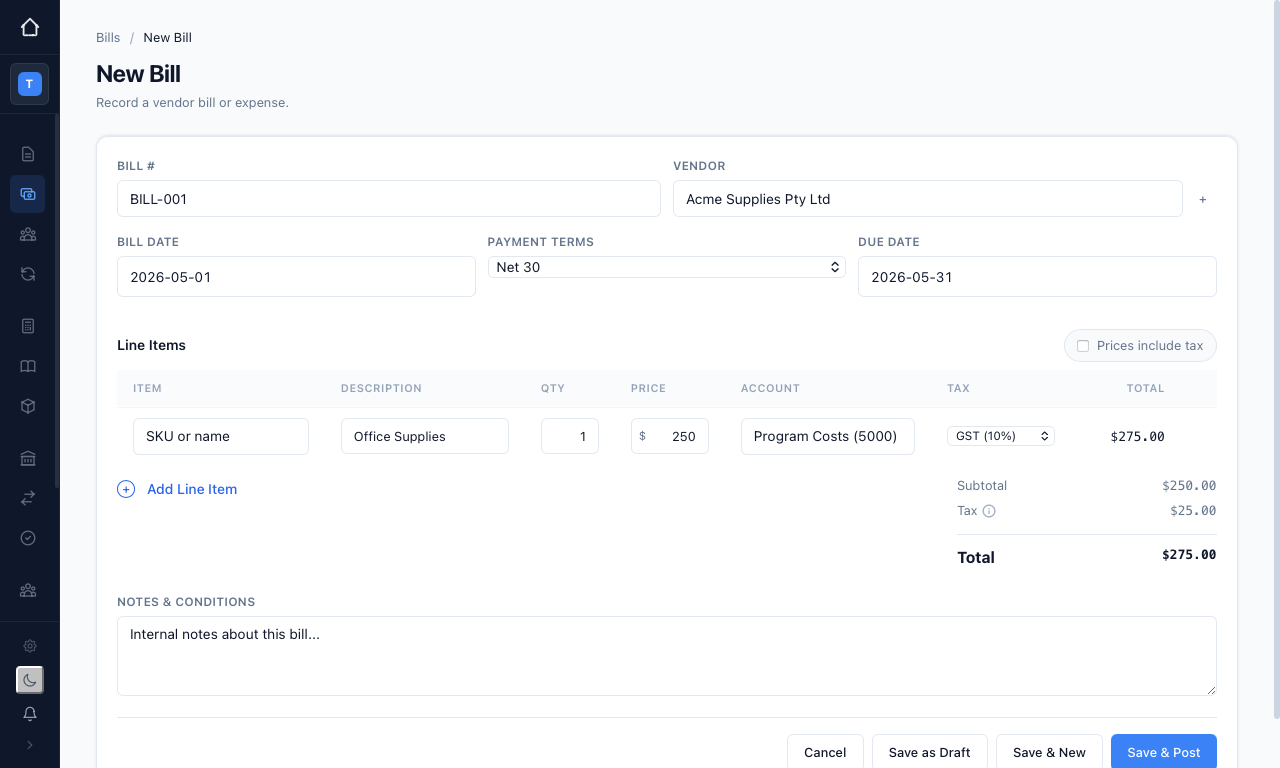
Then save:
- Save as Draft — keeps the bill editable, status "Draft"
- Save & Post — records the bill, sets its status to "Received", and posts the journal entries (debit the expense accounts, credit Accounts Payable)
- Save & New — records this one and starts another
Recording a payment
Open a "Received" or "Partial" bill and press the green "Record Payment" button. Enter the payment date, amount (defaulting to the full balance due), method, and an optional reference or note, then press "Record". The status becomes "Paid" once the balance clears, or "Partial" while an amount remains. This ensures your Accounts Payable and AP Aging report always show what you genuinely owe.
Voiding a bill
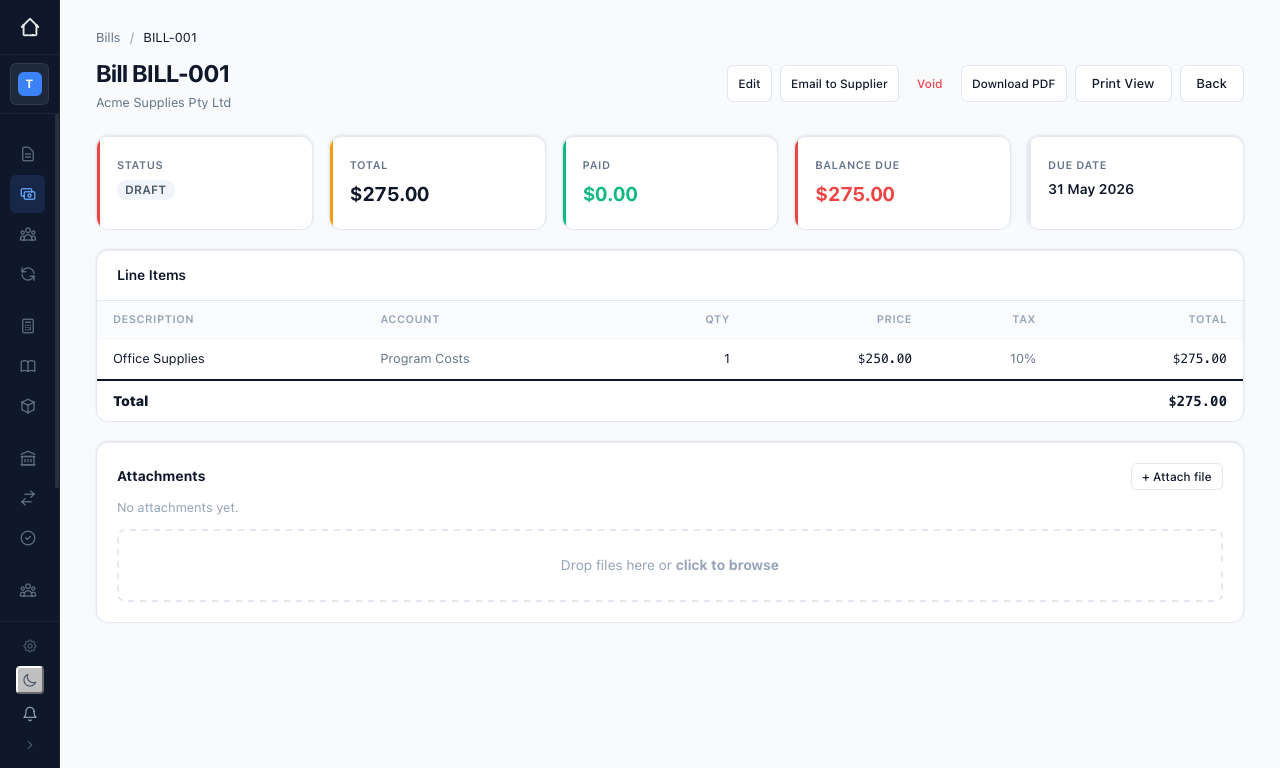
If a bill was entered in error, open it and press "Void", then confirm.
Voiding a bill reverses all of its journal entries and cannot be undone. The bill stays in the list marked "Void" for your audit trail but no longer affects your financials. A fully paid bill cannot be voided.
Related guides
- Invoices — the customer-facing side of the same workflow
- Recurring Transactions — enter regular bills such as rent automatically
- Reports — see bills in your P&L, AP Aging, and GST reports