📇 Contacts
Contacts are the people and companies you do business with — the customers you invoice and the suppliers who invoice you. This page will guide you through your contact directory and how to add and edit contacts.
The contact directory
Open Contacts from the sidebar to see everyone you do business with. A count at the top tells you how many contacts you have, and the tabs — "All", "Customers", and "Vendors" — let you narrow the list. You can also use the "Search contacts…" box to find a contact by name.
On a new business the directory is empty, so you will see a "No contacts yet" message with an "Add First Contact" button to get you started.
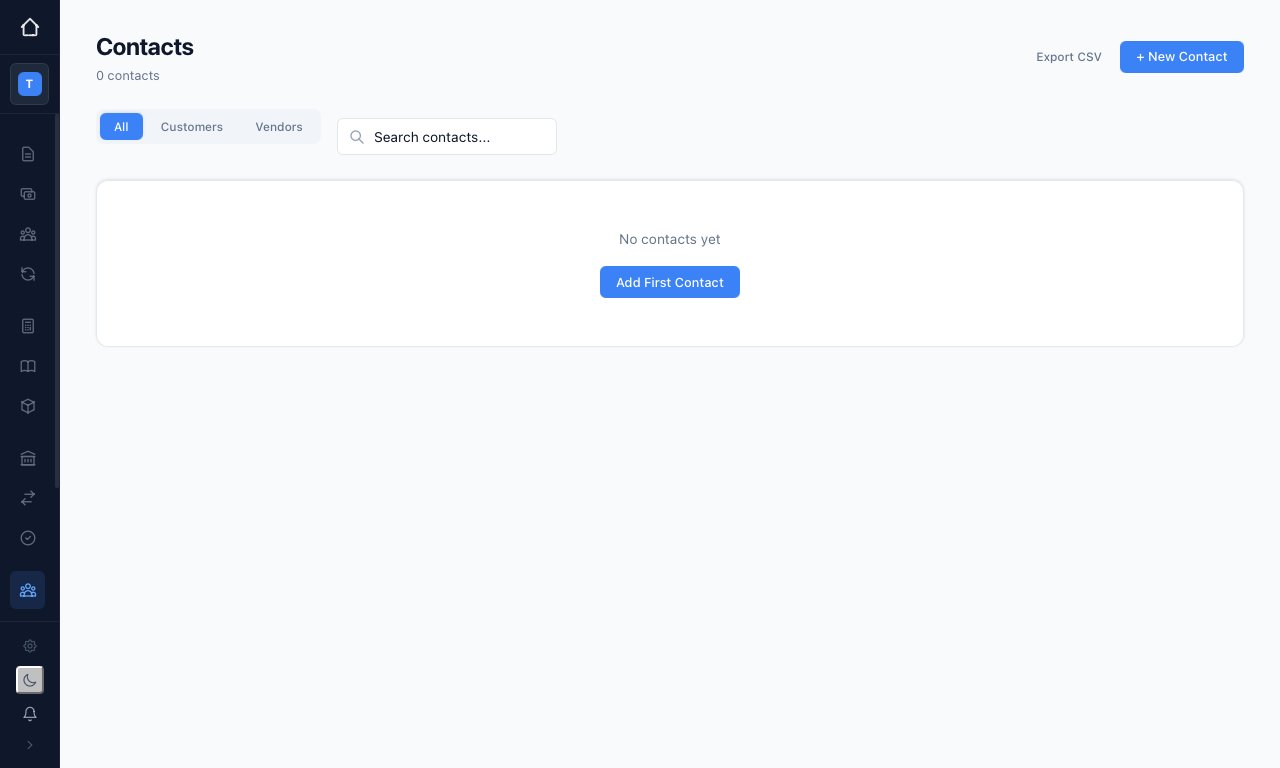 The Contacts directory before you have added anyone.
Once you have contacts, each row shows their Name, Type, Email, and Phone, with an "Edit" link at the end of the row.
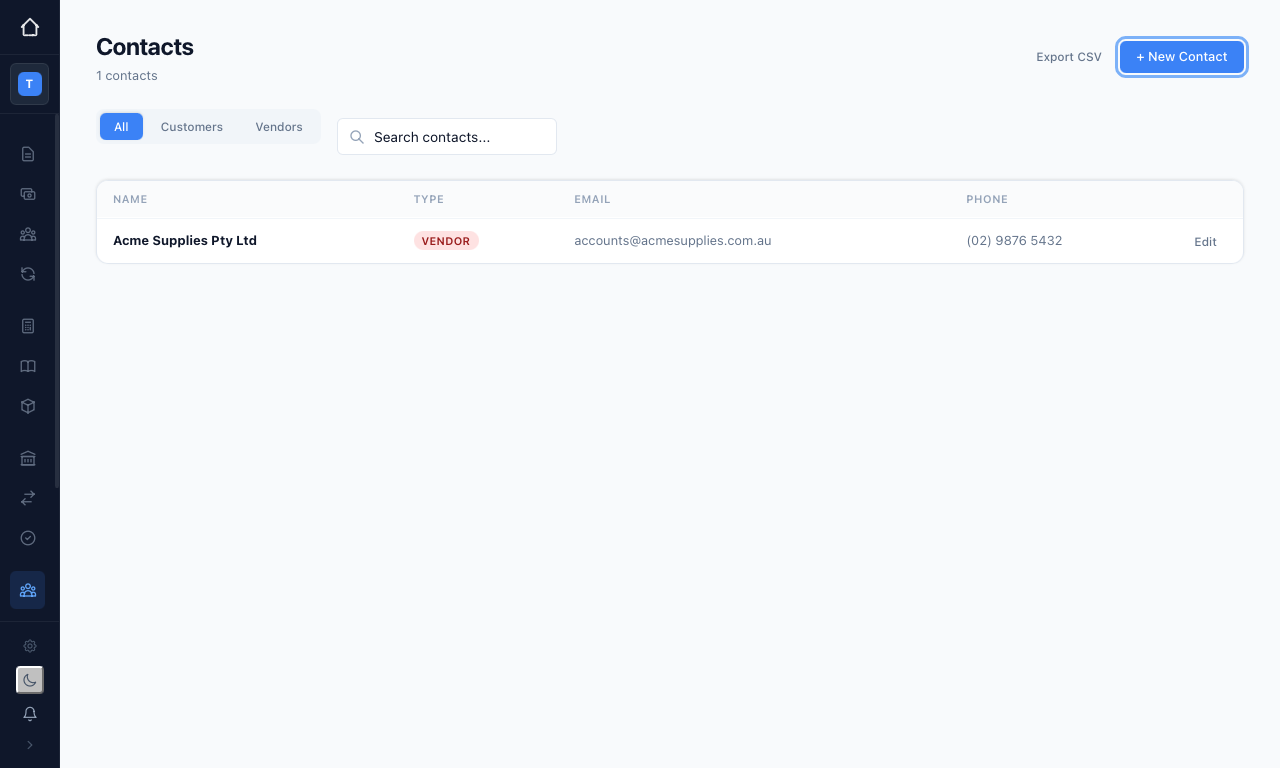 The directory with a supplier added.
Adding a contact
Press "+ New Contact" to open the quick contact form. Fill in the details:
- Name — the person or company name
- Type — Customer (you invoice them) or Vendor (they invoice you)
- Email — their contact email address
- Phone — their phone number
- Address — their mailing or billing address
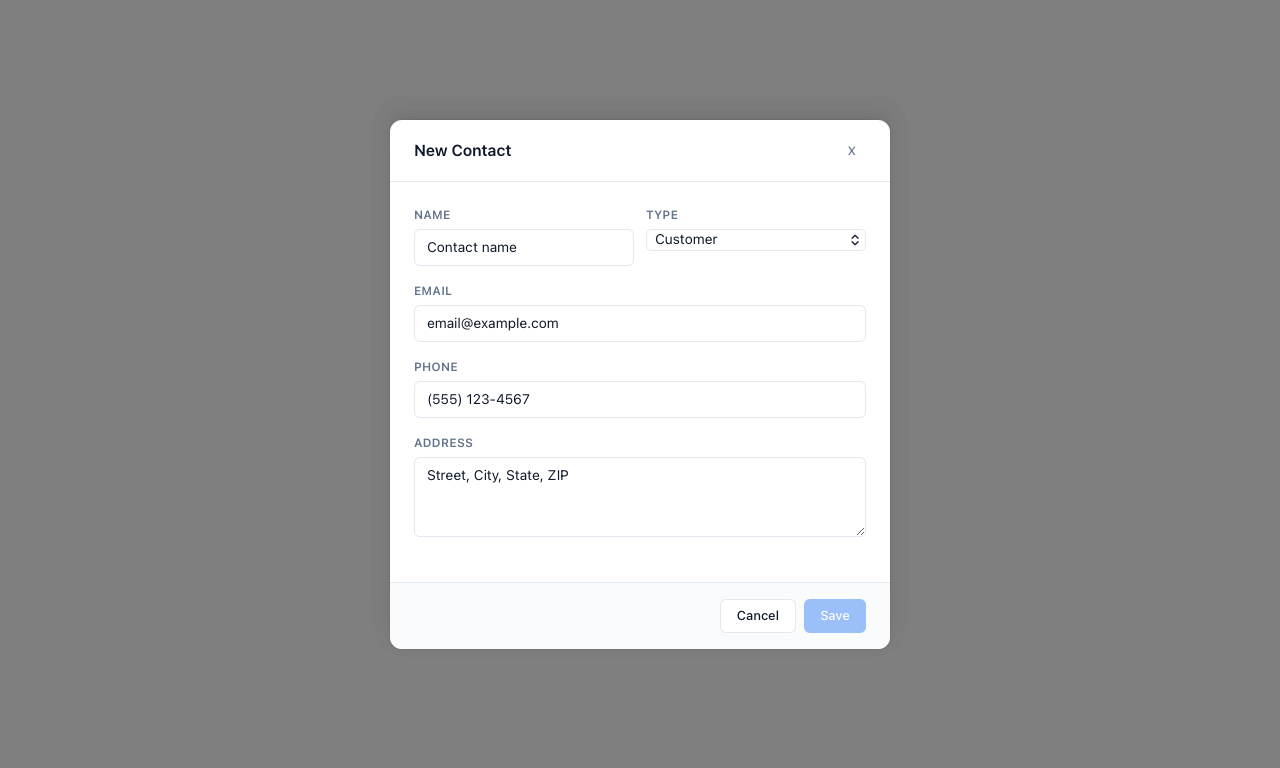 The New Contact form, ready for details.
Once the required details are in, the "Save" button becomes active. Press "Save" to add the contact to your directory. This ensures the people you invoice and the suppliers you pay are all kept in one place.
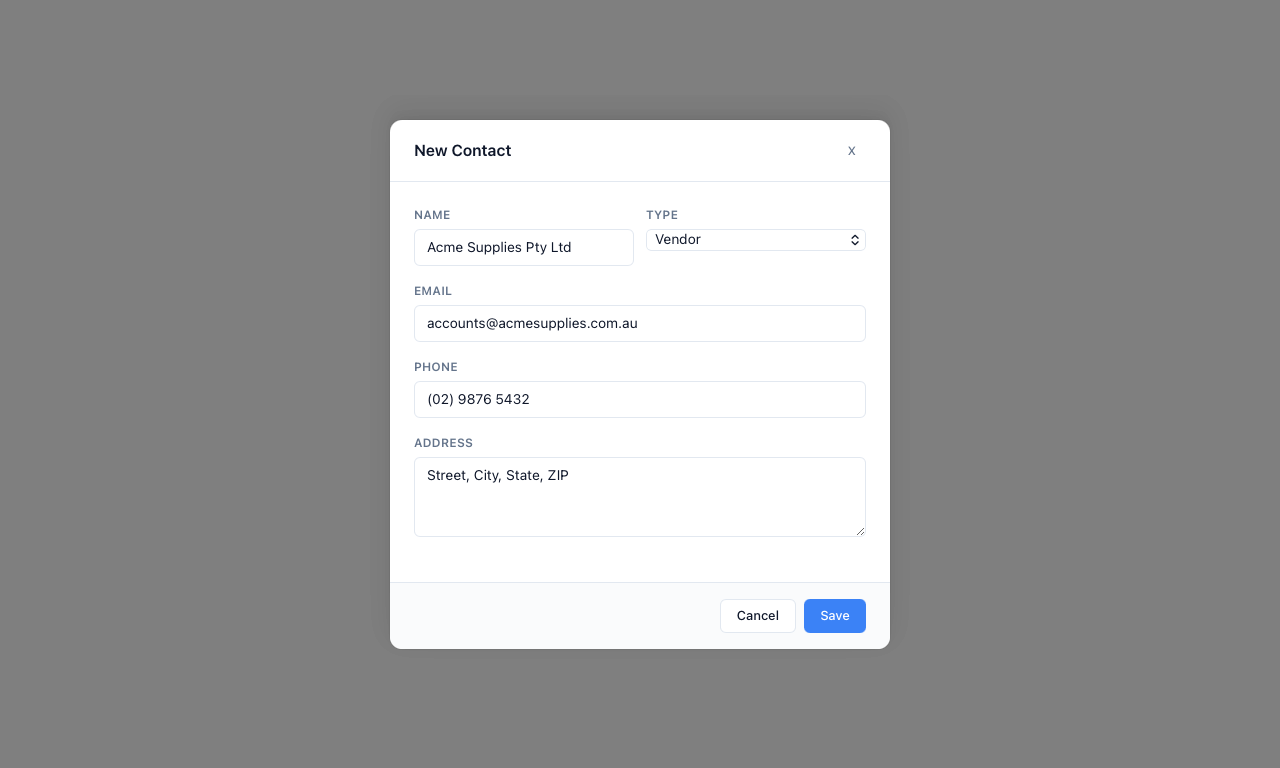 The New Contact form filled in for a supplier.
If you change your mind, press "Cancel" or the "X" in the corner to close the form without saving.
Editing a contact
To update someone's details, press the "Edit" link on their row in the directory. The same form opens with their current details, so you can easily change a phone number, email, or address and save it again. This keeps your records accurate as your customers and suppliers change over time.
Exporting your contacts
Press "Export CSV" to download your full contact directory as a spreadsheet file. This is handy for keeping a backup of your contacts or sharing the list outside the app.