↩️ Credit Memos
A credit memo records an amount you owe back to a customer — for returned goods, a pricing adjustment, or a billing correction — without deleting the original invoice. This page will guide you through issuing a credit memo and seeing how it is applied.
When to use a credit memo
Reach for a credit memo instead of voiding an invoice when the invoice is genuinely correct but the customer is owed something back. Voiding wipes the whole invoice; a credit memo leaves it intact and simply reduces what the customer owes. This keeps a clear paper trail of both the original charge and the adjustment.
Issuing a credit memo
Credit memos are always raised against an existing invoice, so start from the invoice itself:
- Open the invoice from the Invoices list. The invoice must be "Sent" or "Partial" — you cannot credit a draft or a voided invoice.
- Press the "Credit Memo" button on the invoice detail page.
- In the "Issue Credit Memo" window, enter the Amount (capped at the invoice's remaining balance), a Date, and a short Reason, such as "Returned goods" or "Pricing adjustment".
- Press "Issue Credit".
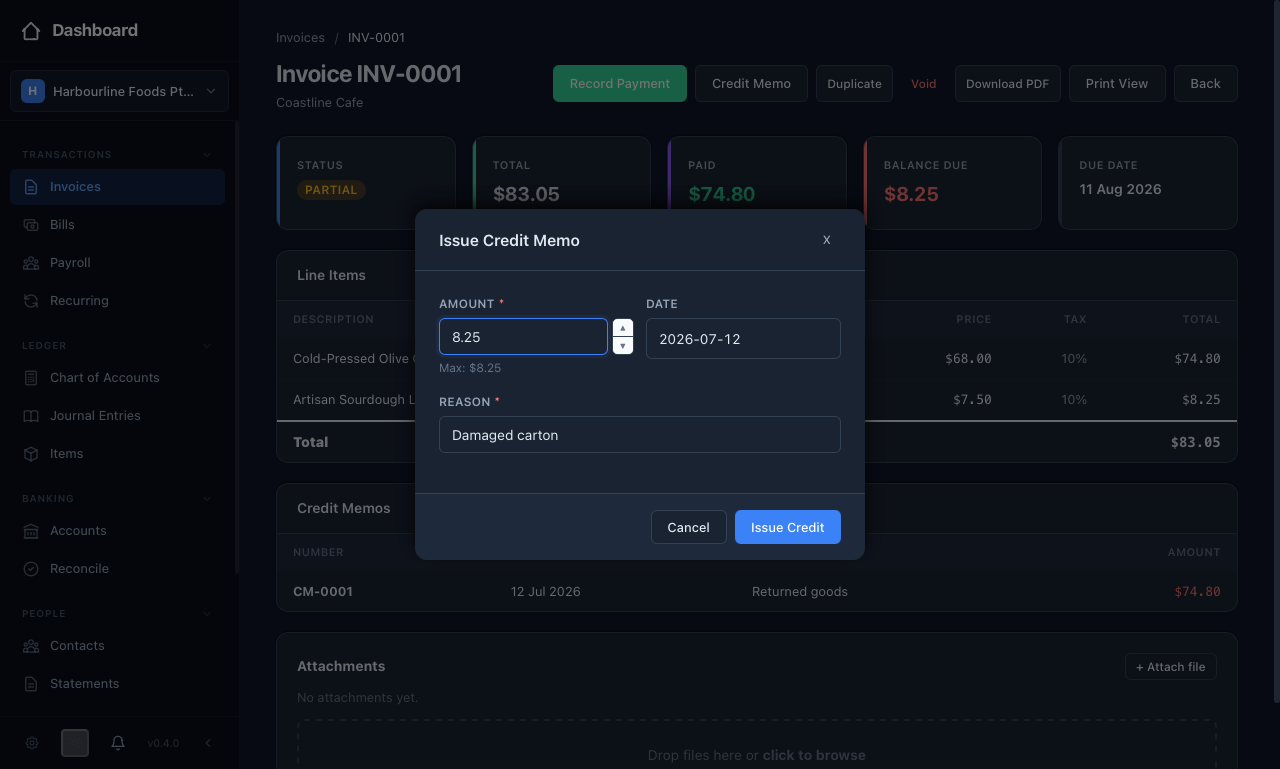 In the "Issue Credit Memo" window you enter an "Amount" (capped at the balance owing, shown as a "Max" hint), a "Date", and a short "Reason", then press "Issue Credit".
equosBooks numbers each credit memo automatically (CM-0001, CM-0002, and so on) and posts a balanced journal entry that reverses the revenue and reduces Accounts Receivable. This ensures the credited amount stops showing as outstanding.
How a credit is applied
Issuing the credit immediately reduces the invoice's balance due. If the credit covers the full outstanding balance, the invoice flips to "Paid"; if it covers only part, the balance simply drops by that amount. The credit memo then appears in its own "Credit Memos" panel on the invoice, alongside the payment history.
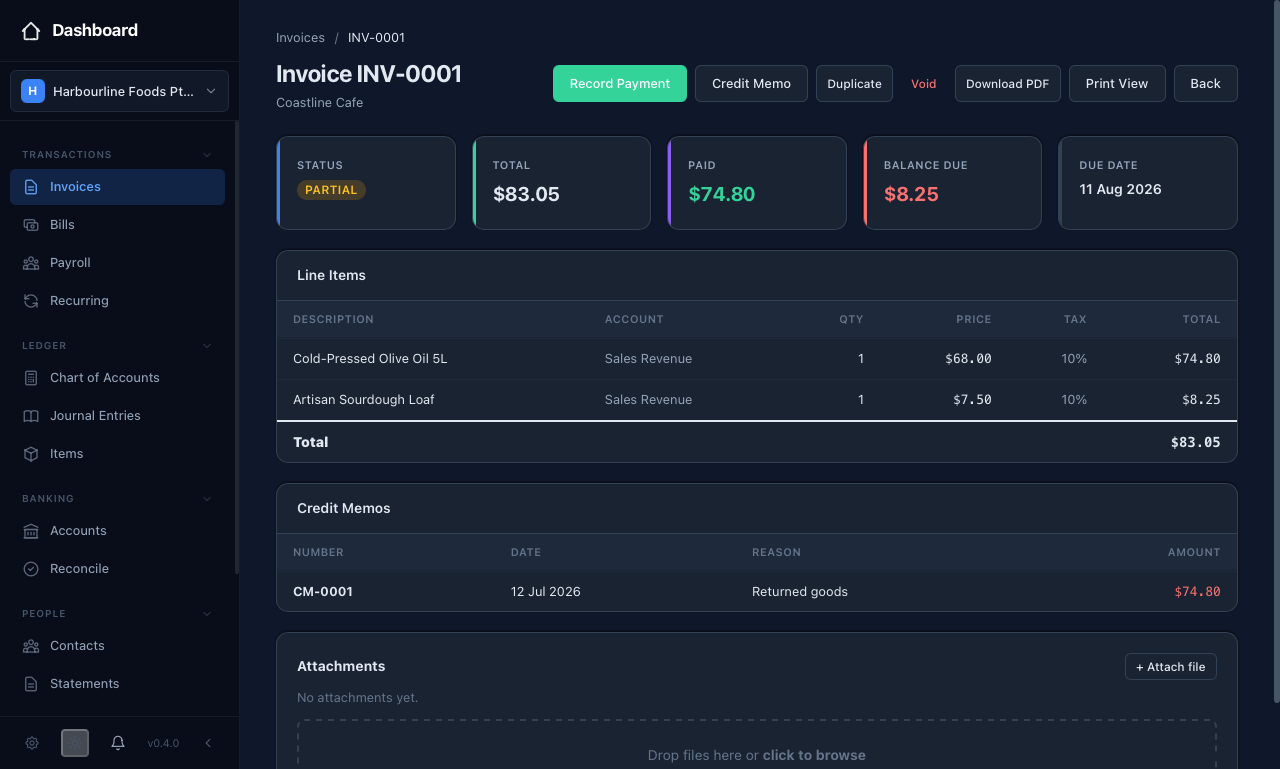 Once issued, the credit shows in its own "Credit Memos" panel on the invoice and the balance due drops by that amount.
The credit memos list
Open "Credit Memos" from the sidebar to review every credit you have issued across all customers. Each row shows the credit number, the invoice it was raised against, the customer, the amount, the reason, and the date. Click the invoice number on any row to jump straight back to the invoice it relates to. This gives you a single place to see every adjustment at a glance.