🖥 Dashboard
The Dashboard is the first screen you see when you open a business in equosBooks, giving you the health of your books at a glance. This page will guide you through what each figure on the Dashboard means, how to read it, and where every number leads when you need to act on it.
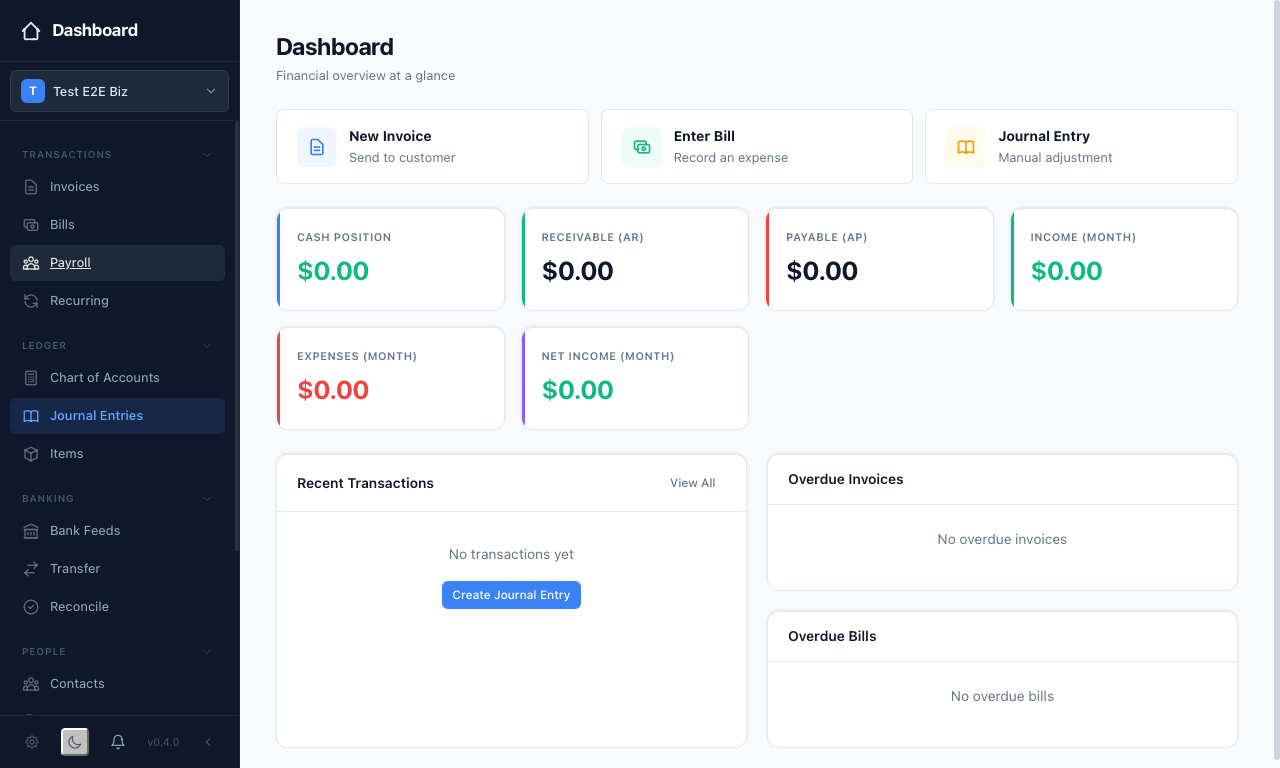 The Dashboard on a newly created business, with every figure still at $0.00 and no overdue items.
Quick actions
Across the top sit three shortcut cards for the entries you make most often — "New Invoice", "Enter Bill", and "Journal Entry". Simply click one to jump straight into a fresh entry without hunting through the sidebar.
Key figures
Below the shortcuts, a row of cards shows the numbers that matter day to day:
- Cash Position — the balance across your bank and cash accounts right now.
- Receivable (AR) — the total your customers still owe you on unpaid invoices.
- Payable (AP) — the total you still owe suppliers on unpaid bills.
- Income (Month) — income recorded so far this calendar month.
- Expenses (Month) — expenses recorded so far this calendar month.
- Net Income (Month) — this month's income less expenses, shown in green when you are ahead and red when you are behind.
Reading these together tells you what you hold, what is coming in, and what is going out, so you can see at a glance whether the month is tracking the way you expect.
Income vs expenses
Once you have posted enough activity, an "Income vs Expenses (6 Months)" chart appears beneath the cards, with a bar for income and a bar for expenses in each of the last six months. This helps you spot a seasonal dip or a month where costs ran ahead of takings. On a brand-new business the chart stays hidden until there are figures to plot.
What needs attention
The lower half of the Dashboard is where you act:
- Recent Transactions lists your latest entries; "View All" opens the full journal.
- Overdue Invoices lists customer invoices past their due date, each tagged with a count and linked to the invoice itself.
- Overdue Bills does the same for supplier bills you have not yet paid.
Click any overdue row to open that record and chase or pay it. This ensures nothing slips past its due date unnoticed.
If you have recurring templates due, a "Generate … Recurring" button appears in the header — click it to raise those invoices, bills, and journal entries in one go.