📝 Getting Started
equosBooks is a free desktop app that keeps your books in a local file on your own machine. This page will guide you through installing it, opening it for the first time, and finding your way around.
Installing equosBooks
equosBooks runs on Windows, Mac, and Linux. Download the installer for your operating system, then run it and follow the prompts as you would for any desktop app. Once it finishes, equosBooks appears alongside your other applications, ready to open.
Because your books live in a local file on your computer, there is no account to create and nothing to sign in to — you can start working straight away, online or offline.
First launch
When you open equosBooks for the first time, you land on the Businesses page. This is where every business you keep books for is listed. On a fresh install the list is empty, so you will see a "Create First Business" button to get you started.
Press "Create First Business" to open the setup wizard, which walks you through your business details, tax settings, chart of accounts, and branding. This is covered step by step in Business Setup.
Creating or opening a business
You can keep books for more than one business in equosBooks. From the Businesses page you can:
- Press "+ Standalone" to create a new independent business
- Press "+ Holding Company" to create a parent entity for a group of businesses
- Press "Switch" next to any existing business to open its books
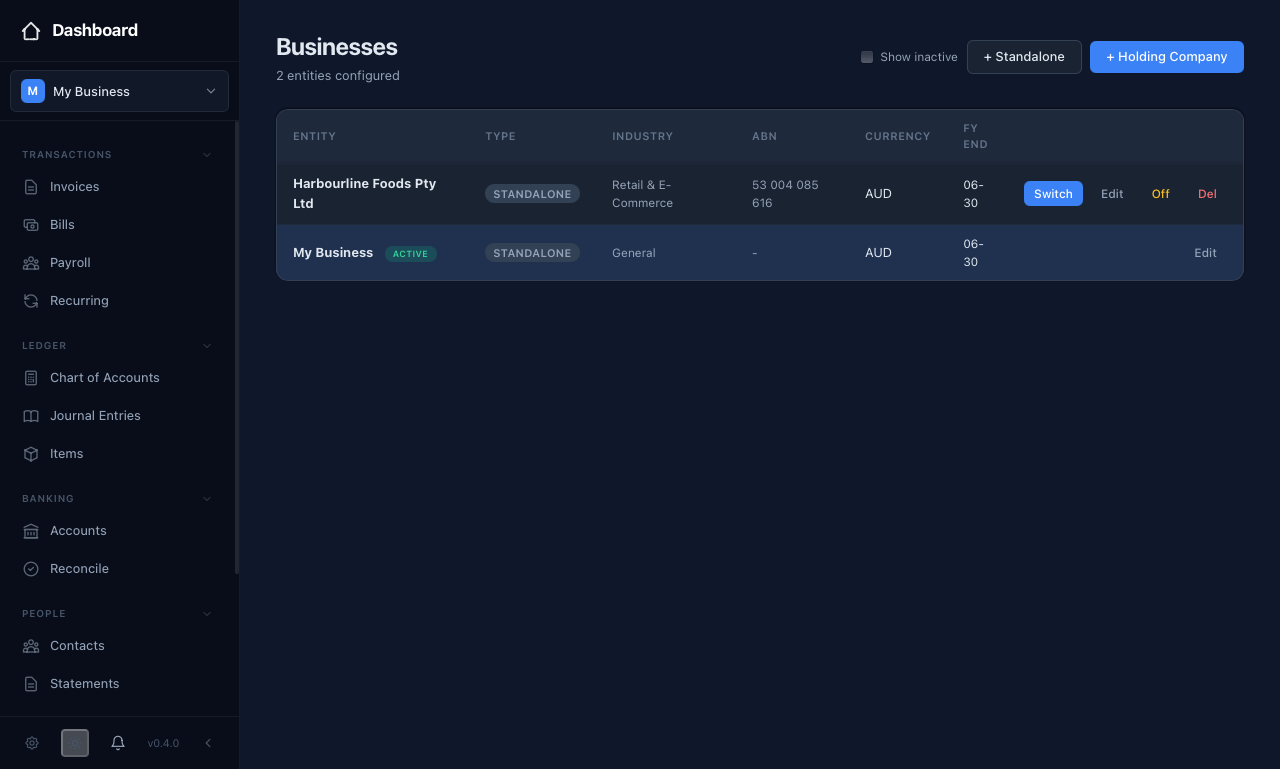 The Businesses page lists every business you keep books for — press "Switch" to open one, or the buttons up top to add another.
Switching businesses changes everything else in the app — invoices, accounts, and reports all follow the business you have open. This ensures you are always working in the right set of books.
Finding your way around
Once a business is open, the left sidebar is your main way of moving around. It is grouped so related tasks sit together:
- Transactions — Invoices, Bills, Payroll, and Recurring
- Ledger — Chart of Accounts, Journal Entries, and Items
- Banking — Bank Feeds, Transfer, and Reconcile
- People — Contacts
You will also find Reports for your financial statements and a settings area for backups and preferences. The business switcher sits at the top of the sidebar so you can easily move between businesses without losing your place.
Next steps
- Business Setup — Walk through the 4-step wizard
- Chart of Accounts — Review and customise your accounts
- Contacts — Start adding customers and suppliers