🧾 Invoices
Invoices are how you bill your customers for the goods and services you sell. This page will guide you through the full invoice lifecycle in equosBooks — creating an invoice, issuing it, recording payments as they arrive, and voiding one if you need to cancel it.
The invoice list
Open "Invoices" from the sidebar to see every invoice you have raised. Each row shows the invoice number, customer, invoice date, due date, status, total, and outstanding balance. The status filter buttons across the top — "All", "Draft", "Sent", "Partial", "Paid", and "Void" — let you narrow the list, and the search box finds an invoice by number or customer. You can also "Export CSV" to hand the list to your accountant.
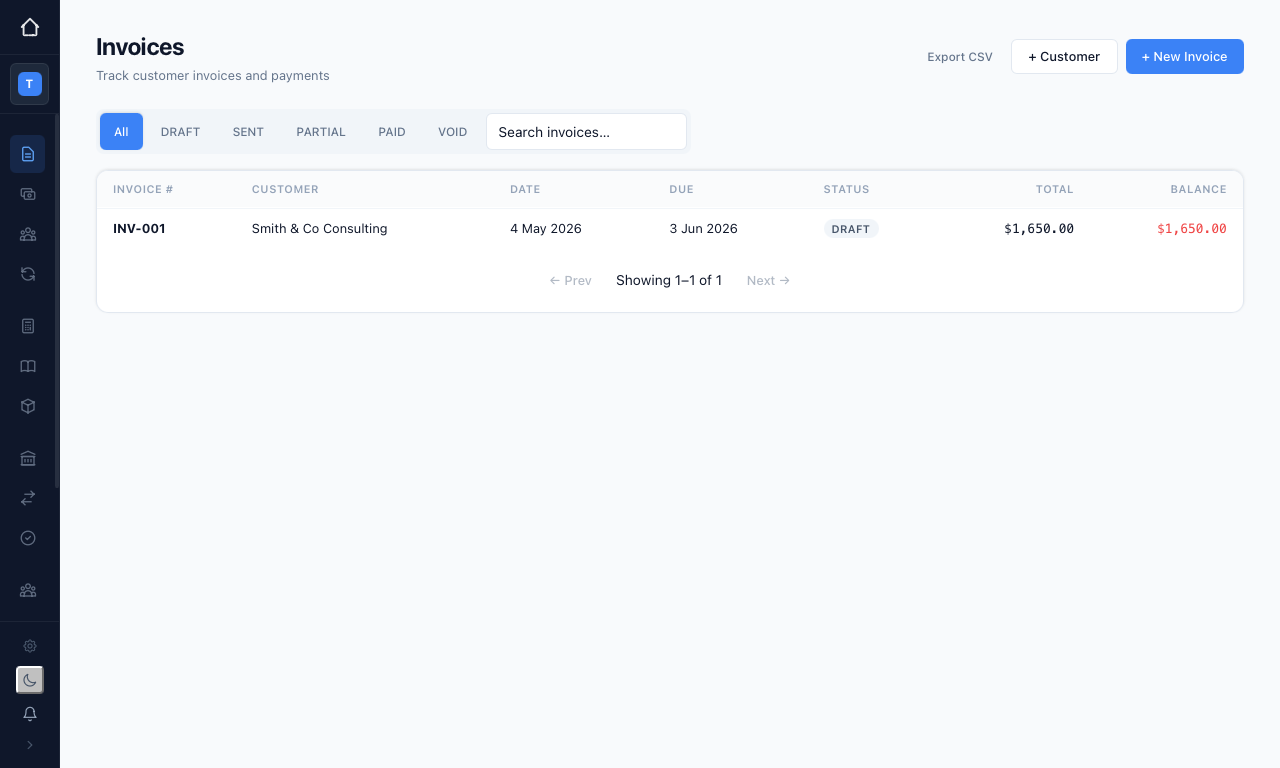 The invoice list, filtered by status.
An invoice moves through these statuses:
- Draft — saved but not yet issued; still fully editable
- Sent — issued to the customer, with journal entries posted to Accounts Receivable
- Partial — some payment received, a balance still owing
- Paid — settled in full
- Void — cancelled, with the original journal entries reversed
Creating an invoice
Press "+ New Invoice" from the list to open the invoice form.
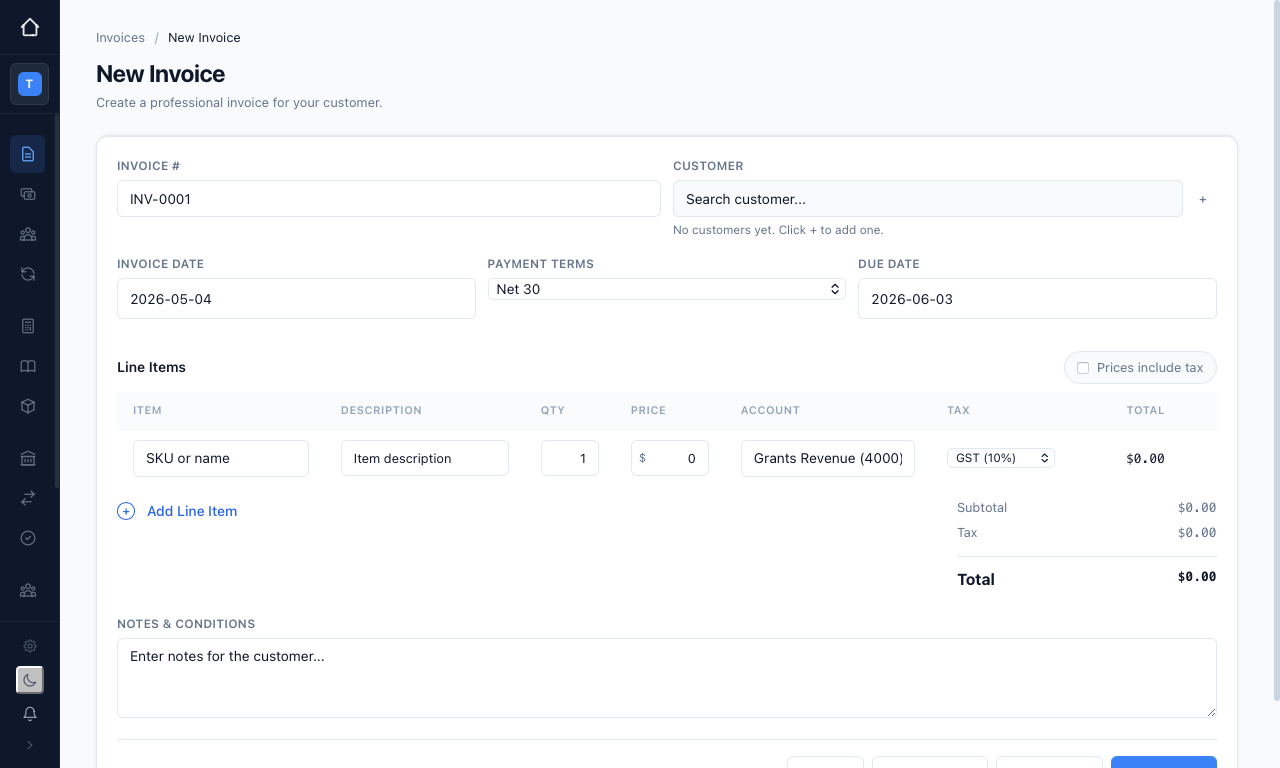
Work down the form:
- Invoice # — pre-filled with the next number in sequence; you can override it, and equosBooks warns you if the number is already used
- Customer — search your existing customers, or simply press the "+" button to add a new one without leaving the page
- Invoice Date and Payment Terms — choosing a term such as "Net 30" sets the Due Date for you
- Line Items — add a row for each charge, with a description, quantity, price, income account, and tax code. If you have set up an item, pick it in the "Item" column and its description, price, account, and tax code fill in automatically. This ensures your line coding stays consistent from one invoice to the next.
Use the "Prices include tax" toggle if you quote GST-inclusive figures, and "Add Line Item" for extra rows. The subtotal, tax, and total update as you type.
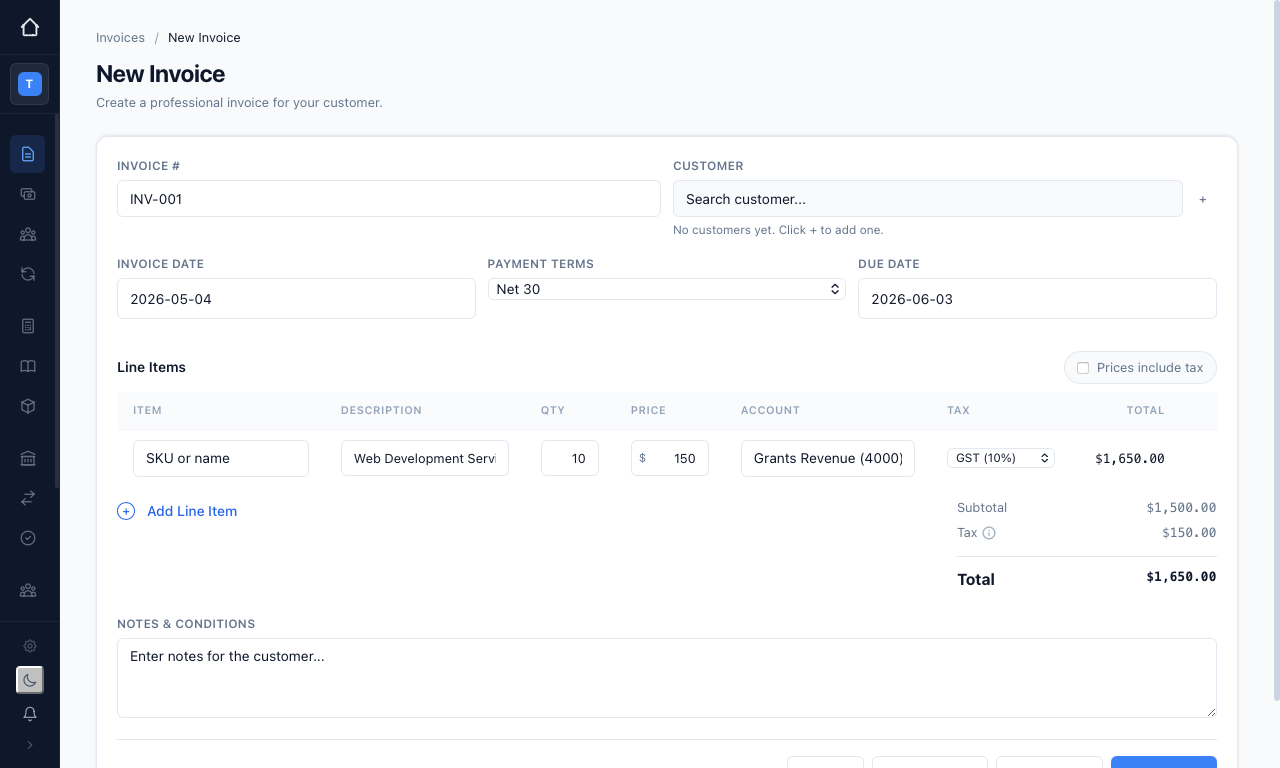
When you are finished, choose how to save:
- Save as Draft — keeps the invoice editable and leaves its status as "Draft"
- Save & Post — issues the invoice, sets its status to "Sent", and posts the journal entries (debit Accounts Receivable, credit Income)
- Save & New — posts this one and immediately starts another
The invoice detail page
Click any invoice to open its detail page, where you can see the status, total, amount paid, balance due, line items, and any payments or credit memos.
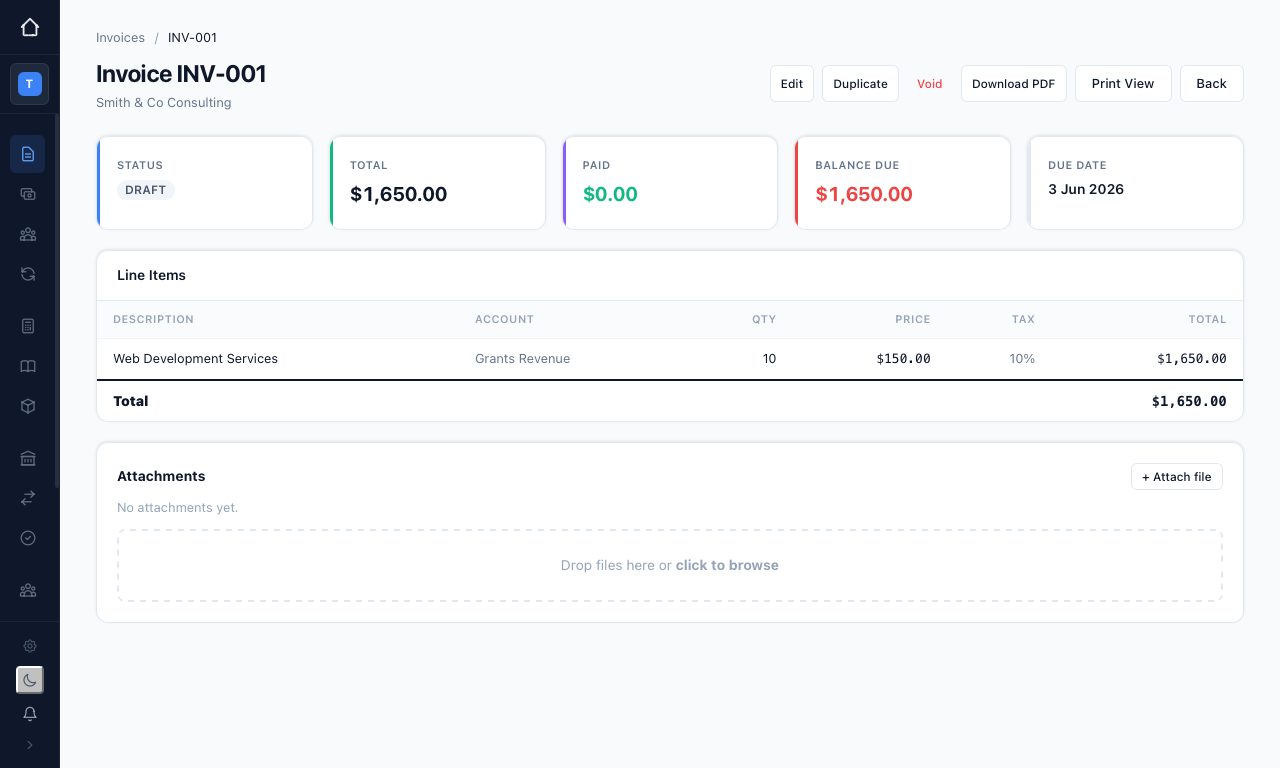
From here you can "Edit" a draft, "Duplicate" the invoice as the basis for a new one, "Download PDF", or open the "Print View" to save or email a copy to your customer.
Recording a payment
Once an invoice is "Sent" or "Partial", a green "Record Payment" button appears on its detail page. Press it to open the payment form and enter:
- Payment Date — when the funds arrived
- Amount — defaults to the full balance due; enter less to record a part-payment
- Method — Bank Transfer, Cash, Cheque, Card, or Other
- Reference and Notes — optional details such as a cheque number
Press "Record" to save. equosBooks updates the status to "Paid" when the balance reaches zero, or "Partial" while an amount is still owing. This ensures your Accounts Receivable and AR Aging report always reflect what customers actually owe.
Voiding an invoice
If an invoice was raised in error, open it and press "Void". You will be asked to confirm.
Voiding an invoice reverses all of its journal entries and cannot be undone. The invoice stays in the list marked "Void" for audit purposes, but no longer affects your financials. An invoice that has been fully paid cannot be voided — issue a credit memo instead.
Related guides
- Credit Memos — credit a customer without deleting the invoice
- Recurring Transactions — raise the same invoice on a schedule
- Items & Inventory — save products and services to speed up line entry
- Reports — see invoices in your P&L, AR Aging, and GST reports