💰 Payroll
equosBooks includes basic Australian payroll — enough to pay a small team, withhold PAYG, accrue superannuation, and hand each person a payslip. This page will guide you through adding employees, running a pay run, posting it to your books, and voiding one if you get it wrong.
This is basic single-jurisdiction (Australian) payroll for a straightforward small team. It applies the ATO PAYG withholding tables for the 2024-25 financial year (Scale 1 and Scale 2) and a superannuation rate of 11.5%. It is not built for complex awards, allowances, or multi-state arrangements — check the figures against your circumstances, and keep your accountant in the loop.
Employees
Open Payroll, then "Employees", to see your team. Press "+ Employee" to add someone. Each record captures:
- Given Name and Family Name.
- Tax File Number — used to work out withholding.
- Pay basis and rate — "Salary" or "Hourly", with the matching pay rate.
- Pay Frequency — Weekly, Fortnightly, or Monthly.
- Tax-free threshold — tick this if the employee claims it. This is what decides whether equosBooks withholds using Scale 1 (threshold claimed) or Scale 2 (not claimed).
- Superannuation — the rate (defaulting to 11.5%) and the fund name.
- Bank details — BSB and account name for their pay.
This ensures each pay run can work out tax and super for that person without you re-entering anything.
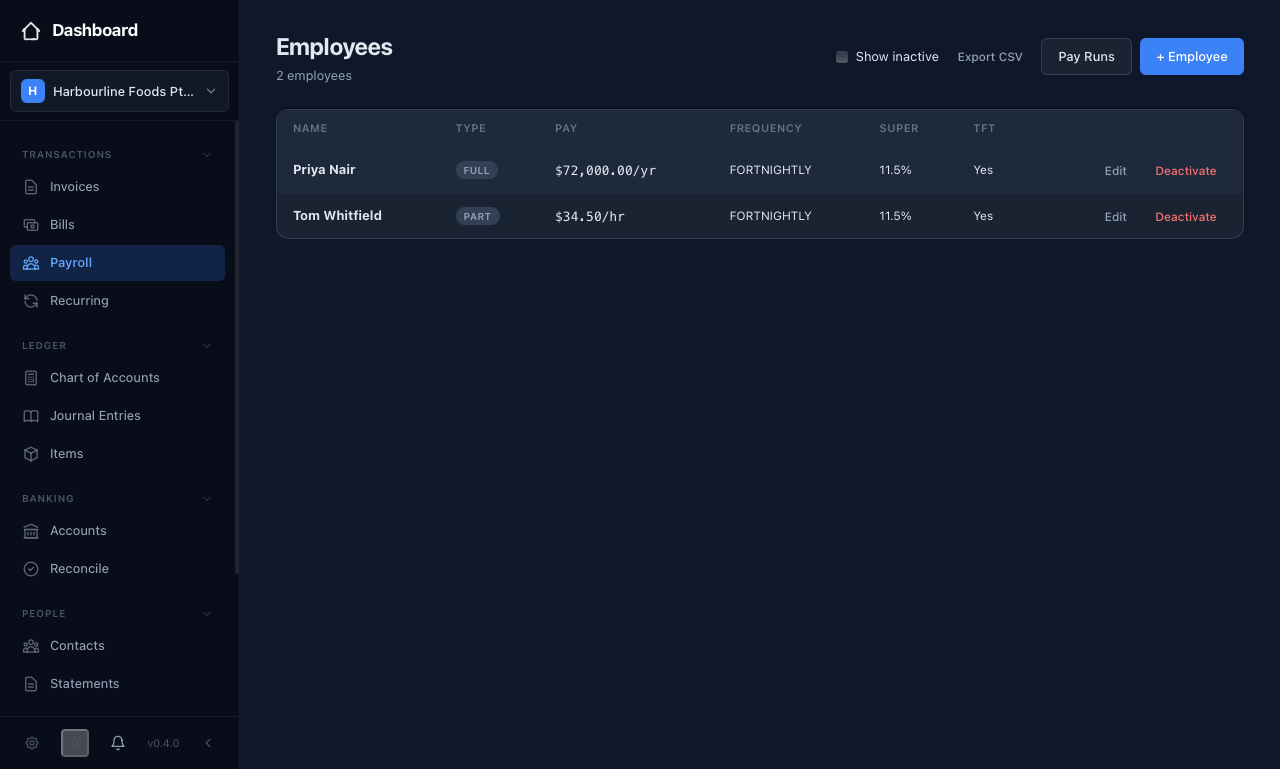 Each employee record captures their pay basis and rate, pay frequency, super rate, and whether they claim the tax-free threshold.
Creating a pay run
A pay run is one batch of pays for a period. On the Payroll page, simply press "New Pay Run", set the "Period Start" and "Period End", and press "Create Pay Run". equosBooks populates a line for each active employee and works out their figures from the tables.
Reviewing the run
Open the pay run to check it before it touches your books. Each line shows the employee's Gross, PAYG withheld, Super accrued, and Net Pay, and the run totals these into Gross, PAYG Withheld, Super, and Net Pay at the top. Read down the lines and confirm the amounts look right for the hours and pay you expect.
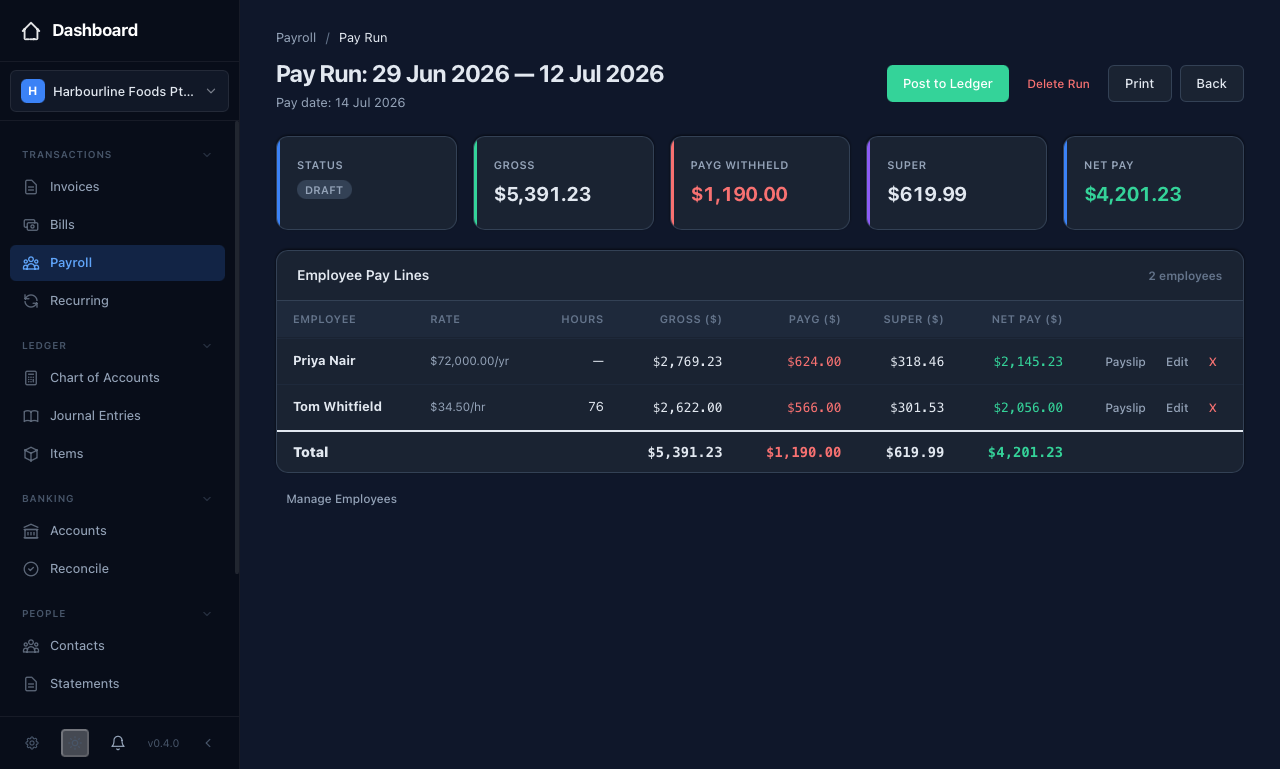 Open a pay run to check each person's gross, PAYG, and super — and the run totals — before you post it to your books.
Posting to the ledger
When the run is right, press "Post to Ledger". equosBooks confirms, then writes the accounting for you. The pay run posts a journal entry that:
- Debits Wages (your payroll expense), and
- Credits PAYG Withholding Payable, Superannuation Payable, and your Bank account.
Superannuation is accrued as its own entry, so the super you owe sits as a payable until you actually pay the fund. Once posted, the run is finalised and its journal entries appear in your Journal Entries list. This keeps your Profit & Loss and your liabilities in step with what you have actually paid and owe.
Payslips
Each employee on a posted run has a payslip you can open from the run — a branded PDF showing their gross, PAYG, super, and net pay for the period. If you have set up email in Settings, you can send it straight to them; otherwise, print or save the PDF and pass it on.
Voiding a pay run
If a posted run was wrong, you do not delete it — you void it, which reverses the accounting cleanly.
Voiding a posted pay run creates reversing journal entries that back out the wages, PAYG, and super it posted. It is the correct way to undo a run, but it leaves both the original and the reversal in your records for the audit trail. Void a run only when it was genuinely wrong, and re-run the pay correctly afterwards.
Open the run and press "Void". equosBooks confirms, writes the reversing entries, and marks the run as voided. Your books return to where they were before the run was posted, with the history of both actions kept.