⚙️ Settings & Backup
Your books live in a file on your own machine, which makes protecting that file your job — and equosBooks gives you two ways to do it, plus a few settings worth getting right early. This page will guide you through local backups, off-site encrypted backups, email, where your documents are stored, and closing a fiscal year.
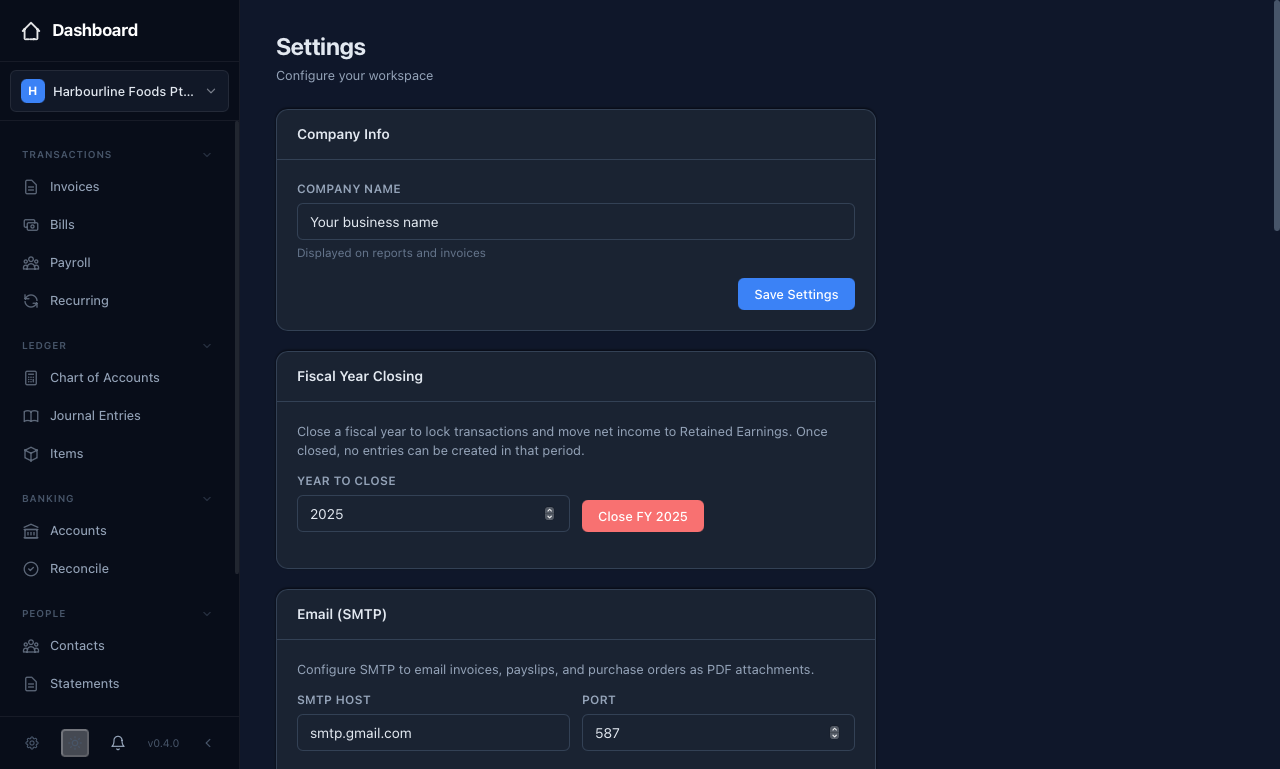 The Settings screen gathers your company details, email, document storage, backups, and fiscal-year closing in one place.
Local backups take a safe snapshot of your database to a folder you choose — set a destination and a retention limit, and turn on backup-on-quit. For an off-site copy, the separate GCS backup page uploads an encrypted backup to Google Cloud Storage using a passphrase only you know. Configure email to send invoices and payslips, point document storage at a synced folder if you like, and close a fiscal year to lock a period once it is done.
Local backups
Open Settings and find the "Backup" card. A backup here is a consistent snapshot of your database, safe to take while you are working.
- Destination folder — where the snapshot files are written. Point this at a OneDrive, iCloud, Dropbox, or OwnCloud folder to get off-machine copies for free.
- Keep this many backups — your retention limit. Older backups are pruned once you pass it.
- Auto-backup on quit — tick this so equosBooks takes a fresh snapshot every time you close the app.
Press "Save Settings" to store your choices, or "Create Backup Now" to take a snapshot immediately. This ensures a recent copy of your books is always sitting where you can find it.
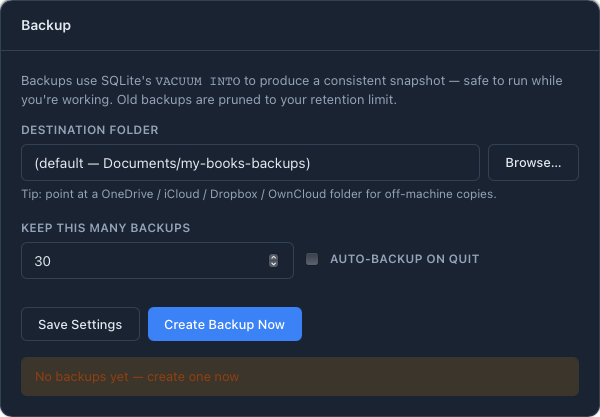 The Backup card takes a snapshot of your database to a folder you choose, with a retention limit and an option to back up on quit.
Off-site encrypted backup
For a copy that survives a lost or stolen machine, open Settings, then the "GCS backup" page. This uploads an encrypted backup of your books and attachments to a Google Cloud Storage bucket you control.
- Under "Configuration", enter your "Bucket name" and paste the service-account JSON that grants access, then choose a "Schedule" — off, daily, or weekly — and your daily, weekly, and monthly retention. Press "Save".
- Under "Backup / restore", enter an "Encryption passphrase". Press "Back up now" to encrypt and upload, or "List backups" then "Restore" to bring one back.
The passphrase encrypts the backup before it leaves your machine, so the copy in the cloud cannot be read without it.
Your encryption passphrase is not stored anywhere — equosBooks needs it for both backing up and restoring. If you lose it, the encrypted backups in the cloud cannot be decrypted or restored by anyone, including you. Record the passphrase somewhere safe and separate from the machine you are backing up.
Restoring overwrites your current data, so equosBooks asks you to confirm and advises taking a current backup first. After a restore, restart the app for the change to take effect.
Email (SMTP)
To send invoices, payslips, and purchase orders straight from equosBooks, fill in the "Email (SMTP)" card with your "SMTP Host", "Port", username, password, and the "From Email" and "From Name" you want on outgoing mail. Press "Save SMTP", then "Send Test Email" to confirm it works before you rely on it. This ensures your documents actually reach people rather than failing quietly.
Document storage
The "Document Storage" card sets where attachments and supporting files are kept. Leave it at the default, or press "Browse" under "Storage Folder" to point it at a network drive or an OwnCloud folder for automatic backup and sharing, then press "Save". "Reset to Default" returns it to the app data location.
Closing a fiscal year
When a year is finished and lodged, close it under "Fiscal Year Closing". Enter the "Year to Close" and press "Close FY". equosBooks creates the closing journal entries, moves your net income to Retained Earnings, and locks every transaction on or before the year-end date. Closed periods are listed on the same card.
Closing a fiscal year cannot be undone. Once a period is closed, no entries can be created or changed within it. Only close a year when you are confident it is final.