🎛 Console Overview
The EQUOS Console at console.equos.one is where your account lives — your business details, your subscription, your team, and your integrations — kept separate from the day-to-day app you work in. This page will guide you through what the console is for, how to sign in, and what each part of the dashboard does.
Think of it this way: you run your orders, inventory, and warehouse in the EQUOS app, but the console is the back office where you set up and look after the account itself. You will usually visit the console when you first sign up, and then only now and then to change a plan, add a person, or update your business.
Signing in
Head to console.equos.one and you will land on the sign-in screen.
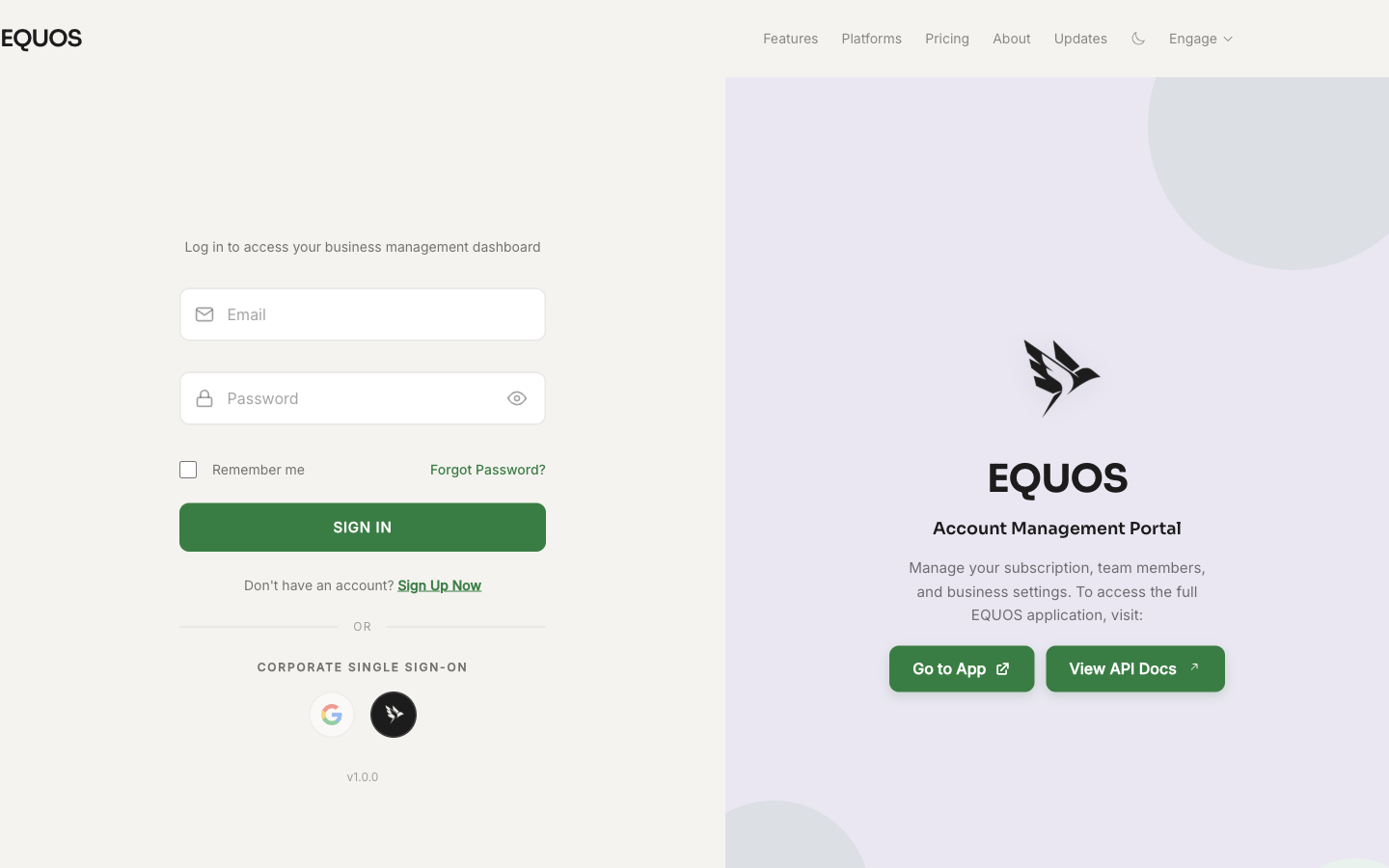 The console sign-in screen. Enter your email and password, or use single sign-on.
- Enter your "Email" and "Password", then press "SIGN IN".
- Tick "Remember me" to stay signed in on a device you trust.
- If your organisation uses EQUOS single sign-on, simply use the "Sign in with EQUOS SSO" button instead.
- New to EQUOS? Press "Sign Up Now" to start a free trial. The full walkthrough lives in the Quick Start.
If you have forgotten your password, use the reset link on the sign-in screen and we will email you a way back in.
The dashboard sections
Once you are signed in, the console opens on your dashboard. A sidebar on the left switches between sections — everything happens on the one page, so there are no separate web addresses to remember for each area.
- Overview — your starting point, with a greeting, your trial status, an onboarding checklist, and quick-access cards to get moving.
- Subscription — your plan, billing, and payments. See Subscription & Billing.
- Businesses & Warehouses — add and edit the businesses and locations on your account.
- Documents — brand your invoices, pack slips, and other PDFs, and tailor each document type. See Documents & Support.
- Support — raise a ticket and track it through to resolution, also on Documents & Support.
- Team — invite people and set what each of them can access. See Team & Access. This section is available to account admins.
- Integrations — connect other tools, manage API keys, and set up webhooks. See Integrations. This section is available to account admins.
- Developer API — a link through to the full API reference. See Developer API.
Along the top you will also find an "Engage" menu linking out to the wider EQUOS suite, and a theme toggle if you prefer a lighter or darker look.
What happens after your trial
Your free trial runs for 14 days. If you reach the end of it without adding payment, your account moves to read-only — you can still sign in and see all of your data, but editing is paused until you subscribe. Nothing is deleted, and everything picks back up the moment payment is added.
The console is your account's back office: sign in at console.equos.one, and use the sidebar to reach Overview, Subscription, Businesses & Warehouses, Documents, Support, and — for admins — Team and Integrations. For pricing and plan details, see Plans & Billing.