🚚 Freight
Freight is the rate brokerage built into EQUOS. It lets you compare live rates from several carriers, book a consignment, print the label, and follow the delivery — all from the one place, without logging into a separate carrier portal for each one. This page introduces what freight does, the carriers you can book with, and where to go next.
The web front door for freight is freight.equos.one, and everything here also flows back into your orders and contact records inside the platform.
Freight is part of the Complete plan only. If you are on Core or More, you will need to move to Complete to book freight through EQUOS.
What freight does
When a consignment is ready to go, you enter the shipment details — or let them carry over from the order — and live rates from TNT, Aramex, and Border Express appear side by side. You compare them by price, speed, and service level, then book the one that suits the job. The label generates the moment you book, and tracking updates flow back on their own.
- Compare live rates: See rates from TNT, Aramex, and Border Express together, so the right choice for each consignment is clear.
- Book, label, track in one place: Book in a click, print the label where it is needed, and follow the delivery without chasing carriers.
- Recorded against the order: Every booking, label, and tracking update sits with the order it came from and in your contact's history. This ensures everyone can see the full journey from dispatch to delivery.
Coverage is Australia-wide for domestic shipping, with some lanes and services still expanding. Freight is domestic only — it does not handle international forwarding, customs brokerage, or fleet management.
Carriers
You book with three carriers through EQUOS, and their live rates sit side by side whenever you request a quote. Carrier names appear here so you know who you are shipping with; the choice for any given consignment is yours to make from the comparison.
- TNT — a national road and express carrier for domestic Australian freight.
- Aramex — a courier and parcel carrier operating across Australia.
- Border Express — an Australian road freight carrier serving domestic lanes.
You do not have to settle on one carrier up front. Each time you book, you compare what is available for that lane and service level and choose accordingly.
Signing in for the first time
Getting into freight for the first time takes three short moments: creating your account, a quick welcome wizard, and a look around the dashboard. This section walks you through each one.
Creating your account
Head to freight.equos.one. If you do not have an account yet, follow the sign-up link to reach the "Create account" form.
- Enter your "Email", then a "Password" of at least eight characters, and repeat it in "Confirm password".
- Press "Create account" to finish. If you already have an account, use the "Sign in" link instead.
- The first time you sign in, EQUOS shows its terms — accept with "I agree and continue" to carry on.
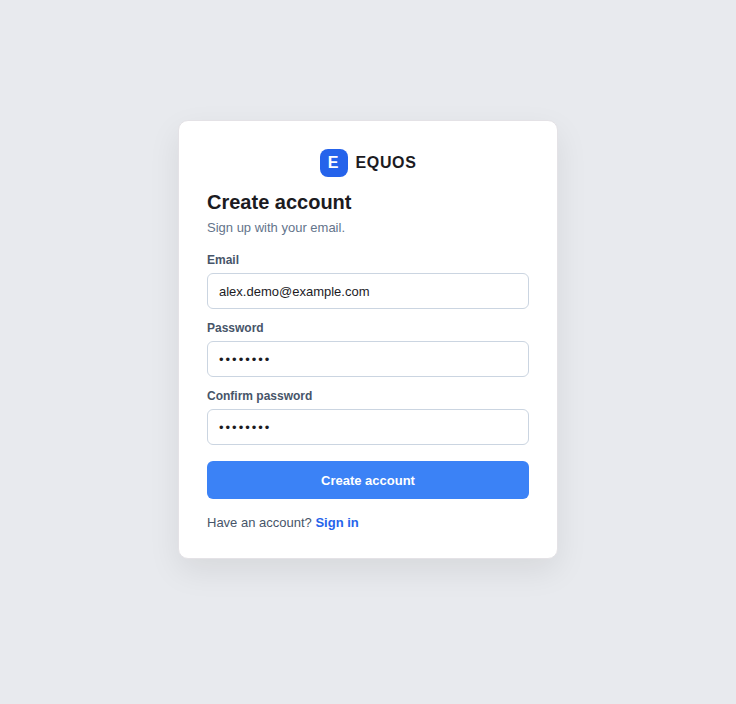 The "Create account" form at freight.equos.one.
The welcome wizard
Because your workspace starts empty, EQUOS opens "Welcome to EQUOS Freight" — a short wizard that gets you ready in two steps, "1. First client" and "2. Default sender", ending on "3. Done".
- Add your first client — a customer you ship for — with a name and, if you have them, an email and phone. Press "Create client" to move on.
- Add a default sender, the address your consignments leave from.
- Prefer to look around first? Choose "Skip — explore an empty app". This lets you get your bearings before entering any details, and you can add clients and senders later.
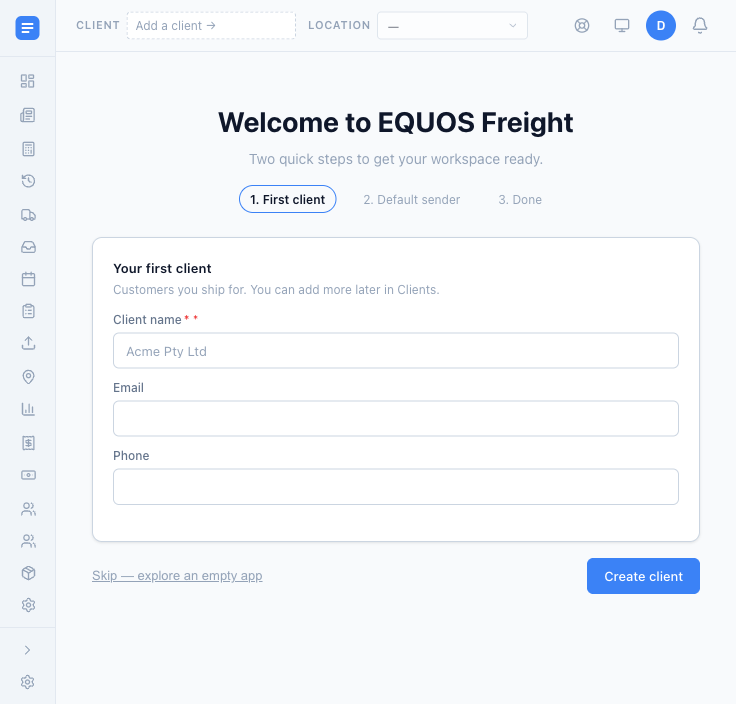 The first-run wizard, ready to add your first client.
The dashboard
After the wizard — or after skipping it — you land on the "Dashboard", your freight operations overview.
- The stat cards across the top — "Pending", "In transit", "Delivered today", and "Errors" — start at zero and fill in as you ship.
- Three quick actions sit below: "New Quote" to compare carrier rates, "New Consignment" to create a shipment, and "Track" to check active shipments.
- If you skipped the wizard, an amber "EQUOS Freight isn't set up yet" banner stays at the top with an "Open setup" button. This is a reminder rather than an error — you can set up clients and senders whenever you are ready.
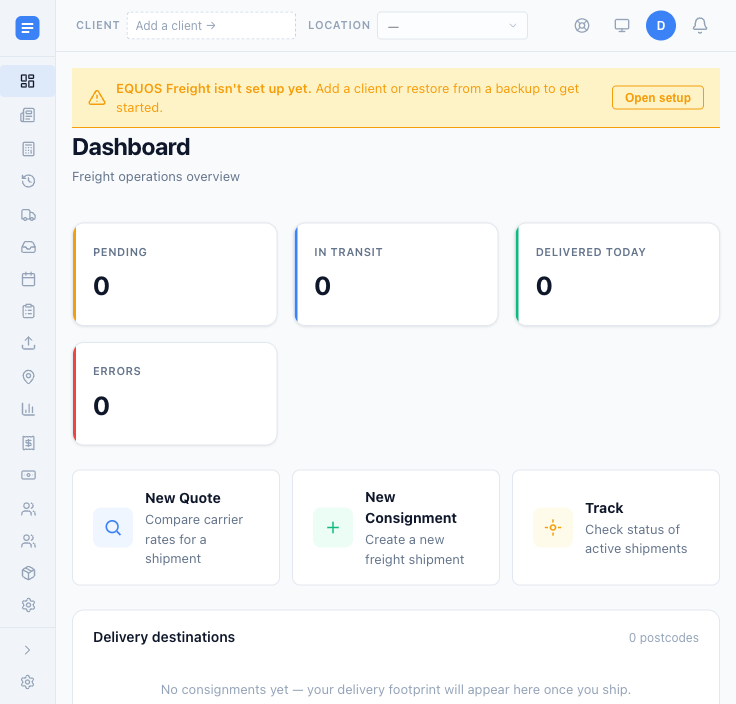 The dashboard before your first consignment.
Where to go next
Shipping with your own Aramex or Australia Post account instead? See equosFreight, the desktop freight app.