💰 Freight Billing
Freight charges are separate from your EQUOS subscription — you book through EQUOS, and the freight itself is settled on its own. This page will guide you through the three ways to settle freight and how to match one to how often you ship.
How freight is charged
Freight sits apart from your plan. Your subscription covers the platform; the freight for each consignment is settled through one of three methods, whichever suits how your business runs. You can change methods as your shipping changes, so you are not locked into the first one you pick.
Pay as you go
Each consignment is settled as you book it, against the shipment it belongs to.
- The freight is paid at the point of booking, matched to the consignment.
- There is no balance building up and no invoice to reconcile later.
- The trade-off is cash timing — you are paying out at dispatch, often before the order that triggered the shipment has been paid to you. This suits light or occasional shipping, where simplicity is worth more than the timing.
Weekly billing
Your consignments accumulate through the week and settle as a single charge, so you handle one payment instead of many small ones.
- The week's consignments settle together as one charge.
- This smooths the admin and gives you a few days between shipping and paying.
- Weekly billing requires a one-time credit approval, since you are shipping now and paying later. This is a single step to expect at the start, not an ongoing friction.
On account by invoice
Your freight is invoiced on terms, like any other supplier account. You ship across a period, receive an invoice, and pay it when it is due.
- Freight is invoiced on terms and paid on a schedule.
- This gives you the most room between dispatch and payment, and fits the way a finance team already works.
- The trade-off is reconciliation — an invoice covering many consignments has to be checked against what you actually shipped. On account pays off when you have the discipline to match the invoice back to the consignments. This helps prevent wrong charges and surcharges slipping through.
Matching a method to your shipping
A rough guide, held lightly:
- Light or irregular shipping — pay as you go. The simplicity is worth more than the cash-timing benefit of terms.
- Steady, moderate volume — weekly billing. Fewer payments and a little breathing room, without heavy reconciliation.
- High, continuous volume — on account. The cash-flow room and the fit with your finance process outweigh the reconciliation work.
Many businesses sit between these, or move through them as they grow. Pick the method that matches how you ship now, and change it when the shape of your shipping changes.
Seeing your freight charges in the app
Your freight charges are gathered in the "Billing" area, so you can see what has been billed without leaving EQUOS.
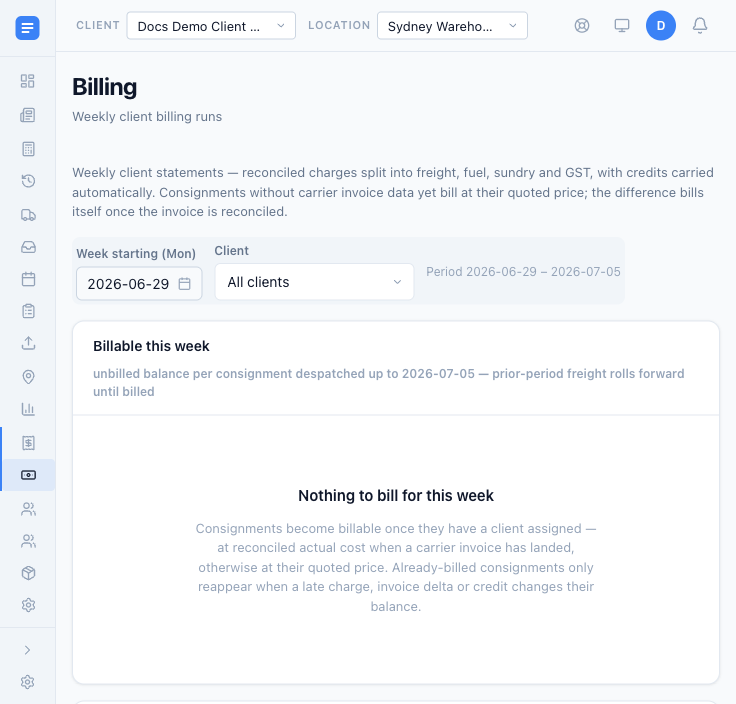 The "Billing" area, showing a weekly billing run. Choose the "Week starting (Mon)" and a client to see the period's charges; a fresh account has nothing to bill yet.
- Open the "Billing" area to see your weekly billing runs, each one covering a Monday-to-Sunday period.
- Pick the "Week starting (Mon)" date and, if you want, a single client to see just their consignments for that week.
- Each week's charges are split into freight, fuel, sundry, and GST, matched back to the consignments they came from. This allows you to check what you have been billed against what you actually shipped.
Weekly client billing (statements)
Two areas in EQUOS are called "Billing", and it helps to keep them apart. The "Billing" tile under "Settings" is your EQUOS subscription — what EQUOS charges you. Client Billing, covered here, is the other direction: the weekly statements you raise for your clients when you on-charge their freight.
Open the "Billing" area to work a week at a time. Pick the "Week starting (Mon)" and, if you want, a single client, and EQUOS shows the consignments billable that week grouped by client.
- Check a client's "Billable this week", then press "Create draft run" to turn it into a draft statement you can review.
- When the draft is right, "Finalize" it. A finalised run is immutable and its amounts count as billed — any later change to those charges appears as a delta or credit on a future week rather than editing the past.
- Export a finalised statement with "Download CSV" or "Download PDF" to send to the client.
Each line is tagged with its basis — "actual" once the charge has been reconciled, or "quoted" if it has not — so you can see what rests on a real carrier figure and what is still an estimate. Credits from resolved disputes are carried onto the statement for you.
A "Needs attention" strip gathers the consignments that cannot bill cleanly — "No client", "No price", "Cancelled with costs", and "Absorbed" — each with a way to assign, on-charge, absorb, or reinstate. This ensures nothing billable is quietly left off a client's statement.
Reconcile the carrier invoice first. Recorded actuals give a statement its "actual" basis, so run Reconciling Carrier Invoices before you finalise — the "Open Client Billing" link in the reconcile approval summary brings you straight here.