📄 Quotes & Booking
A quote is a set of live carrier rates for a shipment you are about to send, and a booking turns the one you choose into a consignment. This page will guide you through setting up, getting a quote, comparing carriers, booking, and printing the label — so a packed order is on its way with the least fuss.
Setting up before your first quote
Before your first quote it helps to add the client you are shipping for and a sender location to send from. If you completed the welcome wizard when you first signed in, you already have both and can move straight to a quote.
- Add a client: Open the "Clients" page from the sidebar and press "+ Add". Give the client a name, and an email or phone if you have them, then press "Create client". A client is the customer you are shipping on behalf of, so each consignment is filed against the right account.
- Add a sender location: On the "Clients" page, under the client you just created, press "+ Add location" to open the "New Location" panel. Give the location a "Name", such as "Sydney Warehouse", then either search "Address lookup" for your Australian address or type the "Street address", "Suburb", "State", and "Postcode" directly. Press "Save" to keep it. This ensures the pickup address is ready to drop into every quote.
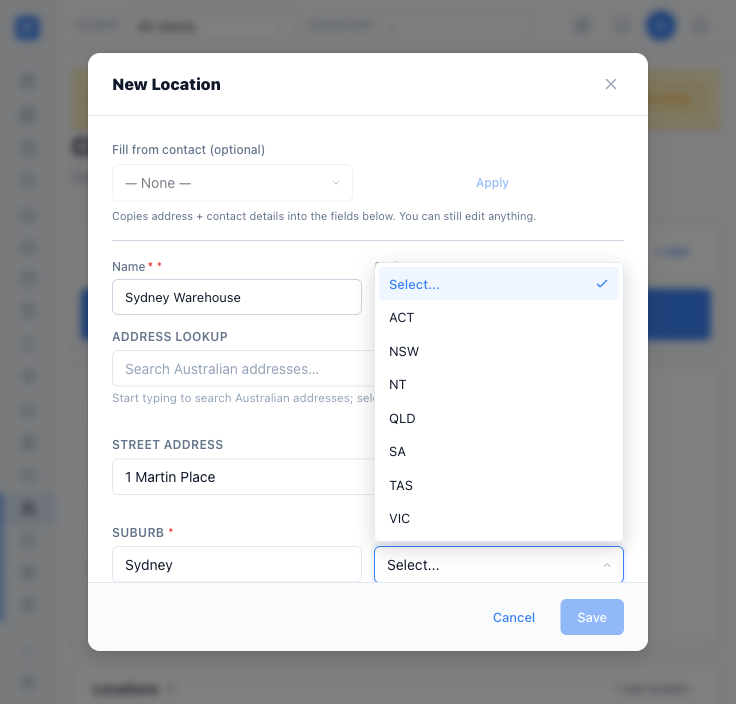 Adding a sender location in the "New Location" panel.
- Select the client and location: At the top of the app, set "Client" and "Location" using the two selectors in the header. This ensures each quote and booking is filed against the right customer and leaves from the right address.
Getting a quote
Start a quote from the freight area — the "New Quote" action on the dashboard — or from an order that is ready to ship. The form is headed "New Quote", with the reminder to get carrier rates, then book the one you want.
- Fill in the Sender (From) and Receiver (To) details. Each needs a contact name, a phone or email, and an address — at least the "Suburb", "State", and "Postcode". You can use "Address lookup" to fill an Australian address in one go, or type it in yourself.
- Add your packages. Choose the package type from the preset dropdown — for example a carton or a satchel — then enter the "Weight (kg)" and the dimensions, "L", "W", and "H", in cm. Use "Add package" if the consignment has more than one item.
- Set any options you need, such as a "Customer reference", pickup and dispatch dates, and toggles like "Authority to leave" or "Residential delivery".
- When the sender, receiver, and at least one package are complete, simply press "Get Quotes".
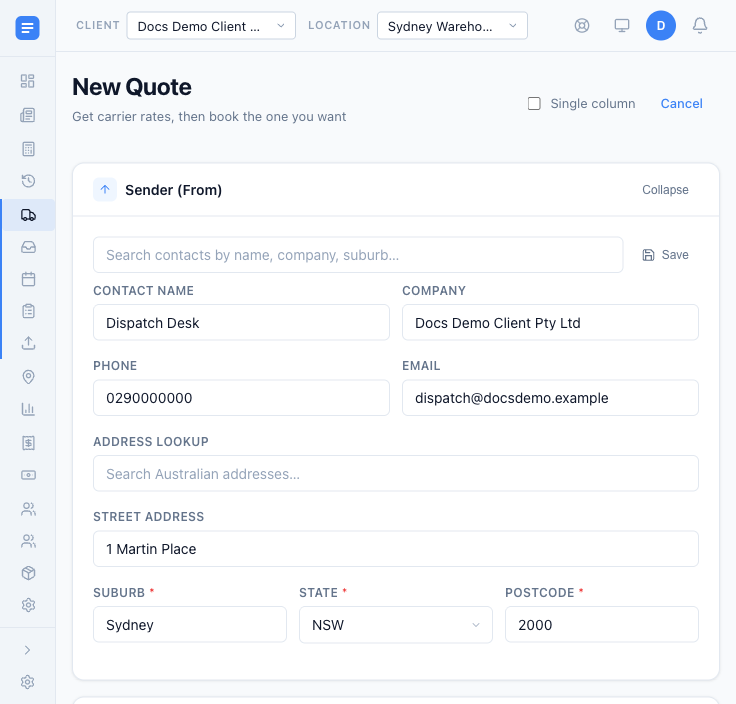 The "New Quote" form, with the sender details filled in.
Live rates come straight from the carriers, so a quote can take up to half a minute to return. This is normal — the rates are current to the moment you ask.
Package presets
If you send the same cartons and satchels again and again, save them once instead of typing the sizes into every quote. Open the "Packages" page from the sidebar and press "+ Add Preset" to save one — give it a "Name", its dimensions in cm, and its "Weight (kg)", and mark one as the default if you like. Each preset then appears in the package dropdown on the quote form, so you can simply pick "Small carton" rather than re-entering its measurements. This ensures your common package sizes stay consistent from one consignment to the next.
Comparing carriers and choosing a rate
Once the rates come back, the "Carrier Quotes" list fills with live results from TNT, Aramex, and Border Express, side by side, with a badge showing how many quotes were returned.
- Compare the rates by price, speed, and service level. This lets you weigh up each carrier on the same shipment without leaving EQUOS.
- Click a quote to select it as the rate you want to book.
- Press "Save quote" if you want to keep a set of rates for later, or "Requote" to run the rates again.
Booking a consignment
Once you have selected a rate — and set the "Client" and "Location" in the header, with the sender and receiver names and contacts complete — you can turn it into a consignment.
- Check the shipment summary against the carrier and rate you chose.
- Choose your transit cover before you confirm (see below).
- Press "Book Consignment". EQUOS lodges the consignment with the carrier and confirms it, and the rate you compared becomes a booked consignment — the record of that shipment.
Booking lodges the consignment with the carrier. It is a live action that creates the shipment and its charges, so check the addresses, packages, and selected rate are right before you press "Book Consignment".
The booking is recorded against the order it came from. This ensures anyone looking at the order can see it has shipped, without asking around.
Choosing transit cover
Transit cover is part of the booking flow, so you decide how the goods are covered at the same time you book. You capture the declared value, goods category, and condition once, and choose a level of cover for the consignment.
- Choose your cover during booking, before you confirm.
- See Transit Insurance for what each cover choice means and how it is captured.
The label
The label generates the moment you book. There is no downloading, formatting, or walking a PDF between screens.
- The label is ready as soon as the consignment is booked.
- From the confirmation you can download the label, send it to a print station, or track the consignment straight away. This ensures your team can attach the label and move to the next task.
Finding the booking again
Every booking stays attached to the order it came from, and to the contact you shipped to. When someone asks whether an order has shipped, the answer is already sitting in the order, the contact record, and the shipment history — no separate log to keep.
✨ Congratulations, you have booked your first consignment ✨