🖋 Consignments & Tracking
A consignment is the record of a booked shipment. This page will guide you through viewing your consignments, manifesting them for carrier pickup, scheduling a collection, tracking deliveries as they move, and sharing that tracking with your customer.
Each booking becomes a consignment. You group the day's consignments into a manifest so the carrier can collect them, then follow each delivery through to the door — with every update recorded against the order, the contact, and the shipment history.
Viewing consignments
Your consignments are listed together in the "Consignments" area, so you can see what has been booked and where each one stands.
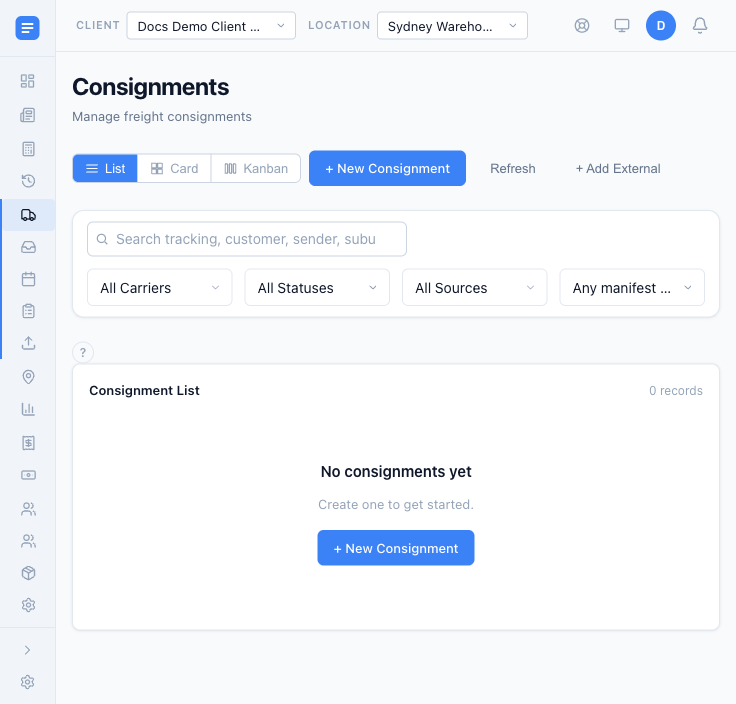 The "Consignments" list, with its search box, carrier and status filters, and view toggles. A new account opens with nothing booked yet.
- Open the "Consignments" list to see the shipments you have booked. Each row shows the consignment's carrier, its destination, and its current status.
- Search by tracking number, customer, sender, or suburb using the search box at the top of the list.
- Narrow the list with the "All Carriers", "All Statuses", "All Sources", and manifest filters. This helps you find one consignment quickly, or pull up everything going out with a single carrier today.
- Switch between the "List", "Card", and "Kanban" views with the toggle above the list, whichever suits how you like to work.
- To book a new shipment, simply press "+ New Consignment". If a shipment was booked outside EQUOS and you still want to follow it here, use "+ Add External".
What a consignment record holds
Once a booking goes through, its consignment record is where everything about that shipment lives.
- Open a single consignment to see its details — the sender and receiver, the packages, the carrier, and the customer reference you booked it under.
- The carrier label generated at booking stays on the record, so you can reach it again whenever you need to reprint or hand it to whoever is packing.
- The current status sits on the record too, and updates on its own as the shipment moves. This ensures the label and the latest position are always in the one place, rather than spread across emails and carrier websites.
Manifesting consignments
Manifesting groups the day's consignments together so the carrier can collect and dispatch them as one lot. A manifest is the summary the carrier works from when they arrive.
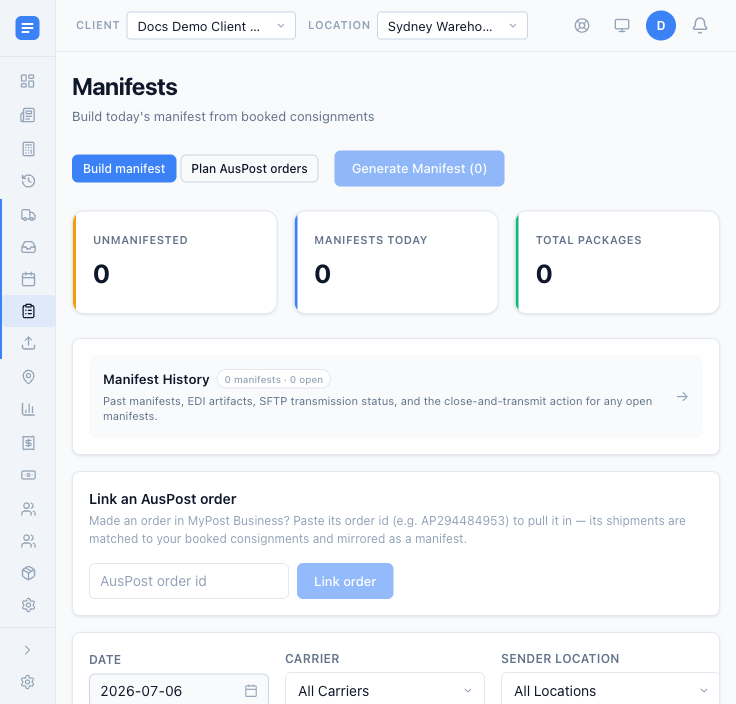 The "Manifests" page. The "Unmanifested", "Manifests today", and "Total packages" tallies sit across the top, above the date, carrier, and sender-location filters used to build the day's manifest.
- Open the "Manifests" page to see the day's unmanifested consignments — the ones booked but not yet gathered for collection. The "Unmanifested" count at the top tells you how many are waiting.
- Choose the date, carrier, and sender location, then select the consignments you are sending and press "Build manifest". The manifest lists what is going out, ready for the carrier to collect. This ensures the pickup matches what you have actually booked, with nothing left off.
- When the manifest is ready, press "Lodge" and confirm on the "Lodge with carrier" dialog. Lodging submits the manifest to the carrier so they can arrange the collection.
Lodging a manifest submits it to the carrier and cannot be undone. Check that the right consignments are on the manifest before you confirm "Lodge with carrier".
Scheduling a pickup
A lodged manifest tells the carrier what is going out; a pickup tells them when to come and get it.
- Open the "Bookings" area and press "+ Schedule pickup" to book a collection with the carrier.
- Give the carrier the pickup window and the address they are collecting from, then confirm. This allows the driver to arrive when your goods are packed and ready, rather than you waiting on an unbooked run.
Tracking
Once a consignment is dispatched, status updates arrive as they happen. You see where things are without refreshing a carrier's website or chasing anyone for a number.
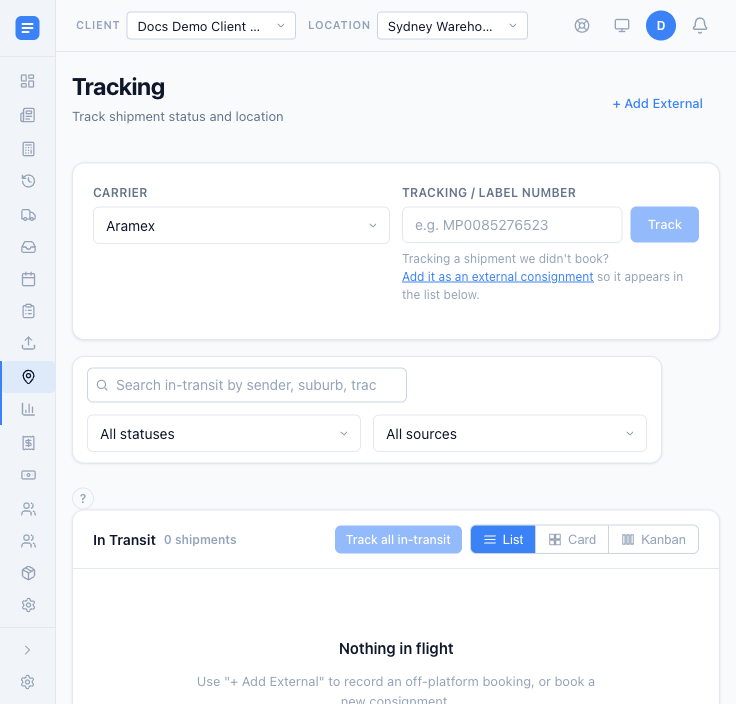 The "Tracking" page. Look up a single shipment by carrier and tracking number at the top, or watch everything currently moving in the "In Transit" list below.
- Open the "Tracking" page to see everything in transit in the "In Transit" list. Updates flow in on their own as each shipment moves along its lane, so there are no carriers to chase.
- To check one shipment, choose its carrier and enter its number under "Tracking / Label number", then press "Track".
- You can also open a single consignment to see its latest tracking status recorded against the shipment itself.
Sharing tracking with your customer
You can easily share tracking with the person receiving the goods through a public tracking link. Your customer follows the delivery themselves, without a login and without calling you for an update.
- Share the public tracking link — the
/trackaddress — with your customer. - They can follow the delivery from dispatch to arrival on that page, with no sign-in required. This allows you to keep customers informed without fielding "where is it?" calls.
Everything here — the consignment, its manifest, and every tracking update — is recorded against the order it came from, the contact record, and the shipment history, so the full journey stays in one place.