🔄 Order Sync
Order Sync brings the orders your clients raise in the EQUOS platform into freight, so you can quote and book them as consignments without re-keying a thing. This page will guide you through setting up the client mapping, syncing live orders, requoting and booking pending ones, and linking anything by hand.
Map each freight client to one of your EQUOS business units, and their "send" orders flow into "Order Sync". You book live orders straight into consignments, or requote and bulk-book the ones waiting in "Pending Orders". External client sign-in itself is set up in the EQUOS Console, not here.
Before you start: mapping clients to business units
Before an order can appear here, EQUOS needs to know which freight client it belongs to. That link is the one thing you set up first.
- Open "Settings", then the "Client portal access" tile. It opens the "Order sync mapping" page.
- For each freight client, choose the EQUOS business unit whose orders belong to them. This ensures an order raised in that business lands against the right client when it syncs.
Until a client is mapped, their orders cannot be booked, and Order Sync shows a banner prompting you to map their portal businesses to a client.
External client sign-in and freight module permissions are handled in the EQUOS Console under Team management, not in the freight app. The mapping above only decides which client an order belongs to — it does not create the client's login.
Active Orders
The "Order Sync" page opens on "Active Orders" — a live stream of open "send" orders for one mapped business, marked with a "LIVE" chip. Pick the business you want with the scope selector at the top; orders are grouped so the ones needing attention sit first, and status chips let you narrow the list.
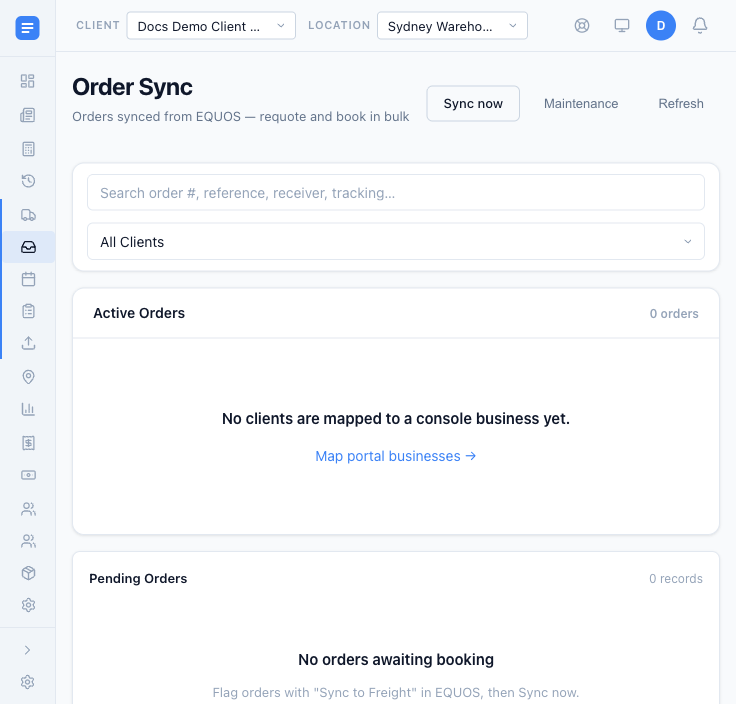 Order Sync before any clients are mapped — "Sync now" sits ready in the header, above the Active and Pending Orders lists.
- Press "Sync now" to ingest orders that warehouse packing has re-flagged after measured packages change. They arrive as pending drafts, ready to quote. New bookings should start from Active Orders with "Create consignment" or "Create & Book" — Equos Order Manager no longer has a "Sync to Freight" action.
- On any order, press "Create consignment" to start a booking prefilled from the order's addresses and packages, or select several and use "Create & Book" to book them together.
- If an order was already shipped, use "Link consignment" or "Link external" to attach the existing consignment to it, or "Open in EQUOS" to jump back to the order. This ensures the order and its consignment stay tied together, whichever way it was booked.
Pending Orders
Below "Active Orders", the "Pending Orders" card holds the drafts synced from EQUOS that are waiting to be quoted and booked.
- Select the drafts you want and press "Requote" to fetch fresh live carrier rates for them. A per-row quote dropdown lets you pick the rate for each, and "Apply carrier to all" sets one carrier across the lot.
- A "Total drift" chip shows how much the fresh quote has moved from the price the order was carrying, so you can see at a glance what has changed.
- When the rates are right, select the rows and press "Book" to book them in one go. If any fail, the reason shows inline against that row so you can simply fix it and try again.
Maintenance
Sometimes a consignment and an EQUOS work order need joining up by hand. Reach the "Maintenance" page from the overflow action on the Order Sync header.
- It shows two panes — "Unlinked consignments" on the left, "Open work orders" on the right. Pick one from each and press "Link" to join them. If the two belong to different clients, the link is blocked with a hint.
- Press "Auto-match" to let EQUOS bulk-link consignments to work orders by best guess, scoped to whichever client you have filtered to. This helps clear a backlog of unlinked records without matching each one yourself.
Order Sync used to be called "Requests". The old /requests address still works and simply redirects here, so any bookmarks you kept keep working.