🧾 Reconciling Carrier Invoices
Reconciling is where you check a carrier's invoice line by line against the consignments you actually shipped, then record the real charges onto each one. This page will guide you through the reconcile wizard, reviewing the matches, recording the actuals, and handling disputes and archives.
You upload a carrier invoice, map its columns, and match its rows to your consignments. Once you have checked the amounts, "Approve & Record Actuals" writes the real charges onto each consignment and archives the invoice. Anything that looks wrong you flag as a dispute and follow through to a credit.
Why reconciling matters
If you settle freight weekly or on account, a single carrier invoice can cover dozens of consignments, and the amount charged is not always the amount you were quoted — fuel, surcharges, and admin fees move. Reconciling catches that. It records what each consignment truly cost, so the actuals flow into your weekly client billing rather than a stale quote. This ensures a wrong charge is spotted before it is passed on.
Open the "Reconcile" area from the sidebar. It has three tabs — "Reconcile" (the wizard), "Disputes", and "Archives".
The reconcile wizard
The wizard walks through three steps: upload the invoice, map its columns, then match and review. Any run you start is saved as you go, so you can leave it and resume later from the "In-progress" list at the top of the upload step.
Step 1 — Upload
- Drop your carrier invoice onto the "Drop a CSV file here" zone, or click to browse. The invoice must be a CSV export from the carrier.
- If you also have the carrier's PDF invoice, drop it onto the "Drop the carrier PDF invoice here" zone. This is optional and is simply archived alongside the CSV for your records.
- EQUOS fingerprints the file the moment it lands, so if you have already started — or already finished — reconciling that exact file, it tells you. This helps prevent the same invoice being reconciled twice.
- EQUOS then tries to recognise the carrier's layout and map the columns for you. A confident match takes you straight to the "Match & Review" step.
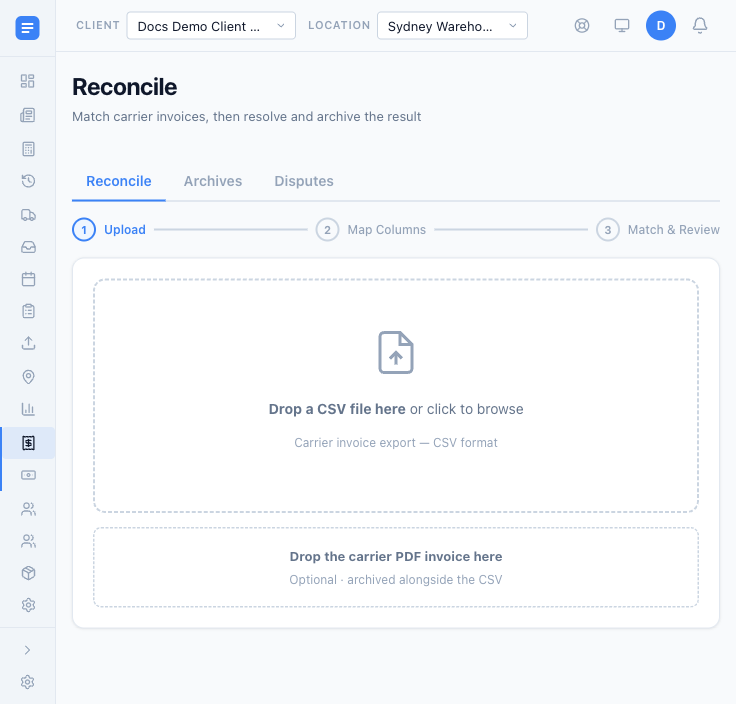 The reconcile wizard opens on the upload step, with a zone for the CSV and one for the carrier's PDF.
Step 2 — Map Columns
If the columns are not mapped automatically, you match them yourself.
- Point the three required fields — "Tracking Number", "Carrier", and "Invoice Amount" — at the right columns in your file.
- Map any optional fields that help the match, such as "Consignment Number", "Service Type", "Invoice Date", and the "Despatch / Pickup Date".
- Use the charge breakdown mapper to split the invoice's charge columns into their kinds — base freight, fuel surcharge, GST, and so on — so the recorded cost is itemised rather than a single lump.
- If this is a carrier you reconcile every month, save the mapping as a template. Next time, the same layout maps itself.
Step 3 — Match & Review
EQUOS matches the invoice's tracking numbers against your consignments and shows the result across six cards that double as filters: "Matched", "Unmatched", "Discrepancies", "Admin fees", "Disputed", and "Total Invoiced".
- A matched row whose invoiced amount is within the "Tolerance ±$" of the quoted amount reads as matched; anything outside it is flagged as a discrepancy. Adjust the tolerance to suit how much movement you treat as normal.
- Expand any row to see its charge breakdown, assign it to a client, switch it between a consignment charge and an admin fee, or flag it for dispute.
- For "Unmatched" rows — charges with no consignment in EQUOS — select them, use "Assign selected" to give them a client and location, then "Create consignments" to bring them in as records you can bill. Assigning a client alone does not bill them.
Review this step before you go further. The invoiced amounts and the despatch date are read straight from your mapped columns, so a quick look at the totals here is your safety net against an unusual export.
Approving and recording the actuals
When the matches look right, press "Approve & Record Actuals". EQUOS records each matched and discrepancy row's charges onto its consignment, groups admin fees against their carrier, and files the invoice into the archive. If at least one consignment was reconciled, the summary shows an "Open Client Billing" link so you can carry those actuals straight into a weekly billing run. A flagged dispute still records its charge now — the cost lands, and a later credit nets it off — so approving never leaves a disputed charge unrecorded.
Approving is final. It records the actual charges onto your consignments and archives the invoice file, and a run cannot be approved twice.
- Never reconcile the same invoice file twice. Re-recording the same charges double-counts your costs. EQUOS warns you on a duplicate file — heed the warning.
- If some charges fail to push, retry before approving anyway. When a push fails, EQUOS shows a red banner and offers to "Approve anyway". Use "Retry failed pushes" first — approving with failures leaves those consignments with no recorded actual cost.
Disputes
Every charge you flag is tracked on the "Disputes" tab until the carrier responds, with an open count on the tab so nothing is forgotten. Filter by "Open", "Credited", "Rejected", "Withdrawn", or "All", and by carrier. Open the "Resolve" action on a dispute to record the outcome:
- Credited — the carrier issued a credit. Enter the credit amount, and EQUOS posts a credit line that nets off the original charge.
- Rejected — the carrier refused and the charge stands.
- Withdrawn — you accepted the charge after all.
A resolved dispute can be reopened if the carrier comes back to you, and each one links back to its source invoice in the archive.
Archives
Every approved reconciliation is kept on the "Archives" tab — the source CSV, the PDF if you added one, and the generated report. Filter by carrier, date, or a search of the invoice number and notes. Each row shows its matched, discrepancy, unmatched, and admin counts alongside its total invoiced, and the detail view lets you download all three files. You can delete an archive's stored files if you no longer need them; the charge rows it recorded onto your consignments are kept regardless. This ensures your recorded costs survive even when the paperwork is cleared out.