🏭 Production
Production in EQUOS is about tracking work done by people — what went in, who did it, and what came out — so you can follow any finished product back to exactly what made it. This page will guide you through saving a recipe, running a production task, and the traceability that builds itself along the way.
The production dashboard
The Manufacture dashboard — labelled "Create, assemble, and track production" — is the home for every task your team runs. Tiles across the top count your "Total Tasks", how many are "Active", and how many are "Create" versus "Assembly" jobs, so you can see the shape of your workload at a glance.
- Press "New Create Task" to build a product from raw materials.
- Press "New Assembly" to put a product together from a saved recipe.
- Press "Recipes" to manage your reusable templates, or "Statistics" to see production totals.
- Press "View All Tasks", or use the search box, to find an existing task.
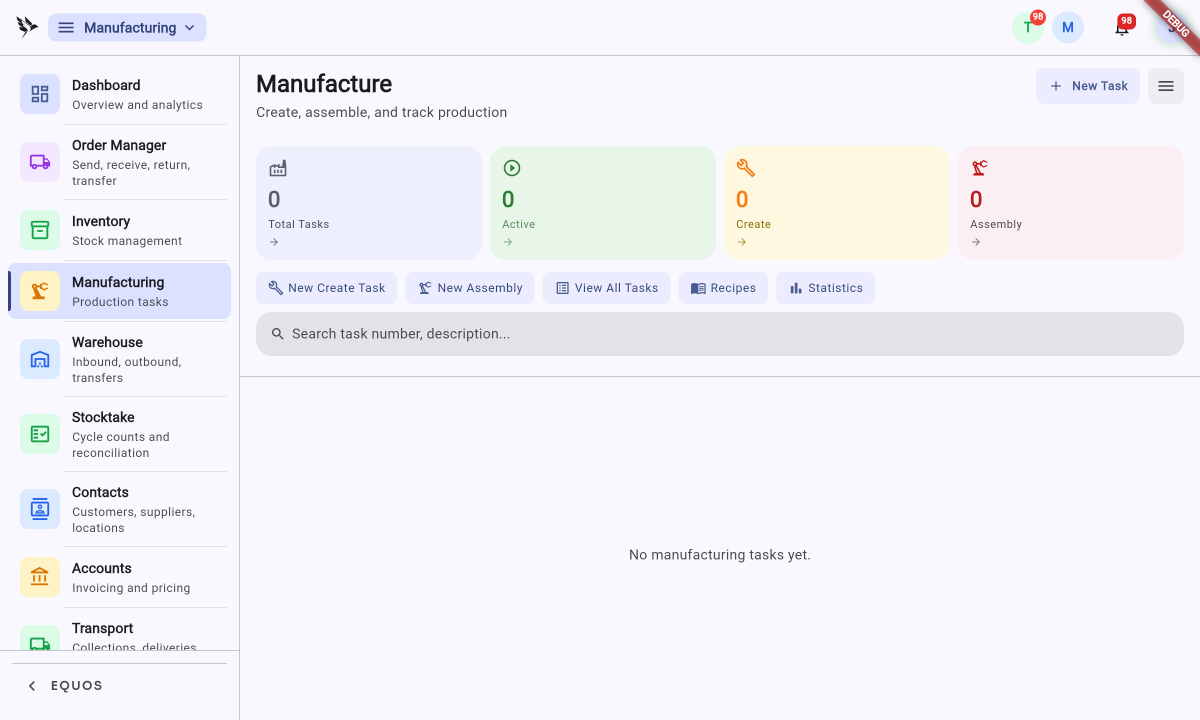
Production runs in a few clear stages: save a recipe once, start a task from the dashboard, clock in and do the work, then move the task through "Finalize", "Commit", and "Fulfill" to bring the finished goods into stock. Traceability builds itself along the way, and each stage is described below.
Creating a recipe
A recipe is your bill of materials: the inputs, the expected output, and the steps your team follows. You save it once and reuse it for every run, so common production doesn't start from scratch each time.
- From the dashboard, press "Recipes" to open the "Assembly Recipes" screen.
- Press "New Recipe".
- List the raw materials the batch consumes, and how much of each.
- Set the expected output — what the run produces, and how much.
- Write out the steps your team works through.
Save the recipe and it's ready to go. Next time, your team simply selects it rather than rebuilding the whole thing, which means less setup and fewer errors.
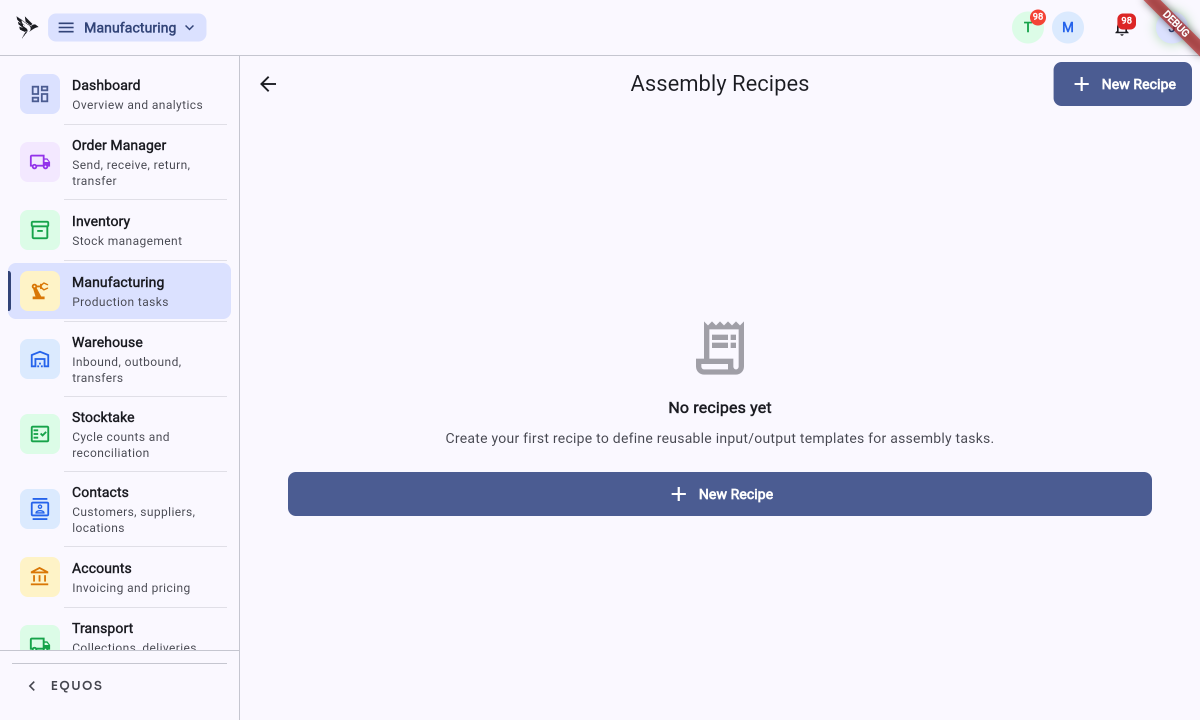 The Assembly Recipes screen, where your reusable input and output templates live.
Starting and tracking a task
When it's time to make something, your team starts a task from the dashboard.
- Press "New Create Task" to build from raw materials, or "New Assembly" to work from a saved recipe.
- Fill in the task — a description, the location, a due date, and the input and output items.
- Confirm to create the task.
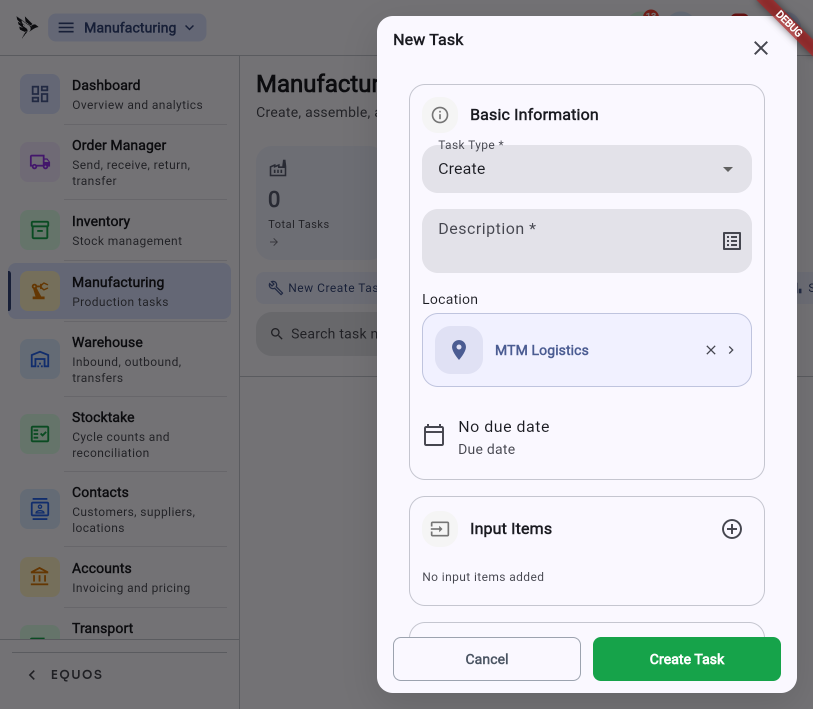 The "New Task" dialog, where you set the task type, a description, the location, and the input items.
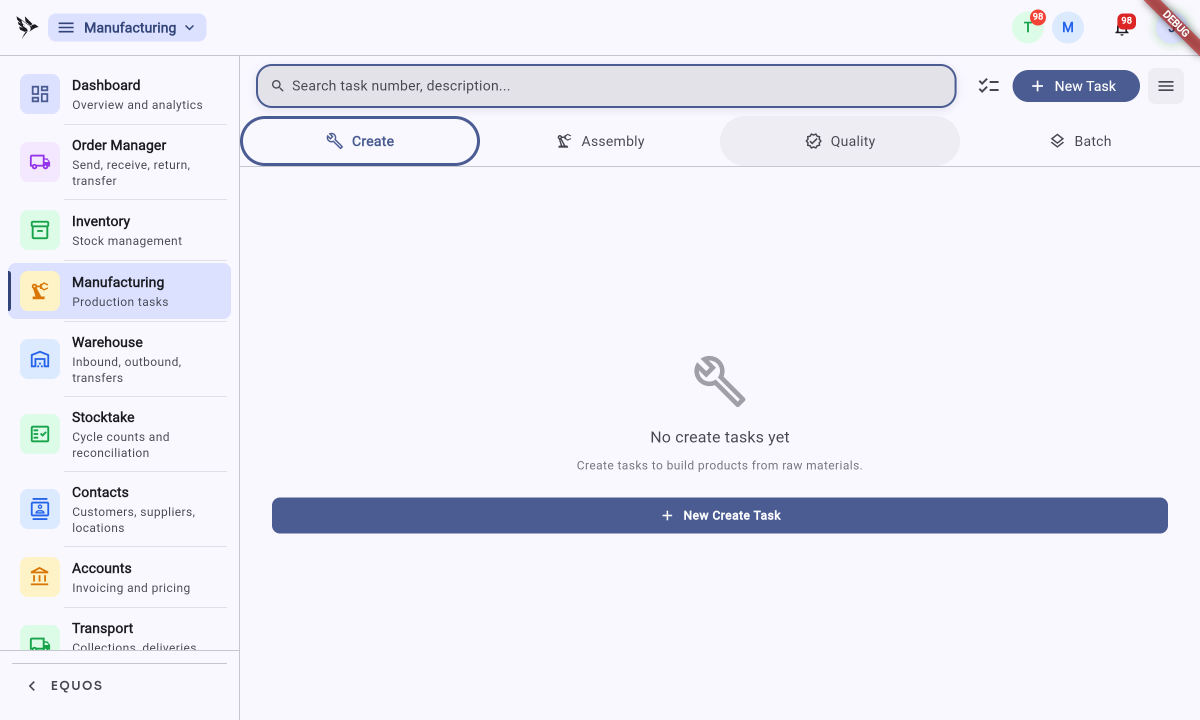
Your tasks are organised under the "Create", "Assembly", "Quality", and "Batch" tabs, so you can find any job by its type.
As the batch progresses, the raw materials it uses are consumed from your stock, and the finished goods arrive into stock when the task completes. The inputs and outputs stay linked, so what came out is always tied to what went in. This ensures your stock levels move on their own as work happens, without anyone updating numbers by hand.
Each task moves through a short, fixed sequence as it wraps up: you "Finalize" it to lock the task and confirm every item is correct, "Commit" the inventory changes, then "Fulfill" it to mark the job complete. EQUOS surfaces the next step at each point, so nobody has to remember the order.
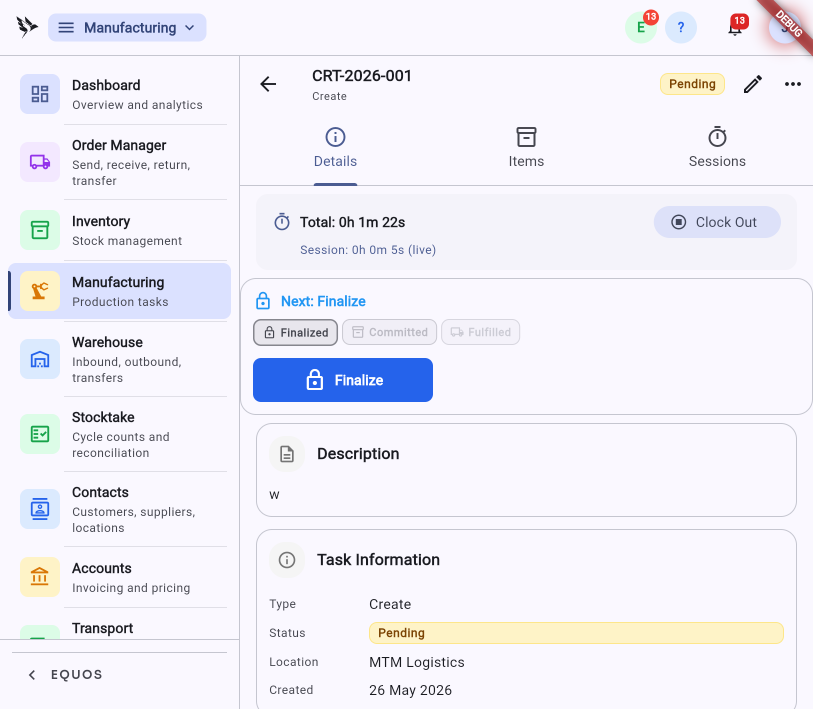 A task open on its "Details" tab, with the "Finalize → Commit → Fulfill" sequence and the next step called out at the top.
Capturing time as work happens
You don't fill in timesheets at the end of the week. Your team clocks into a task, does the work, and clocks out. The record of who worked on what, and for how long, builds itself from the work rather than from memory.
This helps you see where time actually goes on a task, and it means the labour behind a batch is part of its record without anyone reconstructing it later.
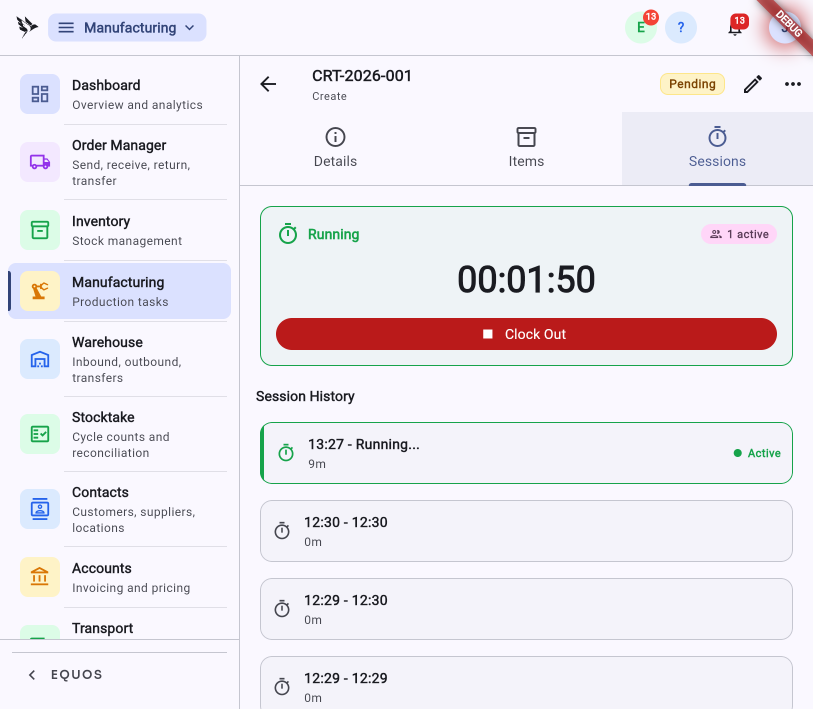 The "Sessions" tab, with the live timer running and the session history that builds itself as your team clocks in and out.
Batch traceability
When a batch is done, its full history is already written — every input, every person, every minute. If a customer, supplier, or auditor ever asks where a finished product came from, you can follow the thread all the way back: which batch, which inputs, which run. The answer is already sitting in the record, not waiting to be assembled.
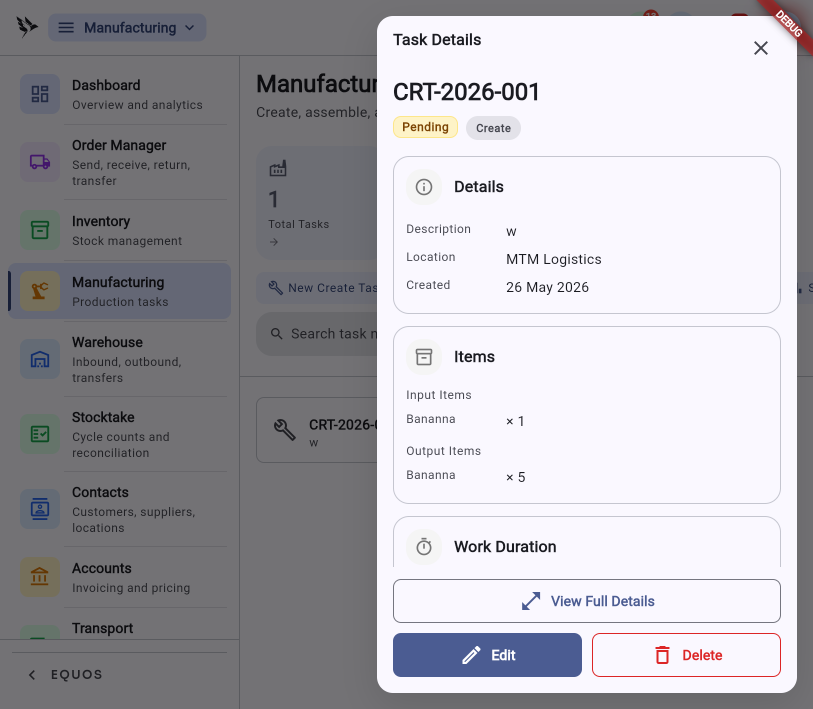 A task's quick view, with its linked input and output items and the recorded work duration.
Not all production starts from raw ingredients. See Breaking Down Bulk for splitting a bulk delivery into smaller units with the parent batch linked to each one.
Module settings
The "Manufacturing Settings" screen controls how tasks behave once they're finalised, so every job follows the same pattern. Under "Workflow Order" you choose whether inventory is committed before or after a task is fulfilled — the "Commit before Fulfill" toggle sets the order, and the numbered preview (Finalize → Commit → Fulfill) shows exactly how it will play out. "Show only next action" keeps each task's buttons minimal by surfacing just the next available step. Set these once to match how your team works.
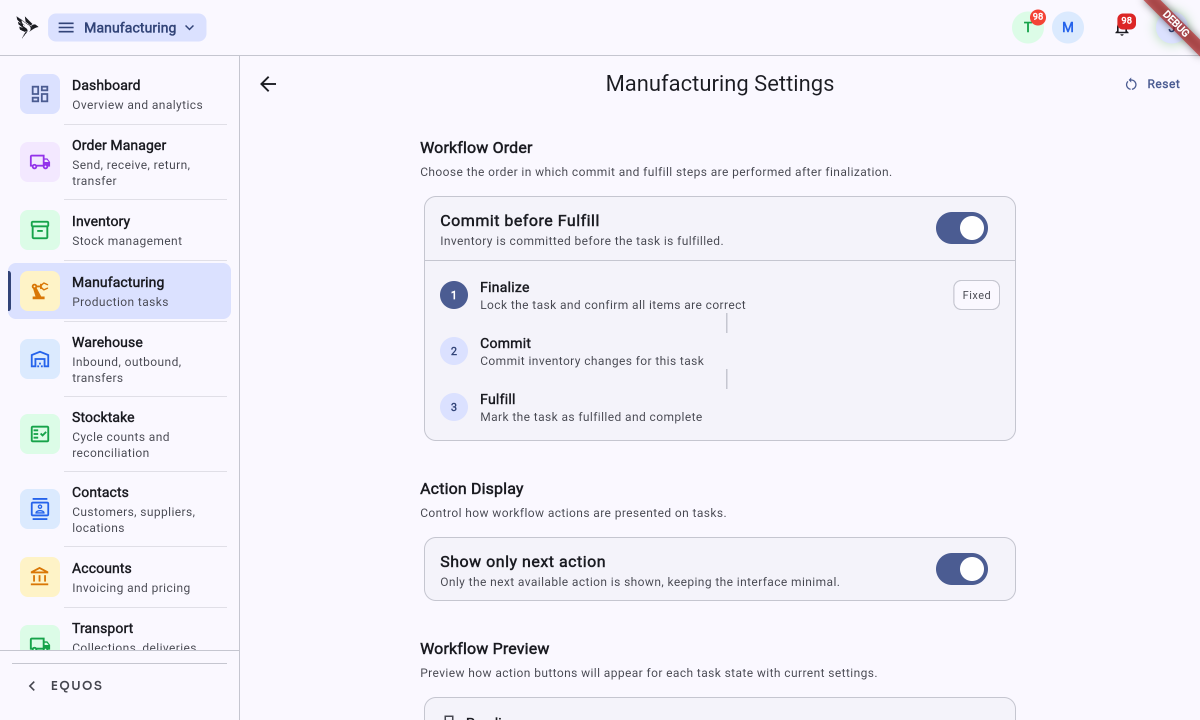
Keeping an eye on production
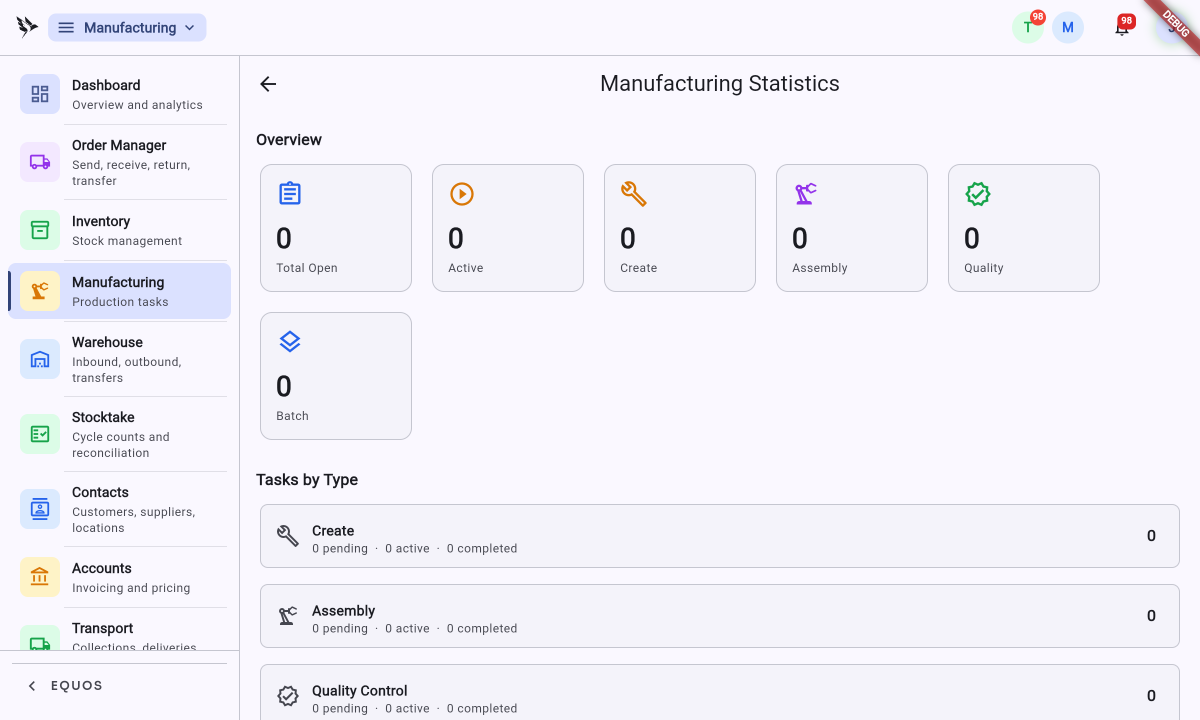
The "Manufacturing Statistics" screen gives you the numbers behind your work. An "Overview" row counts your open, active, create, assembly, quality, and batch tasks, and a "Tasks by Type" breakdown shows how many of each are pending, active, and completed. This helps you see where work is banking up without opening every task.
What it doesn't do
Production tracking is built for work done by hands, not machines. It won't monitor equipment or production lines in real time — if you need to talk to a PLC, this isn't the tool. It also won't plan your production schedule for you: it shows what's happening and what's been done, and the planning stays yours to do with better information behind it.