📞 Contacts
Contacts is one directory for everyone you work with — customers, suppliers, and partners — with the full history of each relationship kept in one place. This page will guide you through adding contacts, importing the ones you already have, reading a contact's history, and keeping the directory clean.
Instead of scattering people across spreadsheets, email threads, and someone's phone, you keep them in a single directory that stays current as your business operates.
The contacts dashboard
When you open Contacts, the dashboard opens on a summary of your directory so you can see its shape at a glance.
- Tiles across the top count your "Total Contacts" and break them down into "Customers", "Suppliers", and "Locations".
- The "New Contact", "Import", and "Export Directory" buttons sit together, with a search bar beneath them.
- The "Contact Quality" widget scores your directory and points out records that are missing an email, missing a phone number, or have an incomplete address.
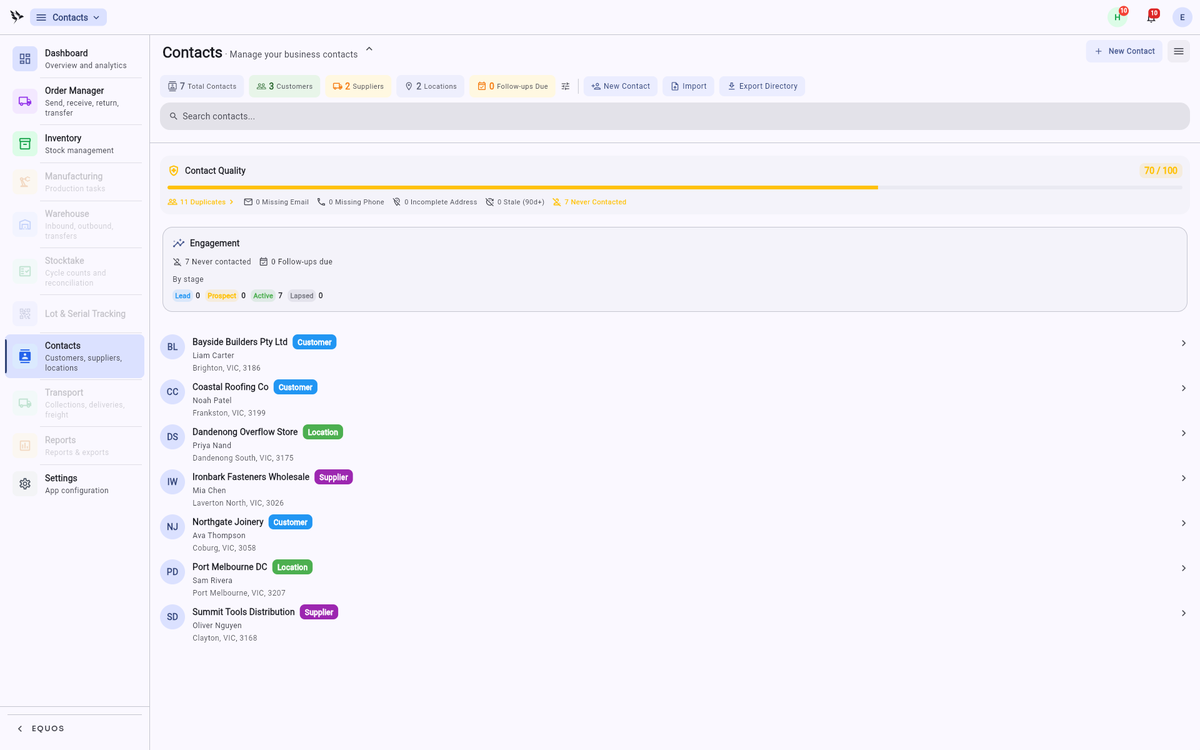 The contacts dashboard, with the Contact Quality widget.
This ensures the gaps in your directory are visible before they cause a problem.
Adding a contact
When you take on a new customer or supplier, you can easily add them so they are ready to use across your orders.
- Press "New Contact".
- Choose the "Contact Type" — "Customer", "Supplier", "Location", or "Agent".
- Fill in the "Identity" details: the "Business Name" is required, and you can add a "Contact Person".
- Add the "Contact Information" — email, phone, mobile, and website — and the address.
- Press "Save".
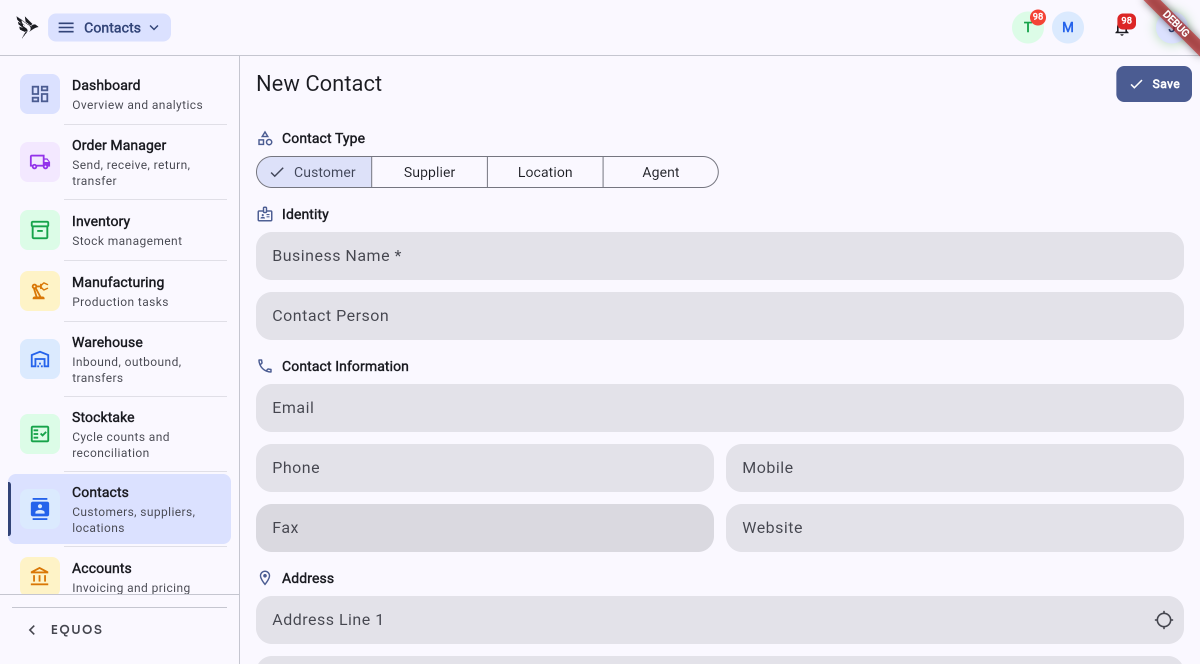 The New Contact form, with the contact type toggle.
This ensures the contact is ready to attach to an order the moment you need it.
Browsing the directory
Open the full list to work through your contacts and find anyone quickly.
- The "All", "Customers", "Suppliers", "Locations", and "Agents" tabs narrow the directory to the kind of contact you want.
- The "Active", "Inactive", and "Archived" filter keeps dormant records out of your way until you need them.
- Type into the search bar to jump straight to a contact, then open them to see the full record.
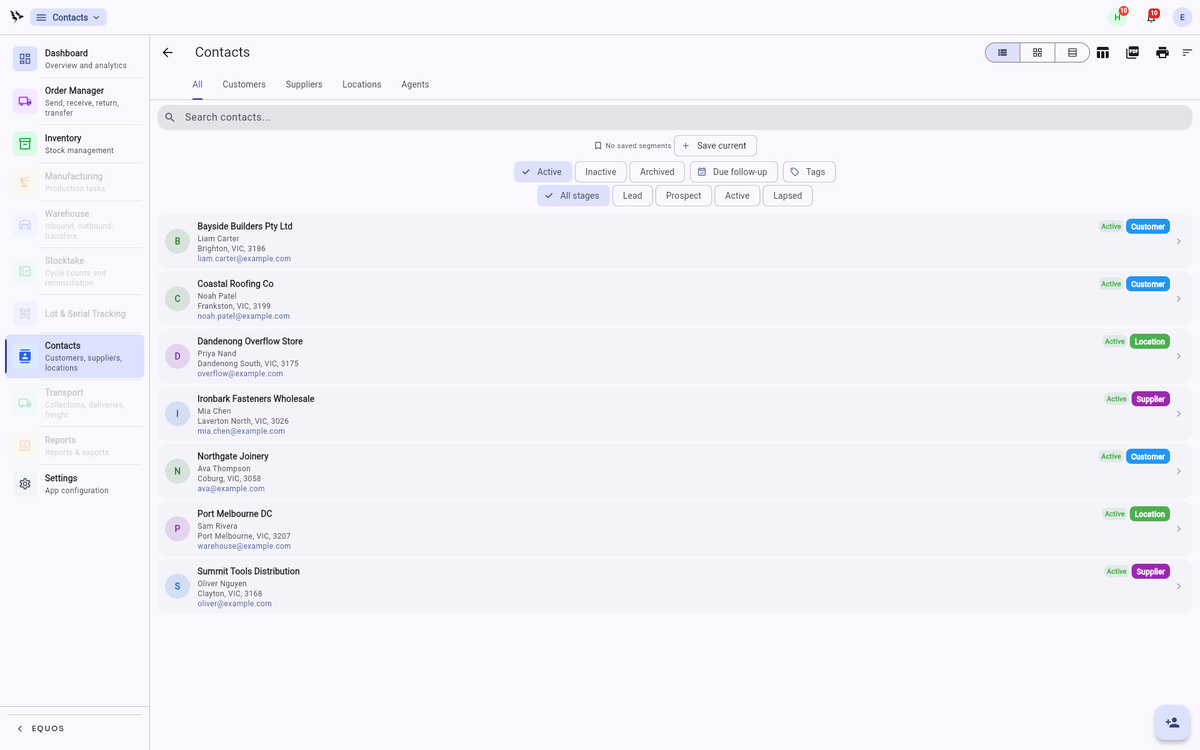 The contact list, with type tabs and the active filter.
This allows you to find the right person without scrolling a long directory.
Reading a contact's history
The point of a contact record is context, so when you open one, the full picture is waiting for you.
- Open the contact to see who they are alongside everything your business has done with them.
- Their history builds automatically — every order placed and every consignment dispatched accumulates as it happens. You never log these by hand.
- Review recent activity and shipping history in the one view.
This allows you to walk into every phone call, meeting, or email already knowing where things stand.
Importing contacts
If your contacts already live somewhere else, you don't have to re-enter them one by one.
- Prepare your list as a CSV with your names, addresses, and contact details.
- Press "Import" and choose your file.
- Map your columns, then let EQUOS validate the rows on the way in — it flags anything that needs a second look before the records land.
This helps prevent messy or incomplete records landing in your directory during the move.
Keeping the directory clean
A directory is only useful if you can trust it, so EQUOS helps you keep it honest.
- The "Contact Quality" widget on the dashboard surfaces potential duplicates before they cause problems — before you send two invoices to the same company under slightly different names.
- Open the duplicates it points out and merge them so one clean record carries the full history.
- Records that are missing details or have gone quiet stand out too, so you can tell the complete relationships from the ones that need tidying.
This ensures the list stays useful, because it stays clean.
What Contacts doesn't do
Contacts helps you remember the people you work with — it is not built to sell to them.
- It is not a CRM. There are no deal pipelines, no lead scoring, and no sales funnels.
- It won't send emails on your behalf. There are no drip sequences or marketing campaigns.
- It doesn't log phone calls or meetings. It tracks business transactions — orders and shipments — and leaves the conversations to you.