🧮 Inventory
Inventory is the single, current picture of what you have and where it is. This page will guide you through reading your stock on hand, creating and finding items, setting warning levels, bringing your catalogue in, and recording adjustments so the numbers stay honest.
Stock lives in one view across every location — every variant, every unit of measure — and it updates in real time as things move. There is no switching systems, no asking around, and no reconciling numbers from three different sources.
The inventory dashboard
When you open Inventory, the dashboard opens on a summary of your whole catalogue so you can see the state of your stock at a glance.
- Three tiles across the top count your "Total Items", your "Low Stock" lines, and the items that are "Out of Stock".
- The "New Item" and "Scan Barcode" buttons let you start adding stock straight away.
- The search bar takes an SKU, a product name, or a barcode, and your item cards sit below it with their stock status.
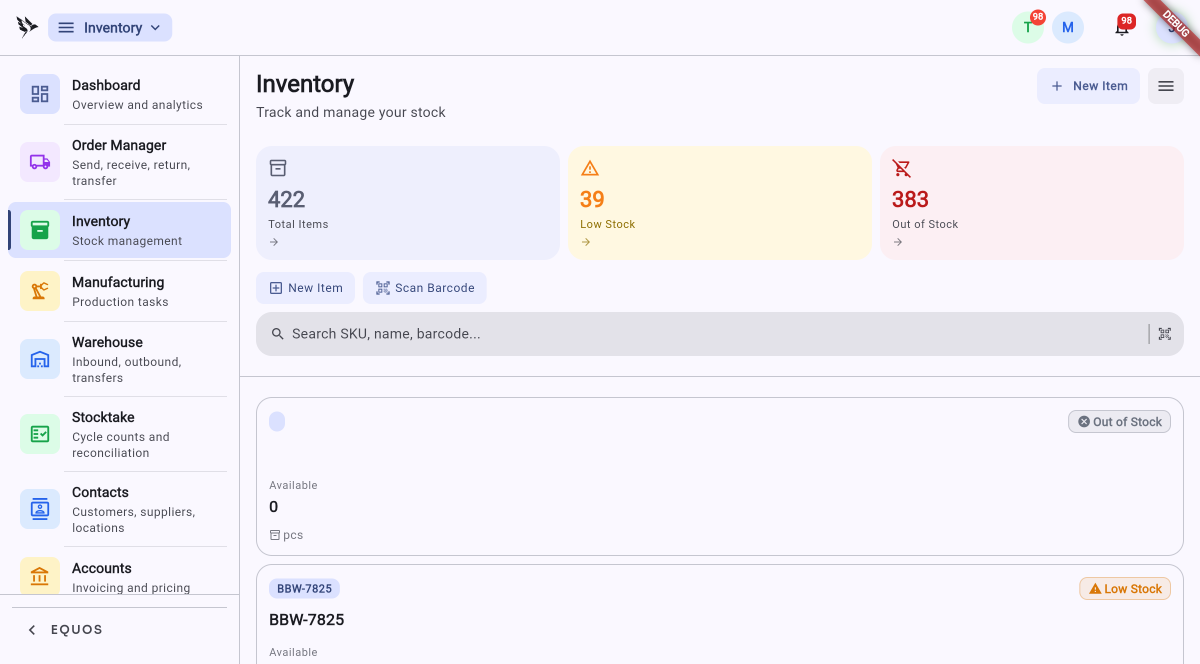 The inventory dashboard, counting total, low, and out-of-stock items.
This ensures the numbers you act on first are the ones that need attention.
Browsing and searching the catalogue
Open the full list to work through your catalogue and find any item quickly.
- The "All", "Low Stock", and "Out of Stock" tabs narrow the list to the items you care about right now.
- Toggle between "Products" and "SKUs", or filter by category, to cut a long catalogue down.
- Type into the search bar to jump straight to an item, then open it to see its full stock summary.
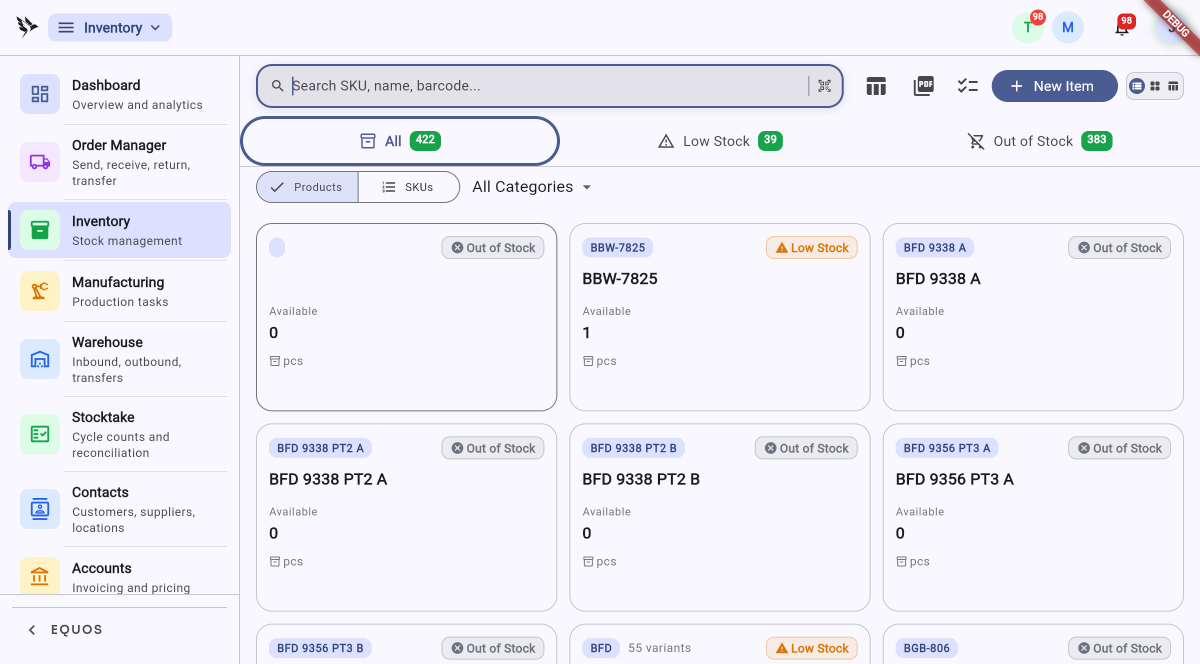 The catalogue list, with status tabs and a category filter.
As a sale, transfer, or adjustment happens, the numbers on these cards move straight away. This ensures your team sees what is actually on the shelf, not what was there this morning.
Creating an item
When a new line comes in, you can easily add it to the catalogue by hand.
- Press "New Item" and choose the item type — a simple item, a composite made of other items, or one with variants.
- Fill in the "Basic Information": the "SKU" and "Product Name" are required, and you can add a "Barcode", "Category", "Brand", "Supplier", and a description.
- Press "Create" to save the item into your catalogue.
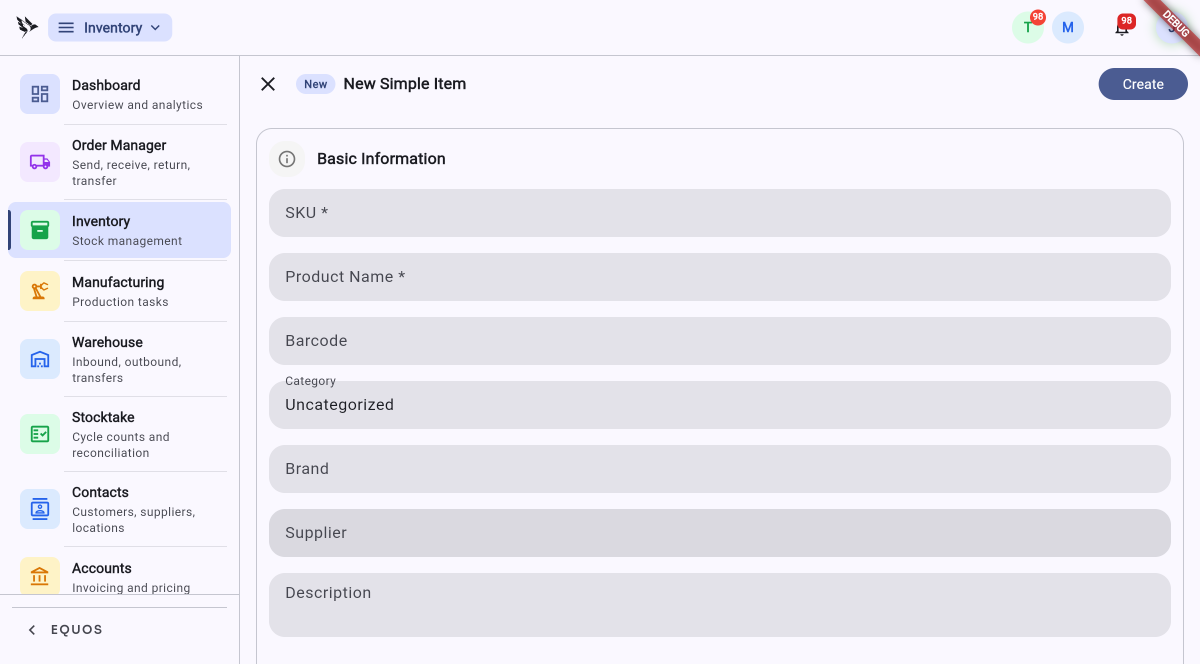 The New Simple Item form.
This ensures every line carries the detail your team needs to find and pick it later.
Reading an item's detail
Open any item to see everything EQUOS knows about it, gathered on the one screen.
- The "Details", "Warehouse", and "History" tabs move you between the item's information, where it is held, and every change that has been recorded against it.
- The "Stock Summary" shows the quantity "Available" and the "Total" on hand, with a status badge telling you whether the item is in stock.
- Below that sit the three levels that drive your alerts — the "Warning Level", the "Critical Level", and the "Reorder Point".
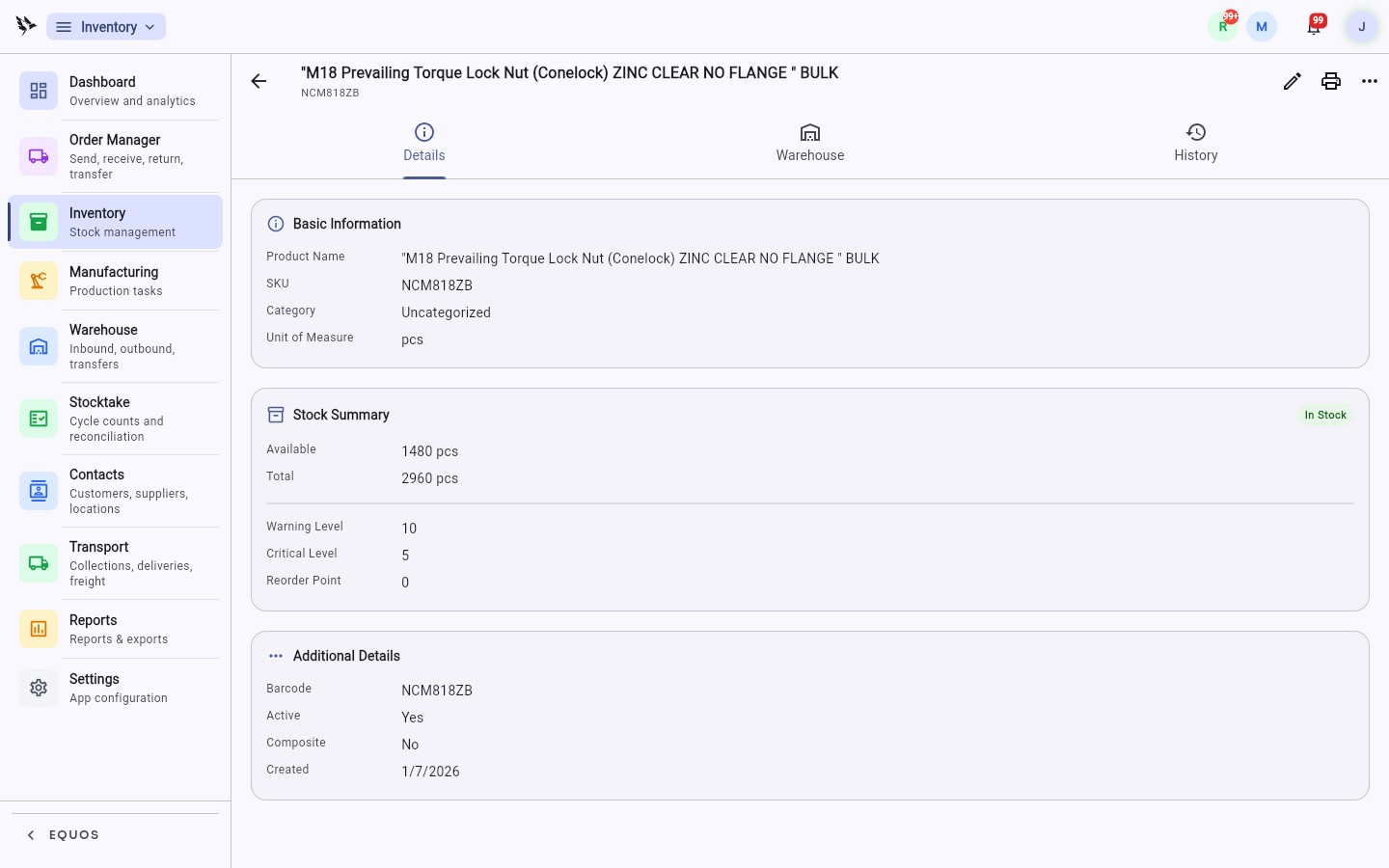 An item's detail, with its stock summary and warning levels.
This allows you to answer a question about any item without leaving the screen.
Setting warning levels
You want to know stock is running low before a customer asks for something you don't have, not after.
- Open an item and set its "Warning Level" — the point at which you want to be flagged that stock is getting low.
- Set the "Critical Level" below it for the point where the situation is urgent, and a "Reorder Point" to mark when it is time to buy more.
- Save your changes. When stock falls to these levels, EQUOS surfaces the item under the "Low Stock" and "Out of Stock" tabs so you can act in time.
This allows you to reorder on your own schedule rather than scrambling once something has already run out.
Importing your catalogue
You don't need to start from scratch. If your items already live in a spreadsheet, you can simply bring them in.
- Prepare your list as a CSV with columns for your SKUs, product names, and other item fields.
- Press "Import" and, on the "File" step, choose your CSV.
- Work through the "Map", "Preview", and "Import" steps — EQUOS validates the rows as they come in, so problems surface before they land in your catalogue.
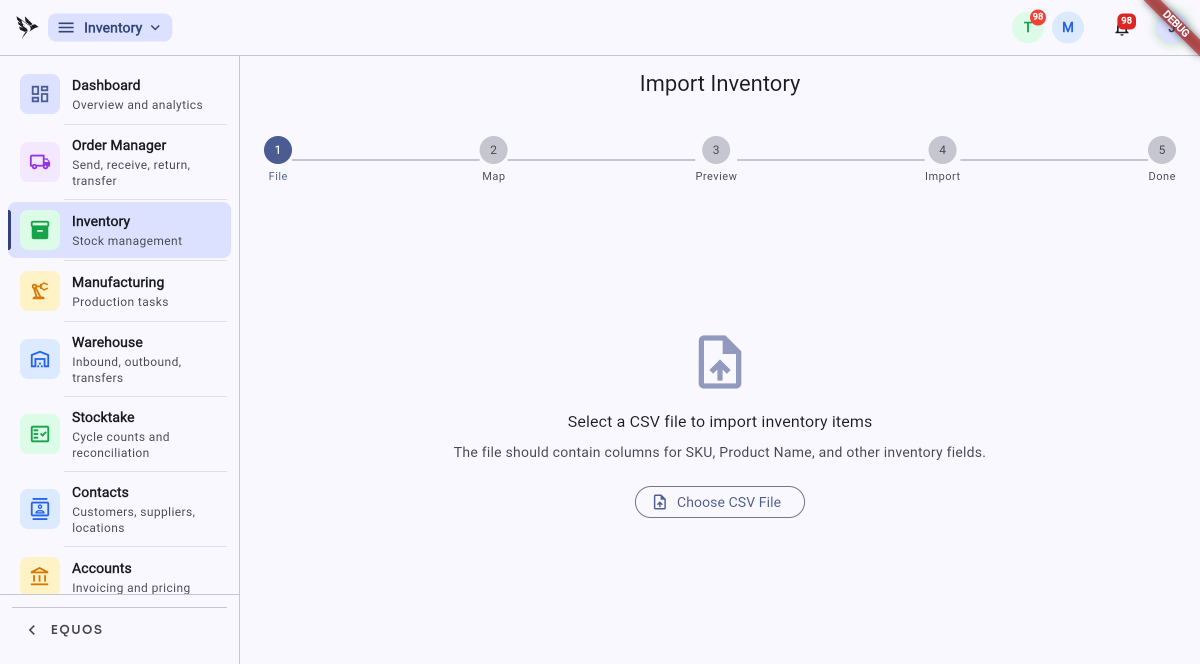 Step one of the Import Inventory wizard.
This helps prevent bad data getting into your stock records on day one.
Maintaining and recalculating stock
Two more wizards keep an established catalogue tidy without re-importing everything.
- Use "Maintenance Import" to update existing items in place from a maintenance-export CSV. Nothing new is created, and empty cells leave the current value unchanged, so you only touch the fields you meant to.
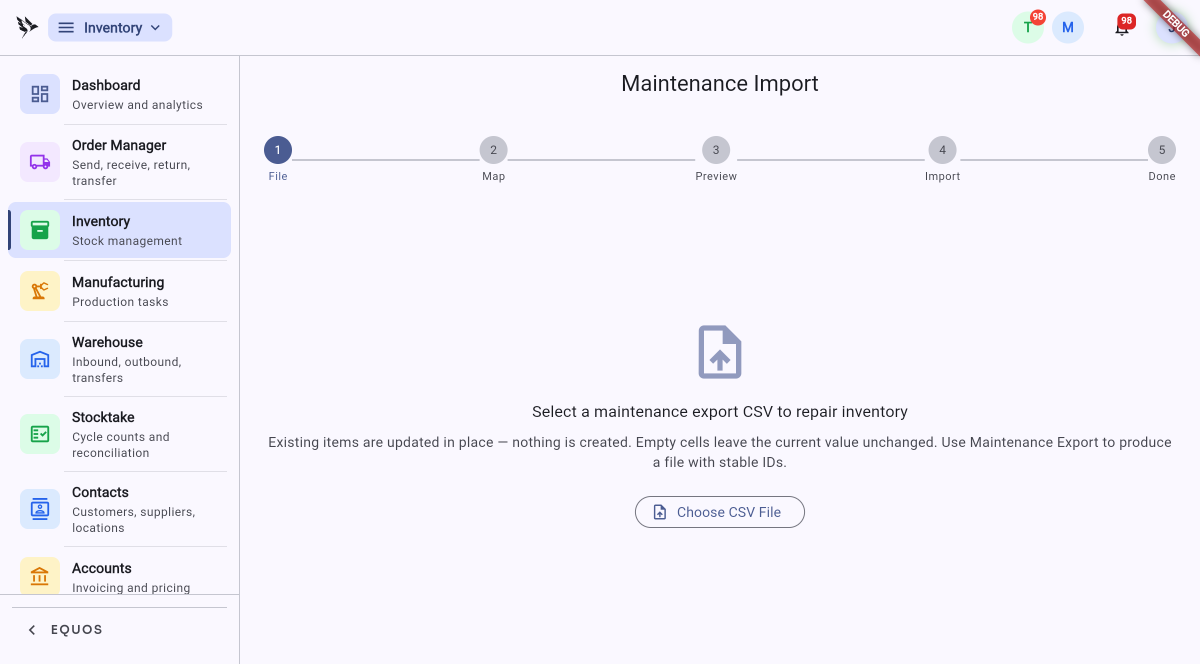 The Maintenance Import wizard, updating items in place.
- Use "Stock Recalculation" to rebuild your stock figures from a stocktake CSV. Each row needs an SKU and the physically counted quantity, and you can "Export Snapshot" first to keep a record of the figures before the rebuild.
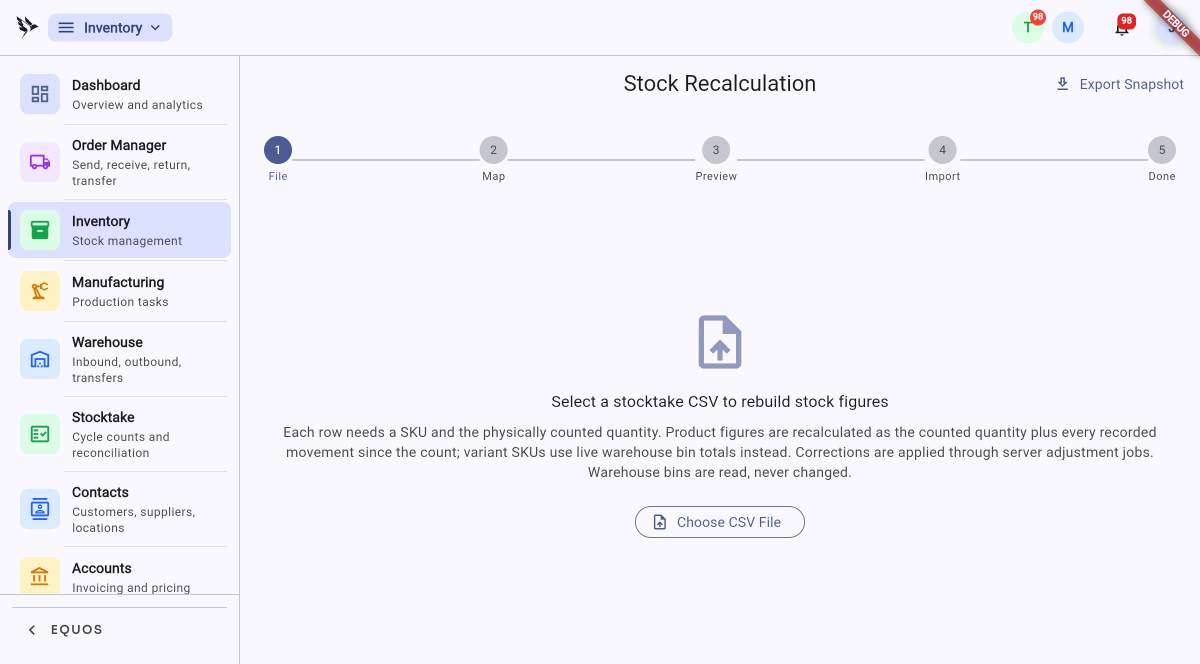 The Stock Recalculation wizard, rebuilding figures from a count.
This ensures your recorded stock catches up with what your team actually counted on the floor.
Adding items quickly
For fast entry on the floor, you can easily add items by scanning them.
- Use a device with a camera or scanner and press "Scan Barcode".
- Confirm the details and save the item into your catalogue.
This ensures new lines get captured accurately without typing out long codes by hand.
Every change to your stock — an adjustment, a transfer between locations, or a write-off — leaves a trace: who moved it, when, and why. The audit trail is always there, quietly complete, waiting for you to look.
Adjusting stock
When the count is wrong, stock needs to move, or goods are damaged, you record it here rather than editing a number in silence.
- Open the item and choose to adjust, transfer, or write off stock.
- Enter the quantity and the location involved.
- Add the reason for the change, then save.
- For a transfer, pick the location the stock is moving to; the count leaves one place and lands in the other.
Corrections are applied through a server adjustment job rather than the instant you press save, so a change may take a moment to show up on the item. This is normal — give it a beat and refresh if the new figure hasn't appeared yet.
Writing off stock removes it from your on-hand count and cannot be undone. Check the quantity, the location, and the reason before you save.
This ensures that if the numbers ever look wrong, you can trace exactly what happened and who did it.
What Inventory doesn't do
Inventory gives you the foundation to plan well — it does not do the planning for you.
- It won't reorder stock automatically. It tells you when stock is low against the thresholds you set; the ordering decision stays with you.
- It won't forecast what you'll need next month. It shows you what you have, clearly, so you can decide.
- It is built for teams who work hands-on, not massive automated warehouses.