📤 Outbound
Outbound is the other half of the floor — where an order becomes a picked, packed consignment ready to leave. This page will guide you through the outbound queue, picking an order along a directed path, packing it up, and getting it ready for dispatch.
The outbound queue
Work doesn't need to be created by hand — outbound tasks are drawn straight from the orders coming through your business. From the warehouse dashboard, simply press "Outbound Tasks" to open the queue. Each task shows its number, the customer it is for, the location it ships from, and the order it is linked to, so you always know what you are picking and who it is for.
- Use the tabs across the top to switch between "Outbound", "Stock", and "Inbound" work.
- Sort the queue by "Date Created" to work oldest-first, or search by task number or reference to jump to a particular job.
- Press "Open" on a task to start picking it.
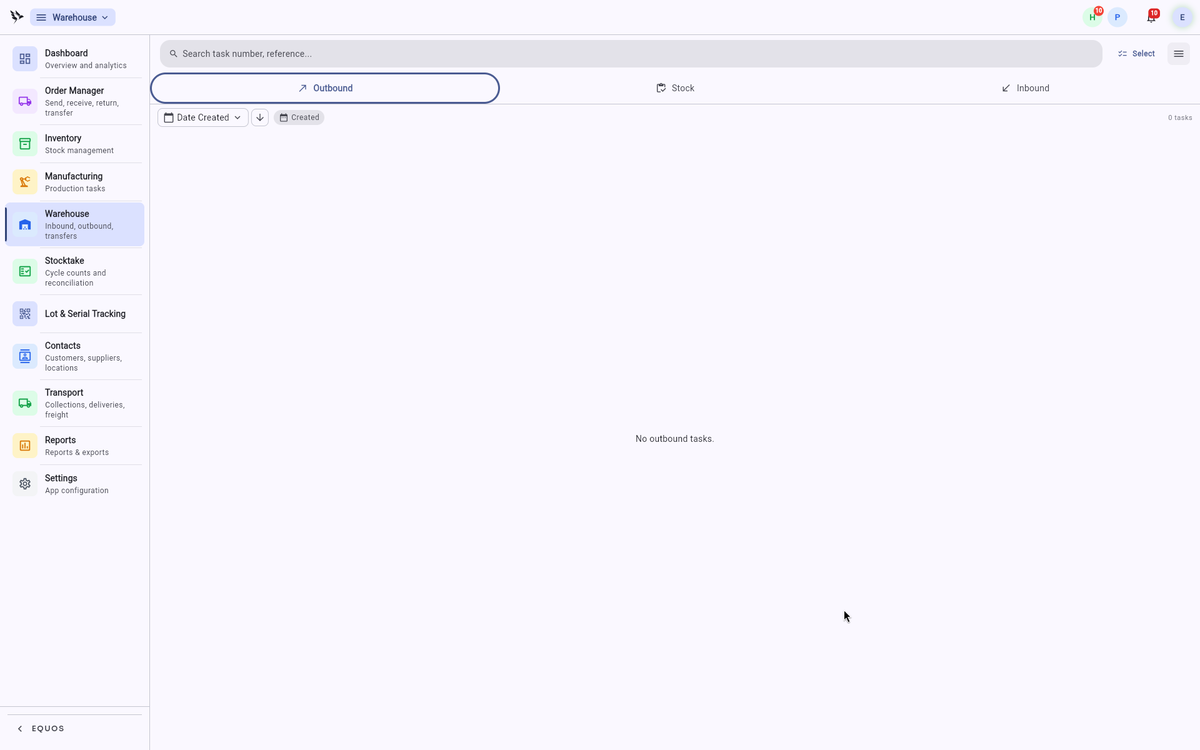 The outbound queue: each task card shows the customer, the ship-from location, and the linked work order.
Picking the order
Opening an outbound task gives your team the pick list for that order. Rather than leaving anyone to remember where stock lives, the list is sorted into a path through your addressed bins, so your team walks the space once instead of doubling back.
- Work down the list bin by bin, picking each item as you reach it.
- Scan each item as you pick it rather than confirming from memory — this ensures the pick is accurate and the stock count moves down as goods leave the bin.
- The task tracks your progress as you go, so it is always clear what is picked and what is still outstanding.
Because every pick is scanned against a real bin, the stock figures your team sees on the floor stay in step with the picture you see from your desk.
Packing the order
When the pick is complete, the task moves on to packing. The items picked for the order are grouped together for packing, so the right goods end up in the right consignment.
- Pack the items into the satchel, carton, or pallet the order calls for.
- Labels print where they are needed — a satchel or carton label at the packing bench — so the consignment is ready to travel without anyone breaking off to sort out paperwork.
This ensures each order leaves as one tidy, correctly labelled consignment rather than a loose pile of picked items.
Getting ready for dispatch
Once an order is packed, it is ready for dispatch and the order carries on into shipping. Completed picks and packs feed back into the rest of EQUOS automatically, so the moment a consignment is packed, the order's status moves with it. From your desk you can easily see what is being picked, what is packed, and what has gone — the same view your team is working from on the floor.
Booking a carrier and generating a consignment label happen in the freight tools, not the warehouse module. See the Freight guides for booking and manifesting a consignment.